Using Participants
Example of participants

In diagrams, participants are often represented in pools.
 For more details on the use of pools, see Using Pools: Improving Graphical Presentation.
Creating a Participant (Org-Unit )
To create a participant (Org-Unit) in an process diagram:
1. In the object inserting bar, select participant (org-unit)  .
.
. 2. Click within the process frame.
The add participant dialog box appears.
3. Connect an existing participant or create one.
The participant is positioned in the diagram.
 To hide the name of the participant, open its pop-up menu and select Shapes and Details. In the tree on the left, click the "Short Name" folder, then in the Content tab, clear the Short Name check box.
Adding an assignment to a participant
You can assign an existing object to a participant.
To do so:
1. Click in the participant frame.
An icon appears to Add an assignment.
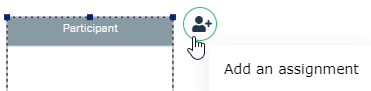
2. Click the Add an assignment icon.
3. Select the name of the objects you wish to assign to the participant.
You can also use the Assignment section of the Characteristic property page of to connect new or existing objects to the participantConditioning participant assignment
Org-units, either new or already created, can be assigned to participants of a process.
Example: The "Analyze Purchase Request" operation in the "Process Purchase Request" process, handled by the Purchasing Manager, is assigned to the Purchasing Assistant when the manager is absent. To represent this, we assign org-units "Purchasing Manager" and "Purchasing Assistant" org-units to the same participant.
To condition participation of an org-unit:
1. Open the Characteristics property page of the Participant.
2. In the Assignment section, select the row of the org-unit you which to condition assignment.
3. Click in the cell which is at the intersection of the Conditioning column and the selected participant.
The text of the condition appears between brackets alongside the name of the org-unit in the participant title bar.