Creating a Process diagram in tabular mode
To create a process diagram in tabular mode:
1. From the Process list, click the Create Diagram  icon related to the relevant Process.
icon related to the relevant Process.2. Select Process Diagram in tabular mode.
The diagram creation window opens.
 You can also create a Process diagram from the homepage > Quick Access > Actions tab > Create a Process diagram in tabular mode.
 3. Complete the Process diagram by:
• adding one or several object types in the What? column
• identifying the participants in the Who? column
• defining the sequence flows with the Previous Item and Next Item columns
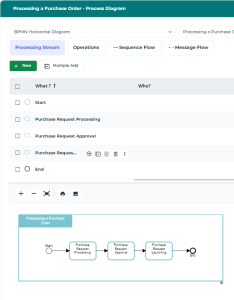
Objects added in the table (upper part) appear in the diagram preview (bottom part).
 For further details on tabular entry mode, see Diagrams in Tabular Entry Mode.You can easily switch to graphical mode with the
  icon.
icon.