Creating a Process diagram in graphical mode
To create a process diagram in graphical mode:
1. From the Process list, click the Create Diagram  icon related to the relevant Process.
icon related to the relevant Process.2. Select Process Diagram in graphical mode.
The diagram creation window opens.
 You can also create a Process diagram from the homepage > Quick Access > Actions tab > Create a Process diagram.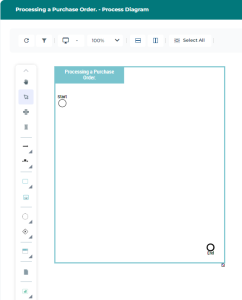
3. To complete the process diagram, add existing or new objects into the frame, using the following icons:
• Sequence Flow 
• Message Flow with Content 
• Operation 
• Processes 
 See Processes.
• Event 
• Gateway 
See Using Gateways.• Participant 
• Data Object 
See Using Shared Objects.• Application Used 
• Risks  and Control
and Control See Risks and Controls.You can easily reorganize your diagram in a vertical  or horizontal
  way. See Reorganizing elements within a Process diagram for further information.If you do not see certain objects, activate their display by using the Views and details
  icon. For further information related to adding objects in graphical mode, see Objects in a Diagram.