Creating an Execution Campaign
To create an execution campaign:
1. In the navigation bar, select Assessment > Campaigns > Execution Campaigns.
2. Click New.
 The "Continuous Control Execution" assessment template is selected by default. For further details, see Continuous Control Assessment Template.
You are now going to define the way of specifying your campaign scope.
3. In the field Define scope via a tree, select:
• Yes: a tree enables to define the scope in a very precise way, but it does not allow to take into account the controls added after campaign creation.
If you choose this option, see Defining scope via a tree.• No: a Root entity field is displayed.
The scope is recreated each time a session is launched. This means that if new controls have been added, they are taken into account at the next planned execution session.4. Modify the dates suggested if needed.
The campaign Begin Date marks the start of the execution campaign.5. Click Next.
The campaign summary appears.
6. Click OK.
The campaign appears in the list. It is started automatically:
• on the begin date specified on the campaign
• at the time indicated on the steering calendar
Defining scope via a tree
To define the campaign scope:
1. See Creating an Execution Campaign.
2. Display the wizard that enables to define the scope.
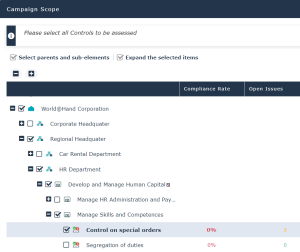
3. Select all the controls to be assessed from the tree.
Some columns help you choose the controls to be selected:
• Compliance rate

• Open Issues (number)
Displaying the Execution Campaign Summary
After selecting the campaign scope (via a root entity or a tree), the summary of the campaign is displayed. It contains the following:
General information (Overview)
Number of:
• errors:: errors prevent from launching the execution campaign:
• the respondent is not specified
• the steering calendar is not specified
• Warnings, for example:
• the total population or sample size is not specified
• the respondent e-mail is not specified
• assessed objects
• assessment contexts
• respondents
Contexts
Contexts appear in the form of a process and entity hierarchy

Respondents
Respondents execute controls.
For more details on control responsibilities, see Responsibilities concerning Controls.If no respondent has been specified, right-click the control and enter it in the Responsibilities section.Assessed objects
Assessed controls are classified by execution frequency, showing in columns:
• the respondent
• contexts: entities and organizational/business processes
• total population size
• sample size
• compliance rate
• number of open issues