More Key Indicator Characteristics
After having created your indicator, you can modify some of his characteristics and describe it in a more detailed manner.
 You cannot change the key indicator category, aggregation period and aggregation method after the key indicator has been created.
Editing Key Indicator Parameters
Once the indicator has been created, you can no longer edit the indicator category, aggregation period or method. You can however edit a few parameters.
To edit parameters:
1. See Accessing Key Indicators.
2. In the Characteristics indicator property page, expand the Advanced section.
3. Click Edit Parameters.
In the window that opens, you can edit:
• the Lower Threshold and the Higher Threshold.
• the Number of values used to compute Time to Failure.
 The Number of values used to compute time to failure is the number of past values that should be taken into account. It is 12 by default. The higher the better but this could impact performance negatively. It is therefore important to find the right balance.
Note that when you edit these parameters, Status and Time to Failure are automatically updated.
Defining a Measurement Unit to be Displayed in Reports
In the property page of a key indicator, the Measurement Unit field represents what the indicator is monitoring. The contents of the field is reused as a label for the Y axis in the indicator graphs.
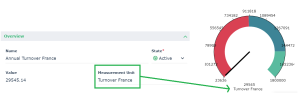
For more details on graphs and reports, see Viewing the Indicator Graph.
Activating / Deactivating a Key Indicator
A key indicator is activated by default when it is created. You may want to deactivate it if it reaches its end of life, if no more measurements are to be made. You can deactivate a key indicator by modifying its state.
To deactivate a key indicator:
1. See Accessing Key Indicators.
2. Open the key indicator property page.
3. In the State field, select "Inactive".
If you set the state to "Inactive":
• The value and status of the key indicator is computed one last time
• It is no longer possible to enter new values
• All current notifications are deactivated
To be able to enter new values again and/or edit the properties of the key indicator, set the State to "Active".The state of a key indicator should be distinguished from its status.Specifying the Indicator Scope
To specify the scope of the indicator:
1. See Accessing Key Indicators.
2. In the property page of the indicator, select the Characteristics page and expand the Scope section.
Here you can specify the associated objects:
• entities
• process categories
• process
• Applications
To remove indicators to a given entity:
1. In the property page of the indicator, expand the Scope section then select the Entity tab.
2. Remove the appropriate entity.
Specifying Action Plans
To define action plans on a key indicator:
1. See Accessing Key Indicators.
2. In the properties of a key indicator, select the Action Plans page.
3. Connect an existing action plan or create one as appropriate.
For more information on action plans, see the corresponding information in the Common Features section of this Online help.Connecting Risks
To connect risks to a key indicator:
1. See Accessing Key Indicators.
2. In the property page of the key indicator, select the Characteristics page and expand the Risks section.
3. Connect an existing risk or create one.