Managing ICT Vendors
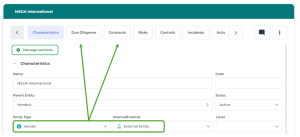
A vendor is an external org-unit of Vendor type.
When en entity is an external org-unit of Vendor type, you can:
• perform due diligence on the vendor
• specify the contracts with this vendor
Creating an ICT Vendor
To create an ICT vendor:
1. In the navigation bar, select Processes > By entity.
2. Click New.
3. In the creation wizard, indicate:
• in the Internal/External field: External org-unit
• in the Org-Unit type field: Vendor
4. Click OK.
The org-unit created appears in a folder named “Vendors”.
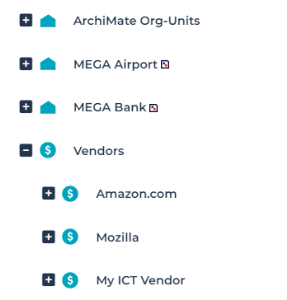
 This folder appears if there is at least one vendor.You can create a vendor directly from the folder pop-up menu. The created org-unit has the characteristics of the vendor (external org-unit of “Vendor” type).
Listing ICT Vendors
To list ICT vendors:
1. In the navigation bar, select Processes > By entity.
2. Expand the "Vendors" folder.
Assessing an ICT Vendor
To assess an ICT vendor:
1. In the properties of a vendor, select the Due Diligence page.
2. Click New Assessment.
3. (Optional) Edit the Date.
4. Specify whether the vendor is:
• Compliant
A vendor who is considered “Compliant” is compliant with the cybersecurity requirements. He can be considered as reliable and secure and may be a preferred partner for collaboration.• Potential
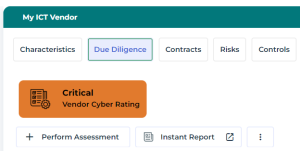
A vendor who is considered “Potential” has passed the cyber due diligence but may require improvements or additional monitoring to fully meet the cybersecurity requirements. He may be seen as a promising partner but might need further effort to enhance cybersecurity.• Critical
A vendor who is considered “Critical” has significant cybersecurity risks or vulnerabilities. He can be acceptable for certain types of services or collaborations with appropriate mitigation measures. However, he requires special monitoring and attention due to the associated risks.• Non-Compliant
A vendor who is considered “Non-compliant” fails to meet the minimal cybersecurity requirements and pose high risks to data and operations security. It may be necessary to avoid or terminate collaboration with him due to a high risk of non-compliance and potential compromise to the overall security of the organization.5. Click OK.
The vendor rating appears. All the assessments appear in the form of a list.
The last Vendor cyber rating is displayed at the top of the page.
Specifying Vendor Contracts
Creating a contract
To specify contracts on a “Vendor” entity:
1. In the properties of a vendor, select Contracts.
2. Click New.
3. (Optional) Enter:
• the Begin Date
• the End date
• the Code
4. Click OK.
Viewing the contract status
Once the contract has been created, the Status is automatically assigned:
• Signed
The contract is considered “signed” when today's date is less than the contract begin date.• Live
The contract is considered “ongoing” if today's date is within the date range between the contract begin date and end date.• Expired
The contract is considered “expired” when today's date is greater than the contract end date.• Unknown
The status is unknown when dates are not specified.Specifying the contract characteristics
In the properties of a contract you may specify the following:
• Contract Type
• Signatory entity
• Contract Elements
In this section you may connect objects which are part of the contract scope:
• Application

• Software technology
• Process
• Operation
• Server
• Site
• Data center
• Facility
Attachments
In the Attachments section you can attach the actual contract.