6. Cluster installation
If you are not in a cluster, meaning you have only 1 Server (excluding database) you can skip this chapter.
6.1. Multiple HAS Server
This section details how to define a farm of servers for HAS. This schema represents the deployment to be considered:
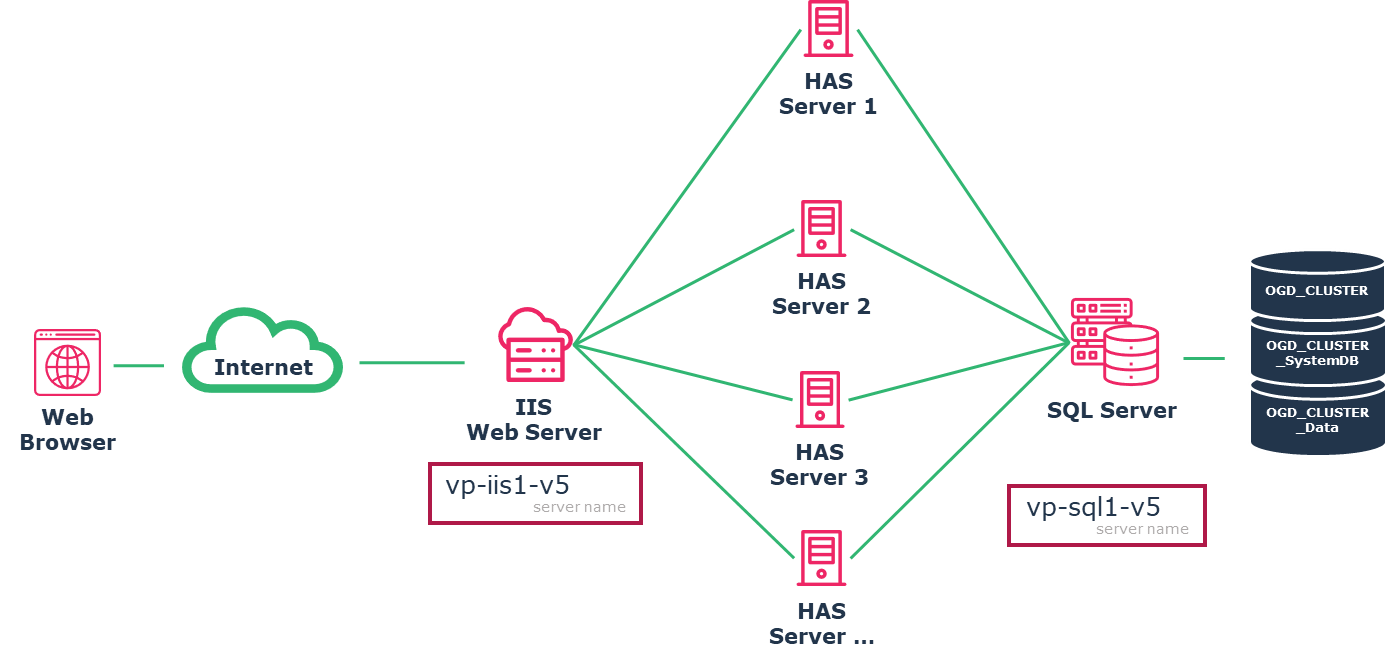
This chapter explains the case where you have:
• No load balancer
• 1 server with IIS
• 2 servers for HAS.
• 1 SQL server
Should you have more than 2 HAS servers, repeat the same operation for each additional HAS Server.
Perform the following steps:
A. Configure IIS
B. Install HAS Server 1 as if it was alone and create the instance with this HAS Server 1
C. Install HAS Server 2. Ensure you set the same password for the HAS Instance manager for all HAS Server of the cluster
D. On each additional server Join the cluster
E. Adjust IIS configuration to add each HAS Server part of the cluster
6.1.1. Step A: Configure IIS
Perform the steps described in chapter:
6.1.2. Step B: Install HAS Server 1
Perform the steps described in chapter:
Ensure that you can perform all the tests described in this chapter:
If any of those web front end does not work (HAS Console, HOPEX Web Front-End), fix it before proceeding.
6.1.3. Step C: Install additional HAS Server 2
Repeat the following actions for each additional HAS Server.
1. Access the additional HAS Server 2.
3. Ensure you set the same api-key password for the instance manager for all HAS Servers.
4. Ensure you use the same domain user to launch HAS Instance Manager.
Do not create any HAS Instance from HAS Instance manager on Server 2
6.1.4. Step D: Join the cluster for each additional HAS Server
Repeat the following actions for each additional HAS Server.
1. Access the HAS Server 1 (the first server you installed).
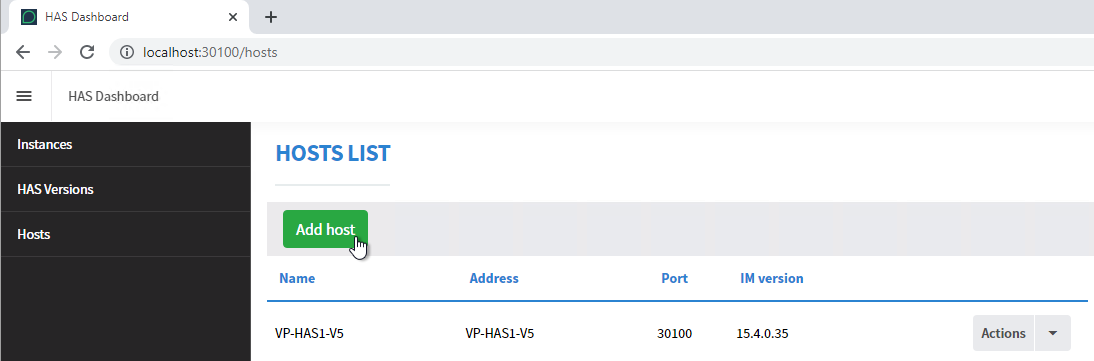
2. Click Hosts > add host.
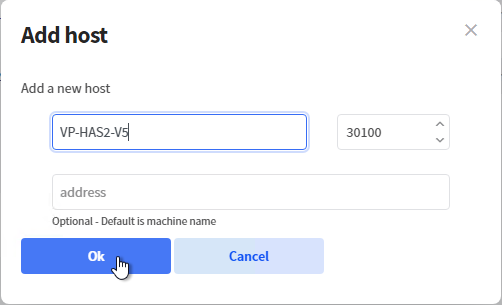
3. Enter the name of the server HAS Server 2 (no IP address). Keep the same HAS Instance manager port (default 30100).
4. Click OK.
5. Click Instances
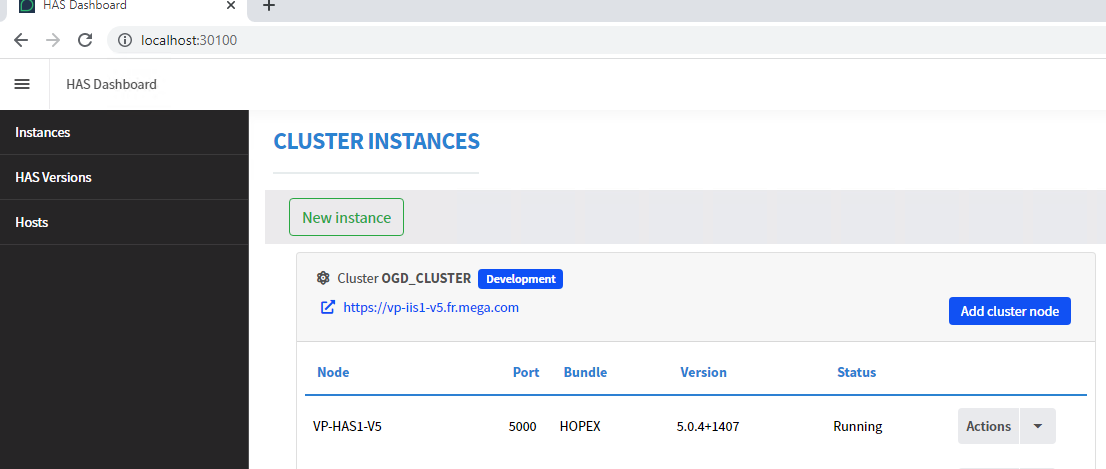
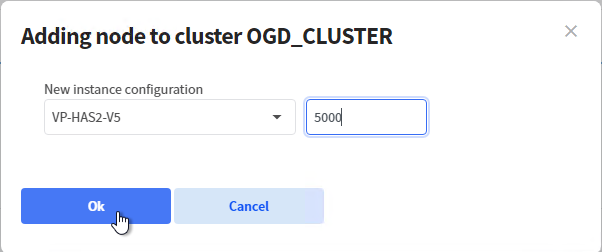
6. Select your installed Instance and click Add cluster node
7. Select the HAS Server 2 and port number (use the same port for all cluster node 5000)
6.1.5. Step E: Adjust IIS configuration
Repeat the following actions for each additional IIS Server.
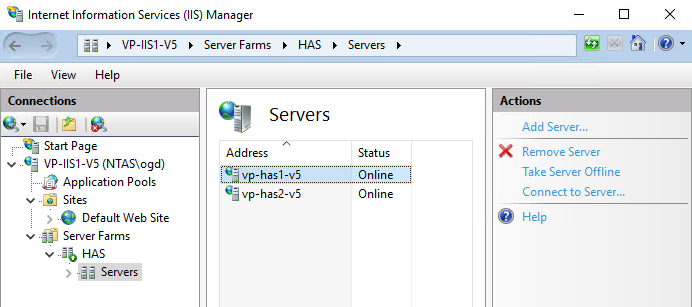
1. Access the IIS Server.
2. Open IIS Manager.
3. Expand Server Farms.
4. Expand the HAS server farm you have created in previous step.
5. Click Server.
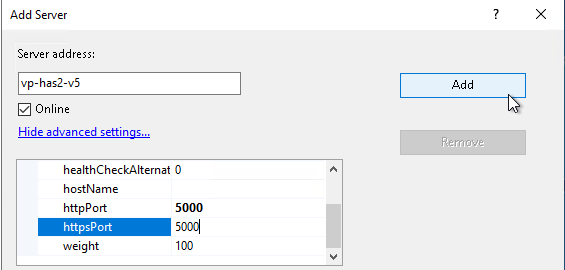
6. Click Add Server to “HAS Server 2”. In that example “vp-has2-v5”
8. Error! Reference source not found. Scroll to always put both port (HTTP/HTTPS).
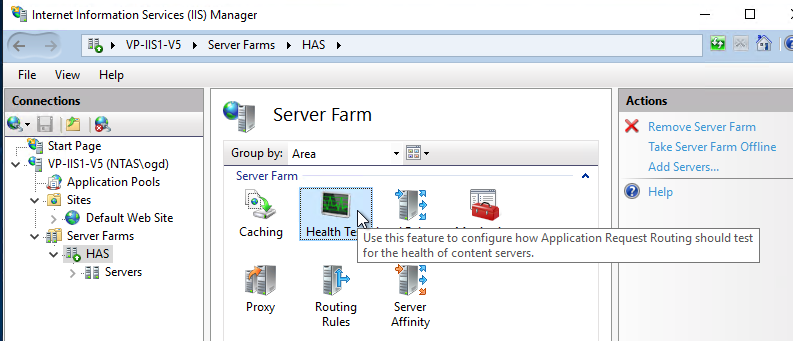
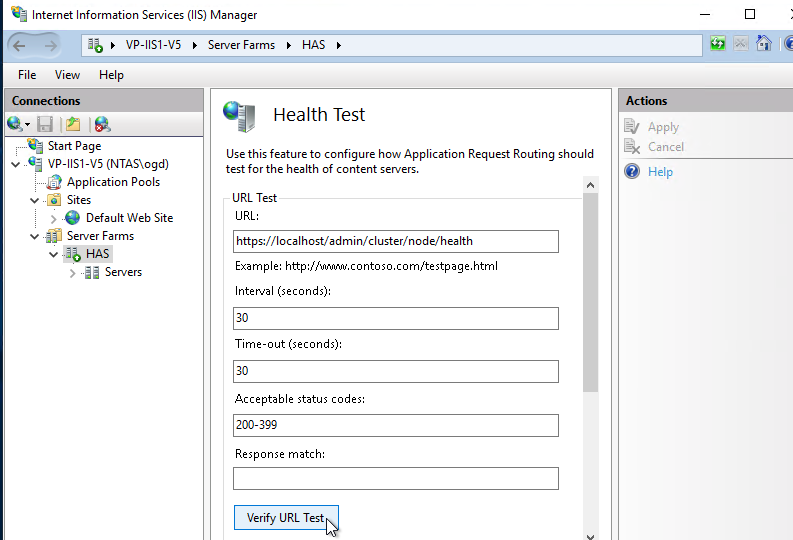
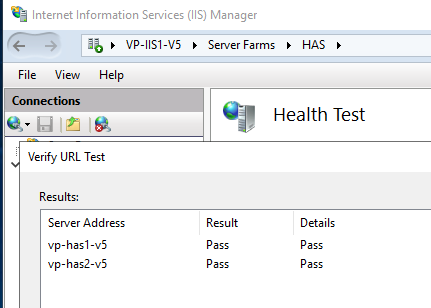
9. Check that all servers of the Cluster passes the Health Test.
o Click Verify URL Test
6.2. Multiple IIS Server
This chapter details how to define a cluster with multiple IIS. This schema shows the deployment to be considered:
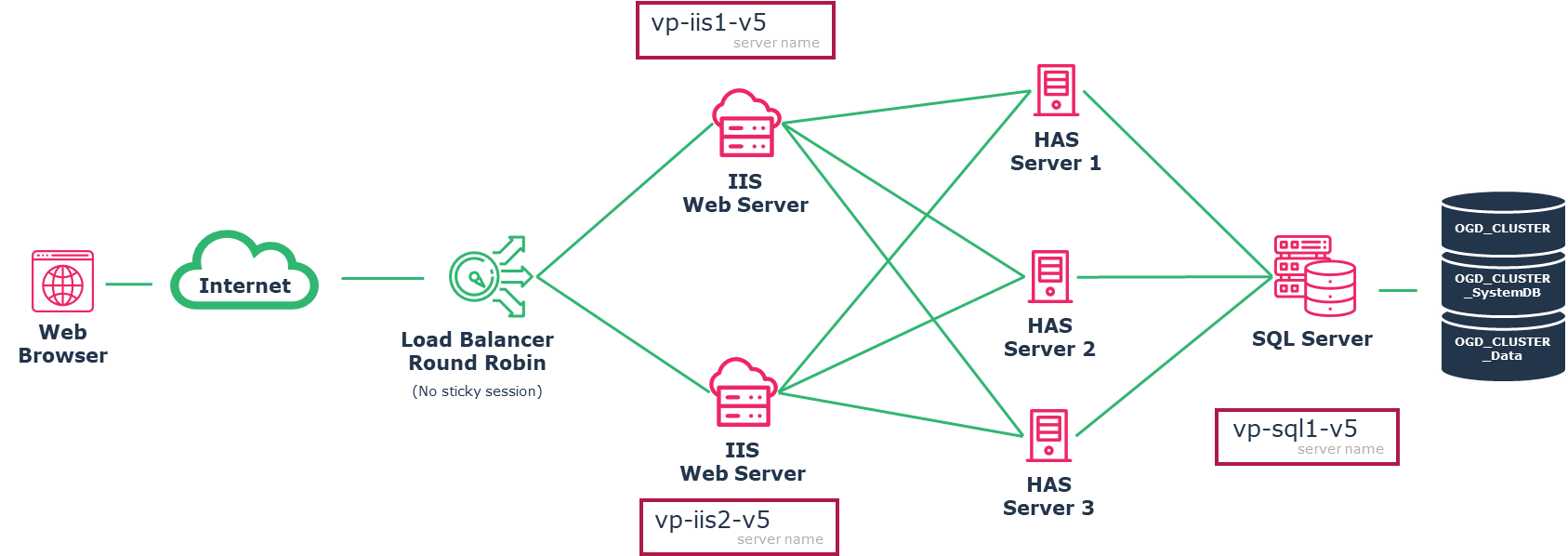
When you have multiple IIS Web Servers, you must add a load balancer in front.
You have multiple IIS Web servers because:
• You have IT constraints of redundancy for high availability
• You have thousands of concurrent users.
If you are not in this situation, you should reconsider having multiple IIS Servers.
Should you have more than 2 IIS Web server, repeat the same steps for each additional IIS Web Server:
1. Perform the step A to E described in section “6.1 Multiple HAS Server”. Repeat Step E for each IIS Server
2. Configure the load balancer
6.2.1. Configuring the load balancer
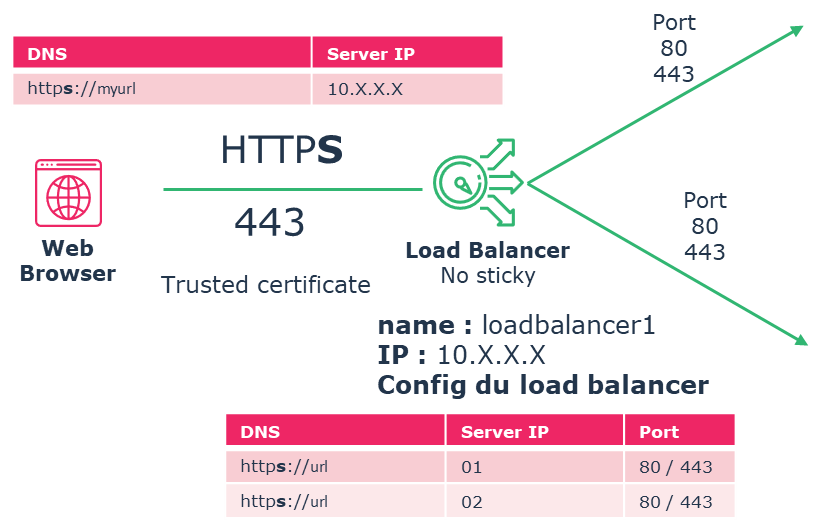
Configuration of the load balancer may depend on the chosen load balancer.
Ensure the following steps have been performed:
• The DNS URL is pointing toward the load balancer
• The load balancer has the list of all IIS Web server
• For easiness of deployment, have your load balancer pointing on port 80 and 443 on IIS Web Server.
• The load balancer is set to no sticky session mode.
6.3. Multiple SQL Server
For such High availability of SQL Server, refer to Microsoft documentation about Always on deployment.
With HOPEX there are two main ways the SQL availability features can be used:
• High availability
• Disaster recovery
CAUTION: These are advance configurations for which only SQL Server expert will be able to guide you through such configuration.
For more information see: https://learn.microsoft.com/en-us/sql/database-engine/sql-server-business-continuity-dr?view=sql-server-ver16