Business Process cooperation
The business process cooperation viewpoint is used to show the relationships of one or more business processes with each other and/or with their environment. It can be used both to create a high-level design of business processes within their context and to provide an operational manager responsible for one or more such processes with insight into their dependencies. Important aspects of business process cooperation are:
• Causal relationships between the main business processes of the enterprise,
• Mapping of business processes onto business functions,
• Realization of services by business processes,
• Use of shared data.
Each of these can be regarded as a “sub-viewpoint” of the business process cooperation viewpoint.
Example Presentation
The diagram below represents the functional description of "Damage Claiming process".
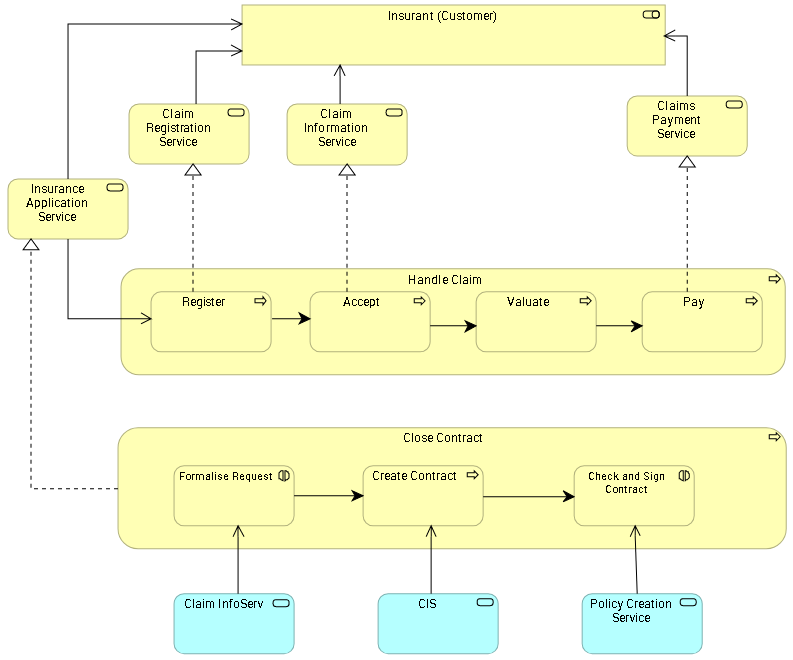
Example of Business Process Cooperation viewpoint diagram
Managing a Business Process Cooperation Viewpoint Diagram
You will create Business Services and connect each of these to the Business Role responsible for their execution.
Creating Business Services
To create a Business Service:
1. In the insert toolbar, click the Business Service button.
2. Click in the diagram.
The Creation of Business Service dialog box appears.
3. Enter the Name of the Business Service, "Claim Registration Service" for example.
4. Click OK.
The business service appears in the diagram.
Creating several Business Services
To create the other Business Services:
1. Double-click the Business Service button and then click in the diagram.
A new business service appears in the diagram.
2. Click again in the diagram.
Other new business service appears in the diagram.
3. Press key <Esc> to stop the Business Services creation.
4. To rename the business service, click the name of the business service, press key <F2> and enter a new name.
Creating Business Roles
To create a Business Role:
1. In the insert toolbar, click the Business Role button.
2. Click in the diagram.
The Creation of Business Role dialog box appears.
3. Enter the Name of the Business Role, "Insurant (Customer)" for example.
4. Click OK.
The business role appears in the diagram.
To connect a Business Service to a Business Role, for example "Claim Registration Service" to "Insurant (Customer)":
1. Click the Link button 
2. Click the business Service and, holding down the mouse button, drag the cursor to the business role to be connected and release the mouse button.
A dotted line indicates the path that will be taken by the graphic link.
The Serving link appears in the diagram.
 You could also connect a Business Role to another Business Role, using a Specialization relationship. For example, "Car Insurant" as a specialization of "Insurant (Customer)".
Creating Business Processes
Similarly create the Business Process "Register".
To specify that "Register" Business Process is realized by the "Claim Registration Service" Business Service:
1. Click the Link button
2. Click the "Register" business process and, holding down the mouse button, drag the cursor to the business service to be connected and release the mouse button.
3. Select the Realization relationship type.
The Realization link appears in the diagram.
The Realization link appears in grey because it is an indirect relationship.