Operational - Connectivity
The Connectivity aspect of the Operational summarizes logical exchanges between Operational Performers of information, systems, personnel, energy etc. and the logical activities that produce and consume them. Measurements can optionally be included.
Using Signals

Accessing Signals
To access the list of Signal:
1. From the Operational navigation menu, select Connectivity.
2. Click the Signals tab.
The list of the Signals is displayed.
Creating a Signal
To create a Signal:
1. From the Operational navigation menu, select Connectivity.
2. Click the Signals tab.
The list of the Signals is displayed.
3. Click New.
A creation dialog box opens.
4. Specify the Name and click OK.
The new Signal appears in the list.
 You can also creating a signal when you create a Flow.
Properties of a Signal
The Characteristics properties page of the Signal provides access to:
• its Owner, by default the owner is the current Enterprise.
• its Name,
• the text of its Description.
• the Business Information Used section provides access to the list of concept elements. See Concept.
Using Service Interactions
A Service Interaction represents the exchange of information between architecture components.
The content of a service interaction is described by an interface.
For more details on interfaces, see Describing an Interface.In a “Purchasing Requests Processing” application system structure diagram, two interfaces are used by the different service interactions.
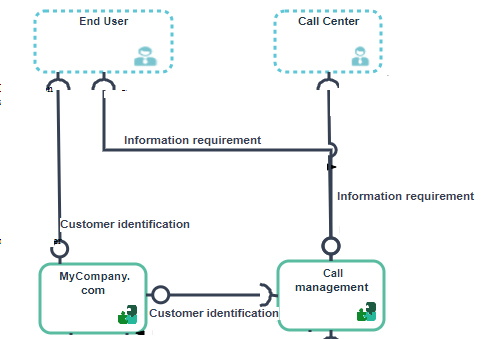
Adding a service interaction to an application system structure diagram
The clients must be identified before entering an order. They can enter orders directly from “MyCompagny.com” application or by using a Call Center. The Call Center uses the “Call Management” application which uses the client identification service offered by the “MyCompagny.com” application.
Creating a Service Interaction from a diagram
To create a service interaction from a diagram:
1. In the objects toolbar for a diagram, click Service Interaction 
2. Click the entity requesting the service and draw a link to the entity providing the service.
3. In the add service interaction dialog box, specify the interface you wish to use.
You can also use a new interface. For more details, see Creating an Interface. 4. Click Add.
Describing Service and Request Points
In a service-oriented architecture, communication is based on access points: service points and request points.
Service points
An application system, for example, is created to ensure one or more services. These services are represented by service points.
The service is requested according to precise terms defined by an interface assigned to the service point.
For further detail on interfaces, see Describing an Interface.Components activated to assure a service are linked to the service point by service interactions. If it is necessary to activate several components, you have to create several service interactions between the service point and the system components.
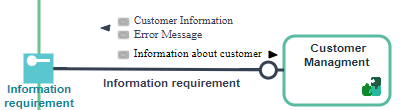
In the example presented here, the IT Service ”Customer Management” is activated by the interaction service “Information request”.
To create a service point, see Creating a Service Point or a Request Point.Request points
A request point enables representation of use of a service external to the described entity.
enables representation of use of a service external to the described entity.The service is requested according to precise terms defined by an Interface assigned to the request point.
For further detail on interfaces, see Describing an Interface.Components that issue a request are linked to the request point by a service interaction.
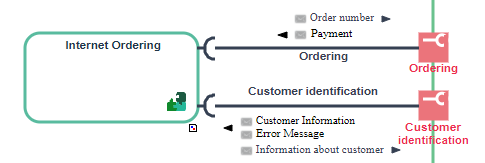
In the example, request points represent requests for service executed by the “Email Order Management" IT service to identifier a customer and issue an order.
To create a request point, see Creating a Service Point or a Request Point.Creating a Service Point or a Request Point
The process for creating a service point or request point is identical.
To create a service point in a diagram:
1. In the diagram insert toolbar, click Service Point  .
.
.2. Position the object at the edge of the frame of the described object.
A creation dialog box opens.
3. Click the arrow to the right of the Interface field to define the interface enabling activation of this service point, and select, for example, Connect Interface.
A query window opens.
4. Select the interface associated with this service point and click Connect.
5. Click Next.
A dialog box opens proposing a list of the interface roles that can be associated with the service point.
This dialog box is not proposed if there is only one candidate role that can be associated with the service point.6. Select the role that interests you and click OK.
The service point appears in the diagram.