Creating a Report DataSet Definition
You can create a Report DataSet Definition populated by:
• occurrences
• a query
Defining a Report DataSet populated by occurrences
 For a detailed use case, see Collecting a Set of Objects, Linked Objects and some of their Properties.
To define a Report DataSet populated by occurrences:
1. Access the Report DataSet Definitions.
2. In the list menu bar, click New  .
.
.In the tree, click New or hover the cursor over the folder concerned and click  .
.The Creation of Report DataSet Definition window appears
3. In the Name field, enter your Report DataSet Definition name.
By default, the Report DataSet Definition name is: Report DataSet Definition-x (x is a number).4. Define the Root section:
• in the Collection is populated by field keep "Collection Parameter".
• in the MetaClass field, use the drop-down menu to select the MetaClass you want to define as the root MetaClass of your Report DataSet Definition.
 In the field, enter the first letters of the MetaClass for a quick access.
Example: Application.
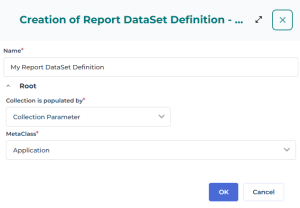
5. Click OK.
Your Report DataSet Definition is created and added to My Report DataSet Definition as well as both Custom Report DataSet Definition list and Report DataSet Definition tree.
6. Click your Report DataSet Definition.
Its Characteristics page displays and shows:
• the Root MetaClass
Example: Application
• Keep last generated result is selected by default so that at next session, the first Report DataSet display time is shorten.
• the Collection Parameter characteristics.
For example, with "Application" as root MetaClass, the Collection parameter characteristics are:
- Type: "Application" MetaClass
- Multiplicity: "N", as several applications need to be collected.
- Mandatory: "Yes" by default.
- Populated RDS Collection: "Application", i.e. this Collection parameter populates the root node of "My Report DataSet Definition" Report DataSet Definition.
- _GUIName: "Application List", this parameter is displayed in the Report DataSet Definition Preview page.
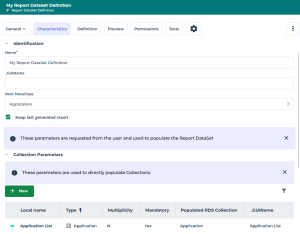
7. (If needed) In the Collection Parameters section, in the _GUIName field, modify the GUI name for the Collection Parameter.
This string is displayed at Report DataSet creation. You can preview it in the Report DataSet Definition Preview page.
E.g.: "Applications to retrieve:”
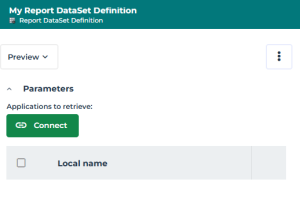
8. In your Report DataSet Definition properties, display its Definition page.
• The left pane displays the root Collection of the Report DataSet Definition structure.
Example: "My Report DataSet Definition" Report DataSet Structure includes the "Application" Report DataSet root Collection  .
.
.• The right pane displays the properties of the root Collection (Identification and Collection Provider).
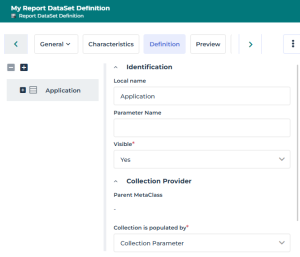
9. Define your Report DataSet Definition structure.
10. (Optional) You can add parameters to filter the data extraction.
11. Display the Report DataSet Definition Preview page.
Defining a Report DataSet populated by a query
For a detailed use case, see Collecting a Set of Objects Using a Query and Adding a Computed Property.To define a Report DataSet populated by a query:
1. Access the Report DataSet Definitions.
2. In the list menu bar, click New .
.In the tree, click New or hover the cursor over the folder concerned and click .The Creation of Report DataSet Definition window appears
3. In the Name field, enter your Report DataSet Definition name.
By default the Report DataSet Definition name is: Report DataSet Definition-x (x is a number).4. Define the Root section:
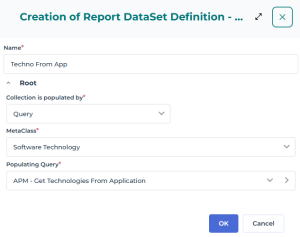
• in the Collection is populated by field select "Query".
• In the MetaClass field, use the drop-down menu to select the MetaClass you want to define as the root MetaClass of your Report DataSet Definition.
In the field, enter the first letters of the MetaClass for a quick access.E.g: Software Technology.
• In the Populating Query field, use the drop-down menu to select the query used to retrieve the input data.
The queries listed are related to the MetaClass chosen as root MetaClass.E.g: "APM-Get Technologies from Application".
5. Click OK.
Your Report DataSet Definition is created and added to My Report DataSet Definition as well as both Custom Report DataSet Definition list and Report DataSet Definition tree.
6. Click your Report DataSet Definition.
Its Characteristics page displays. It shows:
• the Root MetaClass
Example: Software Technology
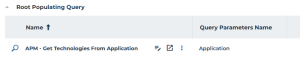
• the Root Populating Query selected to retrieve the objects:
- Name: "APM-Get Technologies From Application" query retrieves the Software Technologies used in an application
- Query Parameter Name: "Application"
 You can open the query in a new tab
  to display its code.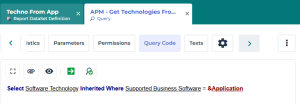
• the Property Parameter (automatically created).
For example, the "APM-Get Technologies From Application" query uses the "Application" Query Parameter to retrieve the Software Technologies:
- Local Name: "Application"
- Type: "Object" MetaClass
- Referenced MetaClass: "Physical Business Software"
- Query Parameter Name: "Application", this parameter is the exact name used in the query.

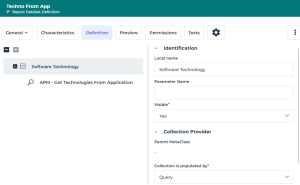
7. In your Report DataSet Definition properties, display its Definition page.
• The left pane displays the root Collection of the Report DataSet Definition and its query.
Example: "Techno from App" Report DataSet Structure includes the "Software Technology" Report DataSet root Collection .
.• The right pane details the characteristics of the root Collection (Identification and Collection Provider).
8. Define your Report DataSet Definition structure.
9. (Optional) You can add parameters to filter the data extraction.
10. Display the Report DataSet Definition Preview page.