Saving the Graph Report
From the Preview page of the GraphSet Definition, you can save the graph as:
• a Report Template
• a Report Data View, to use it in a Report Template
 Note that Save as Report, generates a public report and also a private Report Template, which you can access in Private Report Template > My Report Templates folder.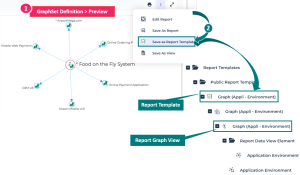
Creating a graph-type Report Template
To create a Report Template from a graph report:
1. Access the GraphSet Definition properties.
2. Display its Preview page.
3. In the graph, click More  > Save As Report Template
  .
.
> Save As Report Template .Note: if you customize the report display, this customization is not taken into account in the Report Template.4. In the Name field, enter your Report Template name.
5. Click OK.
A public Report Template is created, with its public Report Graph View. They both have the same name.
You can access the Report Template:
• (list view) directly from your Home page, from My Report Templates indicator.
It is also available via Custom Report Templates indicator.• (tree view) from My Report Templates folder (Report Definitions > Report Templates).
Creating a Report Graph View
To create a Report Graph View:
1. Access the GraphSet Definition properties.
2. Display its Preview page.
3. In the graph, click More > Save as View  .
.
> Save as View .4. Enter a Name to the view.
5. Click OK.
The Report Graph View is created and accessible in the Report Definitions > Report Templates page, Report Data Views > Public Data View > GraphSet Definition folder.
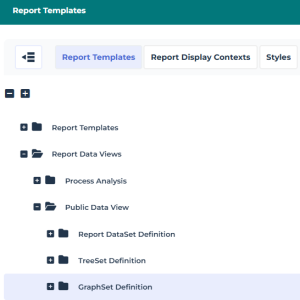
Any HOPEX user can add the View to a report:
• use the View to create a Report Template
• add the View as a report Chapter in a Report Template