How to Create a Report Style
You might need, for example, to create a general Report Style to apply it at Report View level. This general style applies to a single Report Renderer type.
 See Report Renderer.
If you need to create a specific style or a conditional style to apply it at Report Data View element level (Report table/Matrix Column level or Report Graph Node/Arc level), see How to Define the Filters Displayed in a Report or How to apply a Conditional Style to a Graph dedicated sections.
To create a report style to be applied at Report View level::
1. Access the Report Styles.
2. Hover the cursor over the Public Report Styles folder and click  New > Report Style.
New > Report Style.3. In the Name field enter a name that describes the style, so that it can be easily reused.
E.g.: Graph_ArcColor_LabelColor_NodeFillColor to create a general style, applying to a graph renderer, and defining arc, label, and node fill colors.
4. Click Connect.
5. In the first drop-down menu select the Renderer Type Parameter.
E.g.: "Renderer GraphChart" Parameters if you want to create a general style that applies to a graph renderer.
The list of parameters is filtered according to the renderer type selected.
E.g.: graph parameters.
6. (If needed) Click the Type or Applies to column header to sort the parameters.
E.g.: click the Type column header to get the set of "Graphic Element Color" type parameters.
7. Select the parameter you want to add to the style.
You can select several parameters.E.g.: select Node Fill Color, Label Color and Arc Color style parameters.
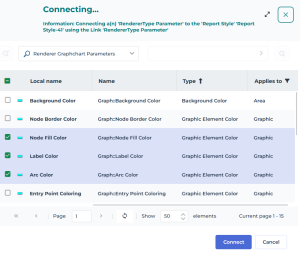
8. Click Connect.
The selected parameters are connected to the style.
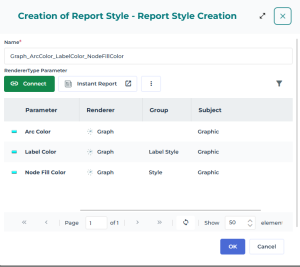
9. Click OK.
The style is available in the Public Report Styles folder.
Any user can add it as a general style to a Report Data View of the same renderer type.
10. Access the Report Style properties to configure its parameters.
11. In its Characteristics page define the parameters.
E.g.: define a color for the nodes, the labels, and the arcs.
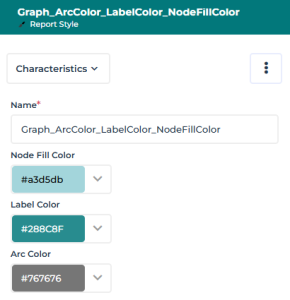
12. You can apply the style at Report Data View level.
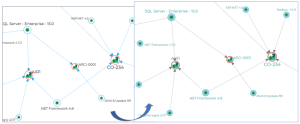
See How to Apply a General Style section.For example, when you apply this style to a Report Graph View, the changes in the graph display are as follows.
If you want to apply a specific label color according to the node type, you need to apply a style at Report Graph View Node level, see How to apply a Conditional Style to a Graph section.