How to Apply a General Style
You can apply a general style at Report Data View level for Matrix, Table, Graph and Tree type Views.
 For details on Properties of these Report Data Views, see Report Data View Properties: Matrix and Table, Report Data View Properties: Graph, Report Data View Properties: Tree.
Particularly for a graph renderer, you can apply a general style at Report Graph View level. In that case the style applies to all of the graph layers of the View.
If you want to add a more specific style that you can apply (on condition or not) at Report Data View element level (Report table/Matrix Column level or Report Graph Node/Arc level), see How to Define the Filters Displayed in a Report or How to apply a Conditional Style to a Graph dedicated sections.Prerequisite: the Report Style is created, you can either select one of the available public Report Styles, or create a public Report Style, see How to Define the Filters Displayed in a Report section.
To apply a general style to a graph:
1. Access the Report Graph View  properties.
properties.2. In its Characteristics page > General Style field, use the drop-down list to select the style you want to apply to the graph.
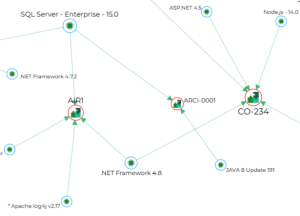
E.g.: "Graph - Arc Green" style for green arcs.
All the graphs belonging to the View display green arcs.