2. Configuration
2.1. Installation
The website template is delivered as an HAS Module.
To install the module:
1. From the HAS Console, go in Modules > Module List > Add new.
2. Search for “360” and install the module in a version that is relevant to your HOPEX Version.

BEWARE: after the module is installed from the HAS Console, it is required to run the Easy Update from the Administration.exe
3. Run the Administration.exe located in C:\ProgramData\MEGA\Hopex Application Server\<HAS Instance>\
4. Log in to the environment using the System account.
5. Right-click the environment and launch the Environment automatic update.

This utility installs the HOPEX objects and the relevant HTML resources.
2.2. Required files
Apart from the HOPEX Objects delivered in the HOPEX repository, the following HTML files will be stored in the HOPEX360 module shadow files folder.
• CSS files
• JS files
• Images
• Fonts
2.3. Translation
Translations are available on the following items:
• Menu
• Section
• Widget
• Table header
For each of them, a reference is written in the code to the relevant Code Template, as follow:
|
[Variable=CodeTemplate Id=8F68A4995E7868E4/]
|
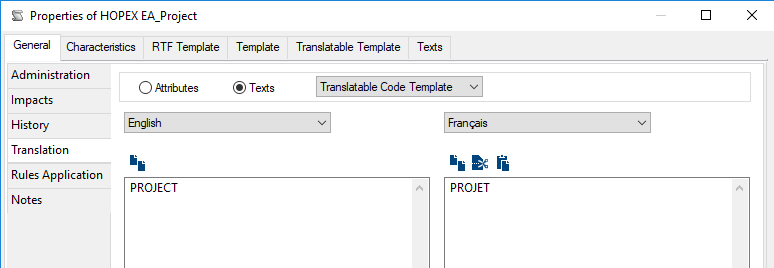
Where the Id is the HexaIdAbs of the code template, as shown below in the _Code Template property page:

The text can be modified in General > Translation.
2.4. Post-generation script & JSON files
JSON files are generated as part of the website generation to cover different functionalities. These files are stored in the \json folder of the generated website.
Those JSON files contain the key data used in the reporting, via java script functions.
This is implemented through 4 MetaCommand Managers triggering the relevant macros:
• HOPEX EA_Post Generation Script App JSON. This generates one JSON per Application to enable the Application Impact diagram. The files are named as follows:
o <Application hexaidabs>_integration.json
• HOPEX360_Post generation Script_BoxInBox Structures JSON: this generates 53JSON files:
o bcm.JSON
o fm.JSON
o tfm.JSON
• “HOPEX EA_Post Generation Script_Search Indexing”
 |
For relative link reason, this JSON is stored in \standard\assets\js folder.
|
o searchindexcontent.json
2.4.1. CIO Dashboard JSON
The ‘HOPEX EA_Post Generation Script CIO Dashboard JSON' MetaCommand Manager generates 4 JSON files:
• Bcm.JSON
|
Topic
|
Key information
|
|
Purpose
|
This is a hierarchical list of Business Capability Maps including:
- Name
- HexaIdAbs
- Children
The main purpose is to build the drawing of the Business Capability Map
|
|
Pages using the file
|
The following page uses this data as a filter on the Box in Box:
- Business Capability Map
|
|
JSON data structure
|
[
{
"name": "Airport Capability Map",
"id": "72E379AE5ABE8363",
"children": [
{
"name": "Analytics",
"id": "4395476F59D30ABB",
"children": []
}
]
}
]
|
• Fm.JSON
|
Topic
|
Key information
|
|
Purpose
|
This is a hierarchical list of Functionalities
|
|
Pages using the file
|
The following page uses this data:
- Functionality Map
|
|
JSON data structure
|
[{
"name": "Flight Reservations Functionality Map",
"id": "369646D1614B7AF8",
"children": [
{
"name": "Available flight display",
"id": "3696480A614B7CB6",
"children": []
},
{
"name": "Flight booking",
"id": "369650AE614B817B",
"children": []
}
]
}
]
|
• Tm.JSON
|
Topic
|
Key information
|
|
Purpose
|
This is a hierarchical list of Functionalities
|
|
Pages using the file
|
The following page uses this data:
- Technical Functionality Map
|
|
JSON data structure
|
[{
"name": "Cloud Technical Functionality Map",
"id": "369646D1614B7AF8",
"children": [
{
"name": "Remote Access",
"id": "3696480A614GFDB6",
"children": []
},
{
"name": "UI",
"id": "369652GKL14B817B",
"children": []
}
]
}
]
|
2.4.2. Tree list JSON
The ‘HOPEX EA_Post Generation Script Process and Capa Trees JSON' MetaCommand Manager generates 2 JSON files:
• DatasArrayBCMHierarchy.js
|
Topic
|
Key information
|
|
Purpose
|
The purpose is to provide the full hierarchical structure of the Business Capabilities and their supporting applications.
|
|
Pages using the file
|
The following page uses this JSON data:
- Business Capability Tree List
|
|
JSON data structure
|
var products = [
{text: "BCM To Be (EN) ",
modification_date:"2020/04/14 08:06:47",
performance:"", execution:"",
link: "726B7F225E84F5C5.htm",
id: "726B7F225E84F5C5",
parent:"0",
applications: [
{text:"N/A"}
},
];
|
• DatasArrayProcessHierarchy.js
|
Topic
|
Key information
|
|
Purpose
|
The purpose is to provide the full hierarchical structure of the Process Categories and their supporting applications.
|
|
Pages using the file
|
The following page uses this JSON data:
- Process Category Tree List
|
|
JSON data structure
|
var products = [
{text: "Process Category-2 (EN) ",
modification_date:"2020/04/16 10:48:07",
performance:"3",
execution:"3",
link: "51797E5D5E77826E.htm",
id: "51797E5D5E77826E",
parent: "9ACC0F275D444F86",
applications:
[{
text:"API Gateway (EN) ",
link: "D37AD7455CF088CA.htm"
},]
},
];
|
2.4.3. Application page JSON
These are not post generated, but instead, the HOPEX360_Object_Application descriptor generates a JSON file per Application.
|
Topic
|
Key information
|
|
Purpose
|
The JSON file enables the Impact force diagram on each Application page
|
|
Pages using the file
|
Each Application Object Page
|
|
JSON data structure
|
{"root" :
{"id":"D37AD7485CF08ECB",
"name":"service-draws (EN) ",
"type_id":"B1EDB2562C14016F",
"type_name":"Application",
"href":"D37AD7485CF08ECB.htm",
"image":"../standard/appl.ico.gif",
"states":[ ]
},
"sources":
{},
"targets":
{"FD280B395C926AC9":
{"id":"FD280B395C926AC9",
"name":"AngularJS 1.7 (EN)",
"type_id":"2885299152A85717",
"type_name":"Technology",
"href":"FD280B395C926AC9.htm",
"image":"../standard/technology.ico.gif"
},
},];
|
2.4.4. Search
The “HOPEX EA_Post Generation Script_Search Indexing” MetaCommand Manager has a Macro attached which generates a ‘searchindexcontent.json' file.
|
Topic
|
Key information
|
|
Purpose
|
This JSON file is used to reference all the objects included in the website to enable a full text search
|
|
Pages using the file
|
In every page, the menu includes a magnifying glass to toggle the search tool.
This search is implemented using the Fuse library (https://fusejs.io/)
|
|
JSON data structure
|
{pages":
[{
"title":"",
"Object type":"",
"Modification Date":"",
"text":"",
"tags":"",
"url":""
},
{
"title":"<img src='../standard/APPL.ICO.gif'> API Gateway",
"ObjectType":"Application",
"ModificationDate":"2020/04/16 10:14:30",
"text":"",
"tags":"",
"url":"D37AD7455CF088CA.htm"
},
],};
|
2.5. HTML Report Integration
2.5.1. Overview
To integrate HTML reports in HOPEX360, you must:
• Create a VB Macro.
• Call this VB Macro into a descriptor.
Below is an example of the “HOPEX360_Enterprise_Transformation” macro which is connected to the “HOPEX360_Object_Enterprise” descriptor.

2.5.2. Creating a macro
2.5.2.1. Creating a new macro
From the View menu > Navigation Windows > Utilities tab:
• Expand Macros.
• Right-click MEGA.
• Click New > Macro.
• Click Create a (VB)Scipt Macro.
• Rename it.
You can use the code of an existing HOPEX360 macro as a reference by copying and pasting it.
2.5.2.2. Updating the content of a macro
Below is an example of the code of the “HOPEX360_Enterprise_Transformation” macro.
 To update this code, you must change at least the following elements:
• Absolute Identifier of the Macro
• Absolute Identifier of the Report Template
• Absolute Identifier of the Chapter
• Absolute Identifier of the Report Parameter (or Views, depending on how the report template is built)
Tip: Use the “Show/Hide fields” button  to display the Absolute Identifiers.
to display the Absolute Identifiers. 2.5.2.3. Views
Some reports require to create views (Tree Maps for example). Below is an example of the appropriate code for reference.

2.5.2.4. Replacing conflicting code
To ensure compatibility with HOPEX360, it is recommended to replace any conflicting CSS and JavaScript code. Below is an example of the appropriate code for reference (that you can copy from an existing HOPEX360 macro).

2.5.2.5. Limitations
Certain HOPEX reports (e.g. Gant Charts) cannot be migrated to HOPEX360 due to their reliance on interactive features, which limits their portability.
2.5.3. Calling the macro into a descriptor
To call the macro into a descriptor:
• Open the adequate descriptor > Context section.
• Use the ExternalCall Macro and enter the name of the macro.
Below is an example of the “HOPEX360_Object_Enterprise” descriptor.
