Managing Permissions on Workflows
 You can manage permissions in HOPEX Web Front-End only.
Configuring Permissions (CRUDs) on Objects
You can configure permissions on objects according to:
• user profile
• current workflow status.
Permissions (CRUDs) concerning workflows are not taken into account in the diagram editor.To configure permissions:
1. In HOPEX Administration, open the environment.
2. Expand the Permissions navigation pane.
3. Under CRUD Management, select Object UI Access.
4. In the Access Rights field, select the Profile you want to configure.
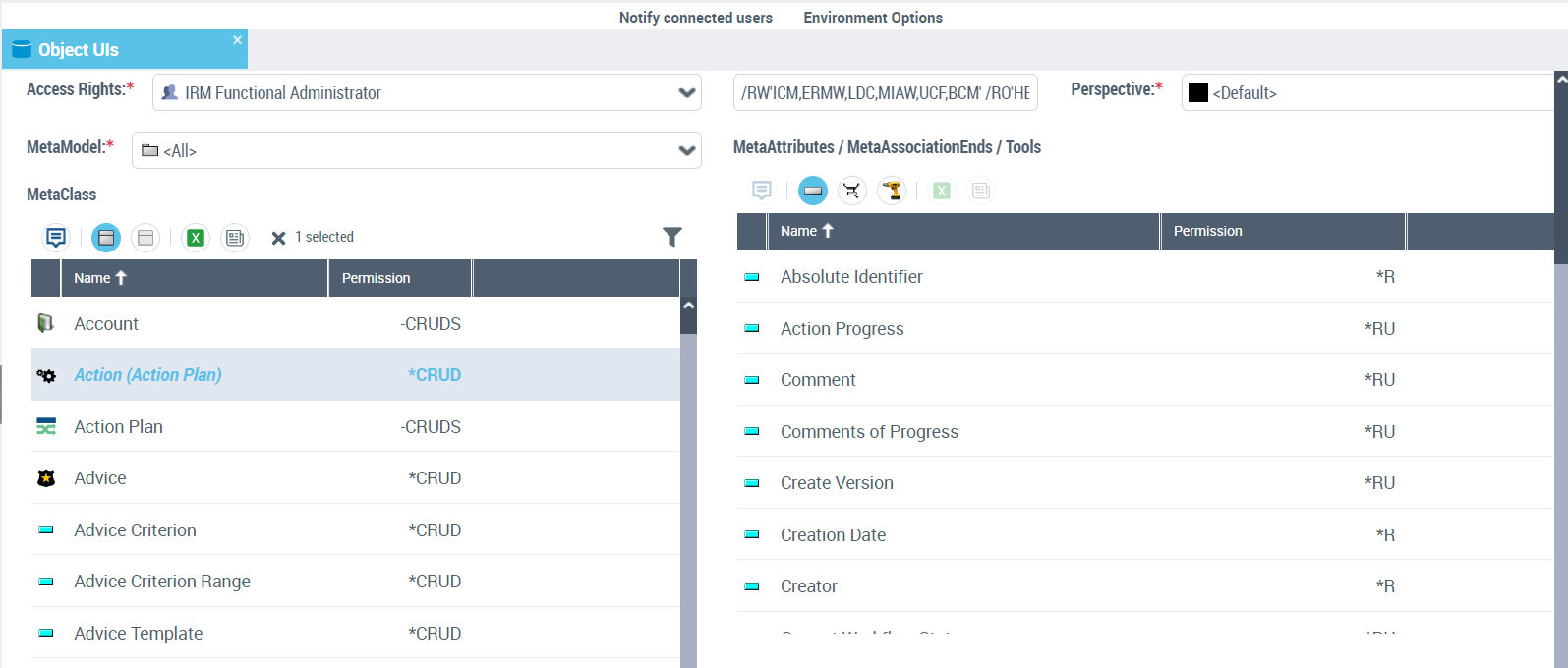
5. In the MetaClass frame, select the workflow subject MetaClass.
Example: "Action plan"
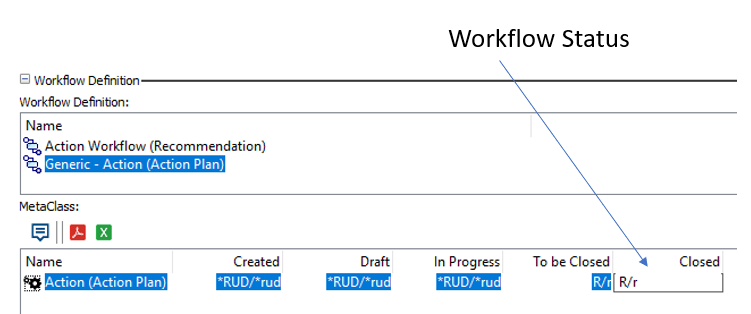
6. In the Workflow Definition section, select the workflow for which you want to define permissions.
7. Configure permissions on the MetaClass subject of the workflow according to the status reached by the workflow.
Example: The permission "R" (=Read) in status "Closed" means that you cannot modify the action plan when it is in this status.
8. Similarly configure attributes and links available on this MetaClass.
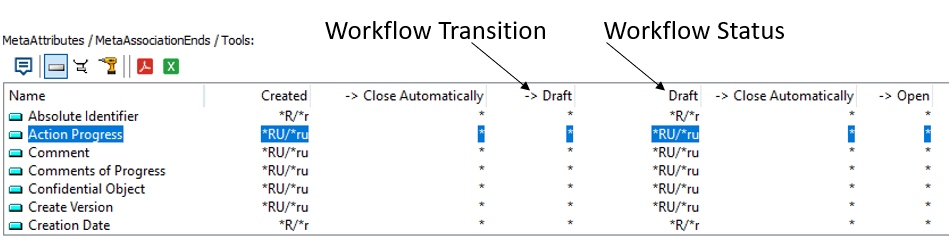
Several values are possible on workflow statuses or transitions:
• indicates that the field (attribute or link) is mandatory in this workflow status.
The user must specify this field to trigger the next workflow transition.
• " RU" (R=Read, U=Update): on a workflow transition, means that the field is proposed in edit mode in the user interface proposing the transition.
"RUM" means that the user must specify the field when triggering the workflow transition.Different permissions can be specified for workflow participants and non-participants:
• Values of permissions in upper-case, for example "RU" concern workflow participants.
• Values of permissions in lower-case, for example "ru" concern persons not participating in the workflow.
In the Transition Attributes frame, you can specify permissions on TaggedValues created on your workflow transitions. For more details, see Information associated with workflow transition.Specifying Persons Authorized to Start a Workflow
To specify persons authorized to start a workflow, see Associating persons with participants.
Generating a Report of Permissions by Workflow Definition
A report allows you to detail permissions for a given workflow.
Parameters are as follows:
• a workflow definition
• a profile
See Generating a Report on Permissions by Profile.