Configuring a perimeter
Using a perimeter in a MetaTool
To use a perimeter in a MetaTool, you must connect the perimeter to the MetaTool concerned. A perimeter can have several MetaTools, enabling reuse of a perimeter in several different contexts.
Similarly, a MetaTool can have several perimeters, enabling you to build several different sets of objects and links from a root object.
To connect a perimeter to a MetaTool:
1. Create a perimeter, see Creating a perimeter.
E.g.: “CustomPerimeter.
2. Expand the perimeter concerned.
3. Right-click Tools folder and select Connect > MetaTool.
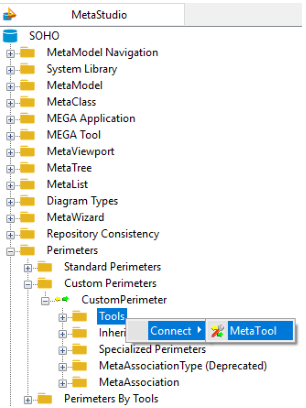
4. Select the MetaTools you want to connect.
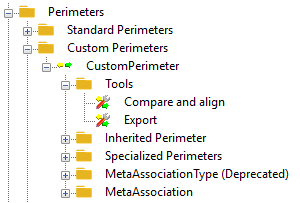
For example, connect it to the "Export" and "Compare and align" MetaTools.
Default perimeter in a MetaTool
You can modify the default perimeter for a MetaTool.
Prerequisite: The default perimeter you want to define for the MetaTool is connected to the MetaTool, see Using a perimeter in a MetaTool.
To modify the MetaTool default perimeter:
1. In the MetaStudio navigation window, expand the Perimeters folder.
2. Expand the Perimeters by Tools folder.
3. Open the properties of the MetaTool concerned.
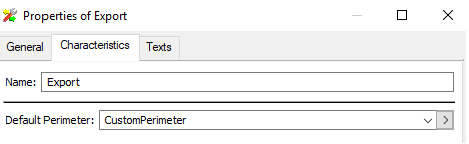
4. In the Characteristics tab, modify the value of Default Perimeter via the drop-down menu.
For example, you can change the default perimeter of the "Export" MetaTool to insert the perimeter you have created.
Configuring perimeter links
This section covers the configuration of links required for propagation of links and objects in building a set from a perimeter.
To open the configuration dialog box, select Manage > Parameterize in the perimeter menu:
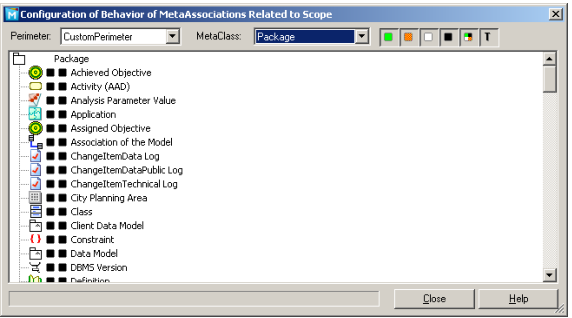
The "Perimeter" box enables selection of the perimeter we want to configure (only perimeters of which the"_OpPreview" MetaAttribute is "Active" are visible.
The "MetaClass" box enables selection of the MetaClass from which links will be browsed, and we begin by using the MetaClass of the root object, for example "Package".
The toolbar includes buttons to filter links (MetaAssociationEnd) according to their behavior:
-  Filter the links that have "Deep" behavior.
Filter the links that have "Deep" behavior.-  Filter the links that have "Standard" behavior.
Filter the links that have "Standard" behavior.-  Filter the links that have "Link" behavior.
Filter the links that have "Link" behavior.-  Filter the links that have "Abort" behavior.
Filter the links that have "Abort" behavior.-  Filter the links that have "Computed" behavior.
Filter the links that have "Computed" behavior.The " " button enables display in the tree of default behavior of the link before customization, which is "Abort" in our example:
" button enables display in the tree of default behavior of the link before customization, which is "Abort" in our example: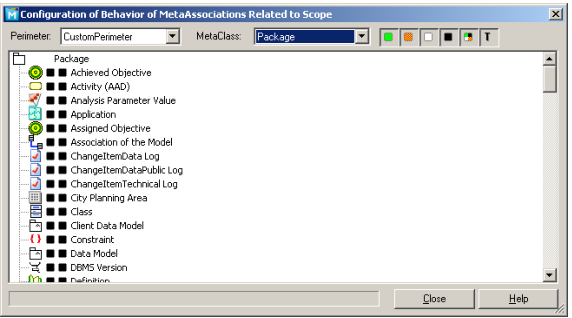
To modify propagation behavior of a link, select the new behavior in the "Propagation" menu. The current behavior is represented by a tick alongside the behavior. The standard menu of a link is also accessible.
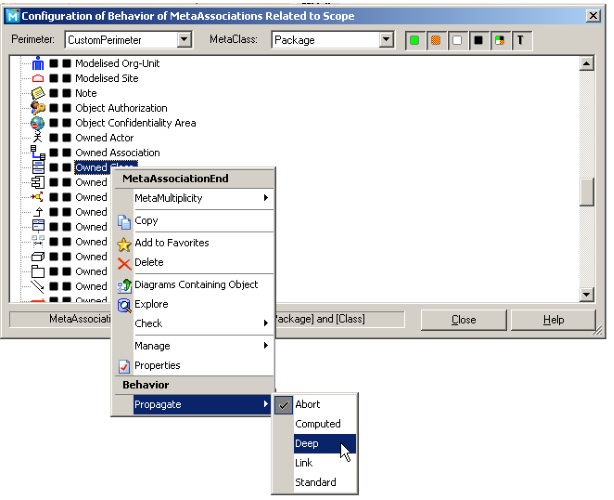
The new behavior is active for the next use, except for "Computed" behavior which requires additional configuration.
This behavior uses a macro which must be present, and for this you must create a macro and then connect it to the current link and perimeter as here:
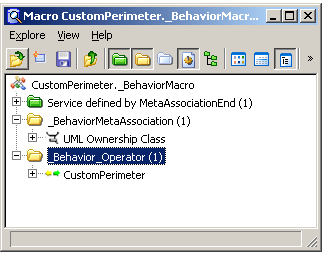
You must then add VB code in the macro which uses the following method:
Function BehaviorCompute(oObject As MegaObject, oPerimeter As Variant) As String
Parameter:
- oObject is the object which is processed when building the set. It is obtained from propagation of another object: its parent; it is possible to recover this and the link used for propagation.
- oPerimeter is the perimeter object, enabling reuse of a macro for several perimeters if required.
Return:
- BehaviorCompute: This function returns the behavior of the link. It could have been computed in several ways, as shown in the example below.
"Computed" behavior example:
We position behavior of the link [Package/Owned Class] on "Computed" to restrict the list of classes owned by a package. We want to build a set of objects with owned classes that are not interfaces.
The following code is applied to the macro:
'MegaContext(Fields,Types)
Option Explicit
' ------------------------------------------------
' -- Variables
' ------------------------------------------------
Const cStereotypeInterface = "(NHm3AzqouC0"
' ------------------------------------------------
' -- BehaviorCompute
' ------------------------------------------------
Function BehaviorCompute(oClass As MegaObject, oPerimeter As Variant) As String
' Default Behavior : DEEP
BehaviorCompute = "D"
If (oClass.GetProp("~wzN3o0nDp840[Stereotype]") = cStereotypeInterface) Then
' Behavior : ABORT
BehaviorCompute = "A"
End If
End Function