Modifying Code Generation Specifications
When your shape has been drawn and the elements named, you can complete specifications for the corresponding code generation.
To run the shape code generation wizard:
1. In the Shapes Editor menu bar, select Edit > Field Positioning > Field Positioning Assistant.
The Field positioning wizard appears.
All named fields appear in the dialog box. The drawn shape is automatically squared and the different elements of the shape are distributed in the squares.
Display an example
For example, for a shape including a blue rectangle and a field &Name&:
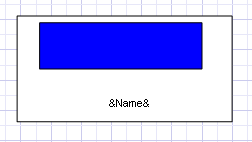
You obtain the following dialog box:

In the Element to be modified pane, the selected element is highlighted in red in the Position in shape pane.
You must correctly position the objects in the Position in shape pane.
2. To modify the specifications of selected fields and objects, see:
Shape height and width
By default, height and width of the overall shape are extendable. This means that in the diagram you can stretch the shape so that it exceeds the size of its component objects.
To set height and/or width:
 Clear the corresponding box(es).
In the following example, the shape is resized to double its height. When the Shape height extendable option is:
• cleared: the result is as displayed at top on right
• selected: the result is as displayed at bottom on right

Positioning of the object in its square
By default, elements are placed in the center of the square.

Element placed in center
Elements can be framed vertically and horizontally.
Use of this will be shown in later examples.
Object deformation
By default, all elements are subject to deformation proportional to that of the shape. It is however possible to set size for certain objects of the shape.

 For calculated fields, the Fixed size object option is not taken into account.
In the following example, height and width of the shape are increased. When the Fixed size object option is:
• selected, he result is as displayed at top on right.
• cleared, he result is as displayed at bottom on right.
