11 How to
11.1 Supervising HOPEX
"MegaSupervisionManager" component allows to interact and exchange data with HOPEX Server Supervisor.
From “MegaSupervisionManager”, you can call:
• EventCreate(var jsonEventParam), which creates a supervision event and returns an object event.
A supervision event is an object understandable by HOPEX Server Supervisor.
jsonEventParam includes the definition of event code, type and level:
{« Name » : « my eventname », « type » : « my eventtype », « level » :mylevel }
o Name is a character string, default: empty
o Type is a character string, default: « Undefined »
Its values can be (non-sensitive case): « UserAction », « Error », « ScheduledStateReport », « Alert », « ExitSignal », « GetInfos »
o Level is an integer
• EventDestroy(object event), which deletes the given supervision event.
On the object event, you can call:
• Set(var jsonEventData)
jsonEventData is found in the EventData column of the HOPEX Server Supervisor tool
• Publish()
Event publication: the event is sent to HOPEX Server Supervisor. It can be sent only once.
Use case: EventName: “I am event 1” ; Status: “I am fine”
MegaSupervisionManager manager=new MegaSupervisionManager(this.megaRoot);
MegaSupervisionEvent event= manager.EventCreate("event java", MegaSupervisionEventType.ACTION, 3);
event.Set("{\"description\":\"I am event 1\",\”status\”:\”I am fine\”}");
event.Publish();
manager.EventDestroy(event);
The result in HOPEX Server Supervisor shows:

11.2 Undo
• undoCollectionStart
• undoCollectionStop
• undoQueueReset
public int undoCollectionStart(final String undoCollectionName);
From the call to the undoCollectionStart till the call to undoCollectionStop, all the "undo items" of the current session will be registered into a collection.
This "undo items" collection will be visible into the undo queue as an item with the given name. This enables to rollback a whole defined set of actions instead of doing it action by action.
Parameter description:
undoCollectionName: name for the collection of "undo items".
It returns the undoCollectionId that will be used to call the undoCollectionStop
public void undoCollectionStop(final int undoCollectionId);
Stops the registration of "undo items" into the collection identified by the given id. And makes the collection visible into the undo queue.
Parameter description:
undoCollectionId: id of the collection returned by a call to undoCollectionStart
public void undoQueueReset();
Resets all the items of the undo queue.
|
VB Script
|
Dim undoCollectionId
undoCollectionId = getroot.currentenvironment.UndoCollectionStart("group of applications")
getcollection("application").create
getcollection("application").create
getcollection("application").create
getroot.currentenvironment.UndoCollectionStop undoCollectionId
getroot.currentenvironment.UndoQueueReset
|
|
Java
|
int undoCollectionId = oRoot.currentEnvironment().undoCollectionStart("collection 1");
//list of actions
oRoot.currentEnvironment().undoCollectionStop(undoCollectionId);
oRoot.currentEnvironment().undoQueueReset();
|
11.3 Import/Export
11.3.1 Using MEGA Import/Export command options
import / export shared options
Meta = On/Off/Full META occurrences are included - default: On
Data = On/Off/Full DATA occurrences are included - default: Full
Technical = On/Off/Full Technical occurrences are included - default: Full
MgxFilter = Meta|Data|Technical|HistoricOff|TextOff|KernelOnly|TranslationOff|DateOff|UserOff|HistoricDisable|LogActivityOff None - default: None
CommandFormat = MGL/ XML - default: MGL
Export specific options
ExportDateStart = ‘<date>'
ExportDateEnd = ‘<date>'
Date format can be:
yyyy/mm/dd,
dd/mm/yy
dd/mm/yyyy
yyyy/mm/dd HH:MM:SS
For example: ExportDateStart = ‘19/12/2018'
XML import specific option
XmlReport = None|Errors|Warnings|Commited|Skipped
Import specific options
ServerMode = On/Off (with or without GUI) default: Off
Mega = On/Off MEGA occurrences are included - default: Off
Validate = Never/Standard/AtEnd/AtEndOnSuccess - default: Standard
ControlIdAbs = On/Off - default: depends on CommandFormat
ControlGraph = On/Off - default: depends on CommandFormat
Logability = On/Off Log Activation - default: On
ReprocessStd = On/Off Standard Reprocessing - default: Off
ReprocessUsr = On/Off User Reprocessing - default: Off
RepositoryActivity = On/Off (2005 Release specific) - default: Off
HistoricDisable and LogActivityOff (2005 Release specific)
HistoricOff option is no longer supported with 2005 Release CheckBase option
CheckMode = Physical/Logical/Total - default: Total
CheckTransaction = On/Off - default: Off
SaveCommand specific option (backup deducted from ChangeItems)
DisabledCommandGeneration = On/Off - default: Off
11.3.2 Exporting Excel data in batch mode
To export Excel data from HOPEX: create an Export Template and use the Excel Export operator as follows:
|
VB Script
|
GetRoot.callMethod "~Ef(7n42ebngG[Excel Export]", "<export template file name>", "<export file name>", "<WritingMode>", "<name of the Excel sheet to be processed>", "<MegaCollection of the objects to be exported>", Nothing
|
Code description:
<WritingMode> values:
- Replace: replaces the output file
- Append: opens the output file and adds the Excel sheet to it.
In the following Excel export example, the <WritingMode> = Replace creates a new output file for the first sheet (Applications) to be processed and the <WritingMode> = Append adds a new sheet to the file for the second sheet (Processes) to be processed. In that case the output file includes two Excel sheets.
|
VB Script
|
GetRoot.callMethod "~Ef(7n42ebngG[Excel Export]", "C:\MyTemplate.xlsx", "C:\Output.xlsx", "Replace", "SheetApplications", TheCollectionOfApplications, Nothing
GetRoot.callMethod "~Ef(7n42ebngG[Excel Export]", "C:\MyTemplate.xlsx", "C:\Output.xlsx", "Append", "SheetProcesses", TheCollectionOfProcesses, Nothing
|
11.3.3 Importing Excel data in batch mode
To import Excel data into HOPEX use the Excel Import operator as follows:
|
VB Script
|
GetRoot.callMethod "~XDB7q4rPbfo5[Excel Import]", "<name of the Excel file to be imported>", "<report file name>", <boolean>, Nothing
|
Code description:
- < report file name>: this report details (in .xls format) the import result (object, links imported or rejected)
- <Boolean>: indicates where to import the Excel data, in the current library (value: 1) or not (value: 0)
11.3.4 Exporting a Report DataSet in batch mode
To export any Report DataSet in CSV format from HOPEX use the CSVExport operator as follows:
|
VB Script
|
Dim mgRoot
Dim bIsCompressed
bIsCompressed=False
Set mgRoot = mgobjReportDataset.GetRoot
Dim strCSVFilePath
strCSVFilePath = mgobjReportDataset.CallMethod("~hOP7zwnRWbOH[CSVExport]", bIsCompressed)
mgRoot.CurrentEnvironment.Toolkit.ExecCmd strCSVFilePath, "?Open"
|
11.4 Launching MEGA Tools from APIs
11.4.1 Interactive tools
Access to an element menu
MegaItem.CommandManager As Object:
SourceID as Variant ~Dgs9P58(e1fC[SourceID]: characterizes the property displayed by the control. Usually, the absolute identifier of a MetaAttribute.
Top as Long ~)hs9P5OQf1fC[Top]: if specified, position of top of control relative to group (in dialog units)
LinkID as 64Bits ~V20000000z50[LinkID]: if the control is obtained from a link, absolute identifier of the MetaAssociationEnd.
ObjectID as 64Bits ~qM44Q5OUd4xC[ObjectID]: absolute identifier of the object of which the control displays a property
Child controls of a control are accessible by the Child Collection (« AttributeControl ») ~7fs9P58ig1fC[AttributeControl]
Exploring an element
|
VB Script
|
MegaItem.Explore :
|
|
Java
|
MegaItem.invokeMethod("Explore");
|
This command launches HOPEX explorer on any MegaItem (MegaObject or MegaCollection).
When calling a MegaCollection, the root is a field (might be red if the collection does not correspond with a MetaAssociationEnd).
Access to the description of an object property pages
|
VB Script
|
MegaObject.PropertiesDialog(« Description ») As Object :
|
|
Java
|
MegaObject.callFunction("propertiesdialog", "Description");
|
Opening an object property pages
|
VB Script
|
MegaObject.PropertiesDialog(optional option1 As String,optional option2 as String,…) :
|
|
Java
|
MegaObject.invokeMethod("PropertiesDialog", String optional option1, String optional option2,…);
|
The following options are optional and can be entered in any order:
DefaultSize=w,h: property window default size
Position=x,y: property window position in the page
CommentSize=h: help area hight size
ActivePage={clsid}: initially active page. You can obtain the page identifier from the object description mentioned above.
Open the macro editor
|
VB Script
|
MegaObject<Macro>.OpenMacro
|
|
Java
|
mgRoot.getObjectFromID("~vh1nrtiV95P0[DoDAF Exchange Utilities]").invokeMethod("OpenMacro");
|
Interactive deletion
|
VB Script
|
MegaItem.QueryDelete(optional Options As String,optional impactList As String) :
|
|
Java
|
mgRoot.getObjectFromID("~vh1nrtiV95P0[DoDAF Exchange Utilities]").invokeMethod("QueryDelete");
|
This function runs interactive deletion on the object or collection relating to the MegaItem.
If present, the options parameter can contain the following keywords:
SilentMode: the user interface is not activated; deletion is launched on all objects, including propagated objects
NoCheckDeletable: deletion rights are not checked; all objects that can be deleted physically are deleted.
NoCheckDeletable: deletion rights are not checked; all objects that can be deleted physically are deleted.
In Mega 2005, a deleted objects backup system can be activated or deactivated
BackupHidden: hide backup view
BackupActive: backup activation
BackupInactive: backup deactivation
When deletion of an object can impact an important object (a diagram for example), an indicator is displayed in the interface. It is possible to define a list of objects for which we do not want to display impact; to do this, we must concatenate in the impactList parameter the absolute identifiers (in the form of fields) of these objects. In particular, this system allows that, at deletion in a diagram, impacts relating to this specific diagram are not included in the interface.
Interactive query
|
VB Script
|
MegaRoot.RequestQuery(optional metaClasses As Variant) As MegaCollection
|
|
Java
|
MegaCollection mgcolQuery = (MegaCollection) mgRoot.invokeFunction("RequestQuery");
|
This function runs interactive query and returns the collection thus selected.
If the query is cancelled by the user, the result is Nothing.
The MetaClasses parameter enables definition of the MetaClasses to which the query should relate.
If it is absent, the query relates to all MetaClasses accessible to the user.
If specified with the name, identifier or field representing a MetaClass, query is restricted to these.
If we want to run a query related to several MetaClasses, we should specify as parameter a MegaCollection containing a list of these MetaClasses.
Interactive object selection
MegaCollection.SelectQuery(optional title As String,optional monoSel As Boolean) As MegaCollection
Running the selection box enables selection of one or several objects of the start collection, and restores the collection of selected objects.
Title of the box is title if the argument is specified.
If monoSel is True, the box allows selection of only one object. Titles of these boxes should be specified.
The collection restored could be empty.
Running the object creation wizard
MegaCollection.InstanceCreator As Object :
See HOPEX Power Studio > Customizing the Metamodel > Forms - Wizard implementation.
Launching a generic wizard
MegaObject.CallFunction(«~AfLYxbu47b00[WizardRun]») As Object :
See HOPEX Power Studio > Customizing the Metamodel > Forms - Wizard implementation.
To be documented
MegaObject.Edit: opens object editor
MegaObject<Diagram>.Open: opens diagram
ProgressBarDlg: launches the progress bar
Simulate: launches the simulation tool
11.4.2 Batch Tools
Access to rules and regulations API
ApplyRegulation; ApplyRule; ApplyTest,RuleAppliableIs, RegulationActivate, TestApply :
See Accessing rules and regulations using APIs section.
Evaluating a condition on an object
MegaObject.ConditionEvaluate(condition) As Boolean
The condition conforms to the syntax of conditions used in rules, properties pages or commands.
Creating duplicate of an object
MegaObject.CreateDuplicate(copyName As String,subObjectPrefix As String)
Creating first variant of an object
MetaObject.CreateVariant As MegaObject
Testing if object is filtered in the current session of HOPEX
MegaObject.IsAvailable As Boolean
For a MetaAssociationEnd the test is carried out on the MetaAssociation.
Importing a command file
MegaRoot.MegaImport (importfilename as string, rejectfilename as string, optionalparameters as string) as integer
Saving an element
MegaItem.SaveAs
Importing/Exporting in batch mode
Exporting content of changeItem or changeItem collection
MegaItem.SaveAsCommand
Function not delivered. To obtain it, import the corresponding AlignToBase macro.
To create it directly; internal macro:
_objectfactory = "CompareMethodObjectCreate", _server = GBMF
Enables comparison of elements in two repositories and generation of alignment file.
MegaItem.CallFunction(« AlignToBase » , otherBase, updateFileName As String,optional optionList As String,optional deleteFileName As String)
If MegaItem is a MegaRoot, we compare complete repository.
If MegaItem is a MegaObject, we compare this object (and its content). If a MegaCollection, we compare objects of the collection
otherBase: identifier or name of the repository to be compared
updateFileName: name of the file to be generated
deleteFileName: name of file containing deletion commands, if we want to handle these separately.
optionsList: list of options. Options included in a single character string, separated by commas, and in any order. These options are:
UpdateExtract: generates extraction update only, not that of complete repository
Reverse: generates reverse alignment
Ignore=item1 {;item2…} does not compare cited attributes. We can include as many Ignore= options as there are attributes; these are grouped, separated by semi-colons. Conventional attributes can be cited using keywords
Date;Creator;Authorization;Comment;Order. Others are included either by name, or their absolute identifier in the form of a field.
Used as a function, the returned value indicates if the operation has been suitably executed.
Used as a method, returns an error if the operation has failed
To be documented:
MegaObject.Protection As MegaLock; accesses component managing object protection and lock
DetachDocument: detaches a HOPEX Report (MS Word) object
MegaObject<Diagramm>.Drawing: accesses diagram drawing
ExecuteDescriptor: enables to execute a MEGA descriptor
GenerateCode: generates a Code descriptor
GenerateFmt: generates an HTML Formator
GetMetaClassPicture: retrieves the picture of a specific MetaClass
GetObjectPicture: retrieves the picture of a specific object
GetPropPicture: CDB
InheritedSelect: CDB
InitializeDocument: reinitialize a report(MS Word) content
NewDocument: creates a new Report (MS Word) from an object and a dedicated Report(MS Word) Template
WebSiteDescription: gives access to the APIs of the web site description
WebSiteTemplateDescription: gives access to the APIs of the web site Template description
11.5 Accessing the Desktop Context using APIs
This component enables an API program to interact with the desktop.
To access to the desktop:
|
VB Script
|
Set myDesktopContext = CurrentEnvironment.DesktopContext (optional Root As MegaRoot)
|
|
Java
|
MegaCOMObject myDesktopContext = (MegaCOMObject) mgobjMegaObject.getRoot().currentEnvironment().invokePropertyGet("DesktopContext", mgobjMegaObject.getRoot());
|
Can be Nothing if there is no DesktopContext
If the MegaRoot is not specified, any access to HOPEX repository leads to the message « An external program tries to access HOPEX … »
If the MegaRoot is specified, the DesktopContext can depend on the MegaRoot.
The desktop context enables:
• Actions (activate, deactivate) on desktop client areas
• Creation of specific client areas (currently only browsers can be created)
• Access to current desktop element (the present version does not enable notification of a change of current object)
DesktopContext is a component conforming to the following object model:
DesktopContext:
|
VB Script
|
DesktopContext.CurrentObject As MegaObject
|
|
Java
|
MegaObject mgobjCurrentObject = (MegaObject) myDesktopContext.invokePropertyGet("CurrentObject");
|
Enables access to or modify the current object of the desktop
|
VB Script
|
DesktopContext.GetRoot As MegaRoot
|
|
Java
|
MegaRoot mgRootExpl = (MegaRoot) myDesktopContext.invokePropertyGet("GetRoot");
|
Enables access to the desktop repository.
|
VB Script
|
DesktopContext.Clients As DesktopClients
|
|
Java
|
MegaCOMObject myDesktopClients = (MegaCOMObject) myDesktopContext.invokePropertyGet("Clients");
|
Enables access to the collection of the items of the client area.
DesktopClients:
DesktopClients.Count As Integer
Number of desktop clients
DesktopClients.Item(Index As Variant) As DesktopClient
Enables access to a specific client. Index can be:
the index (Integer from 1 to Count)
the tab identifier (can be entered in Field format)
the tool identifier (can be in entered in Field format)
the tab name
This function returns the first client that verifies the index.
DesktopClients.Create(Nature As String, Id As Variante, InitialName As String) As DesktopClient
Enables to add a new item in the desktop client area:
Nature: nature of the new item (Example: « WebBrowser »)
Id: tool identifier (can be in entered in Field format). Via this unique identifier, you can reuse an already existing client area
InitialName: tab initial name
DesktopClient
DesktopClient.Name As String
Enables client name consultation or modification in clients bar
DesktopClient.GetID As Variant
Enables determination of client identifier
DesktopClient.Flags As Integer
Enables client configuration consultation or modification (use not currently public)
DesktopClient.Type As Variant
Enables determination of client type (diagram, browser, other…)
DesktopClient.ToolID As Variant
Enables determination or modification of tool identifier. A specific client can be found using this property. The property can be updated using a field
DesktopClient.Activate
Enables client activation (bring to surface)
DesktopClient.Component As Object
Enables access to client implementation. In the case of a WebBrowser, this component is the browser itself, supporting the IWebBrowser2 interface, which among other things enables definition of a URL for the browser…
11.6 Comparing and aligning (CompareTool API)
CompareTool is a MEGA object enabling management of object comparison between the current workspace and a target repository in VBScript. Comparison enables creation of an update file designed to align the target repository. This functionality is available with the HOPEX Supervisor module.
For detailed information see HOPEX Power Studio > Customizing the Metamodel > Perimeters.
11.7 Exporting (ExportTool API)
ExportTool is a MEGA object enabling management of standard export of an object or collection of objects in VBScript or Java. This functionality is available with the "MEGA Supervisor" module.
For detailed information see HOPEX Power Studio > Customizing the Metamodel > Perimeters.
11.8 Launching an automatic macro while publishing
The system described below enables launch of automatic processing at HOPEX workspace dispatch.
In particular, this system can be used:
• to execute compliance updates before dispatching
• to run synchronizations with third-party tools when we are sure that the workspace will not be discarded.
In principle: we manage a list of identified 'Jobs' in a workspace
• by the macro to be called
• by a specific parameter.
This list of jobs can be accessed from a MegaRoot by the function:
|
VB Script
|
Set Jobs = MegaRoot.DispatchJobs
|
|
Java
|
MegaDispatchJobManager mgdjmJobMgr = new
MegaDispatchJobManager(mgRoot);
|
A job is inserted in this list by:
|
VB Script
|
Jobs.Insert Macro , Parameter
|
|
Java
|
mgdjmJobMgr.insert(macro, Parameter);
|
Where:
• Macro is the identifier of the macro to be executed for the job, or a character string containing the macro name or field
• Parameter is any character string serving as parameter for the Job
The pair (Macro,Parameter) is unique in a workspace: if we insert the same pair twice, the second insertion is ignored.
We can browse the list already recorded for this repository in this workspace and consult characteristics of each job
|
VB Script
|
dim Job
For i=1 to Jobs.count
Job=Jobs.item(i)
Print Jobs.item(i).GetID ' unique identifier assigned to the job at its creation
Print Jobs.item(i).MacroID ' identifier of the macro to be executed for the job
Print Jobs.item(i).Parameter ' job parameter
Next
|
|
Java
|
for (int j = 1; j <= (Integer) mgdjmJobMgr.basedObj.invokeFunction("count"); j++) {
mgRoot.callFunction("~U7afnoxbAPw0[MessageBox]", ((MegaCOMObject) mgdjmJobMgr.basedObj.invokeFunction("item", j)).invokeFunction("GetID"));
mgRoot.callFunction("~U7afnoxbAPw0[MessageBox]", ((MegaCOMObject) mgdjmJobMgr.basedObj.invokeFunction("item", j)).invokeFunction("MacroID"));
mgRoot.callFunction("~U7afnoxbAPw0[MessageBox]", ((MegaCOMObject) mgdjmJobMgr.basedObj.invokeFunction("item", j)).invokeFunction("Parameter"));
}
|
This list remains empty if you are not in a workspace.
To remove a job from the list:
|
VB Script
|
Jobs.Remove Macro , Parameter
|
|
Java
|
mgdjmJobMgr.remove(macro, Parameter);
|
This function does not generate an error when the pair (Macro, Parameter) does not correspond to a job in the list.
Note: In Mega 2009, we can insert jobs concerning only the system repository; this list is accessible by MegaRoot.GetSystemRoot.DispatchJobs
At dispatch:
The macro corresponding to each job is instanced. If the same macro is used for several jobs, as many instances as there are jobs will be created.
It is therefore possible to use globals in these macros. Just before dispatch: we call the following Method in the Macro. This method is necessarily present in the Macro
Sub RunJobBeforeDispatch(Root As MegaRoot,Parameter As String)
' work with dispatch data.
' it is not possible at this stage to execute updates that will be taken into account in the workspace.
End Sub
Dispatch then takes place.
If dispatch is successful, call the following method:
Sub RunJobAfterDispatch(Root As MegaRoot,Parameter As String)
' good point to execute Commit on third-party DBMS, if required.
' if a global has been defined in RunJobBeforeDispatch, it can be used here.
' MEGA updates however should not be executed in this function.
End Sub
If dispatch is not successful, call the following method:
Sub RunJobOnFailedDispatch(Root As MegaRoot,Parameter As String)
' good point to execute Commit on third-party DBMS, if required.
' if a global has been defined in RunJobBeforeDispatch, it can be used here.
' MEGA update execution is not recommended in this function, which has not been tested (to do this, a dispatch must fail...)
End Sub
The following call has been added:
Sub RunJobEnd(mgobjRoot As MegaRoot,strParameter As String)
End Sub
End Sub
At dispatch, the user interface is locked to prevent any user modifications.
Implementation of this sub is called after user interface unlocking. This allows jobs to propose a user interface, which would otherwise be locked.
Note: RunJobEnd is called whether dispatch is successful or not. To determine if dispatch has been successful, use a global update RunJobAfterDispatch or RunJobOnFailedDispatch, depending on the case.
The following function has been added:
Function RunTestJobBeforeDispatch(mgobjRoot As MegaRoot, strParameter As String) As String
End Function
This function is called before dispatch (after click on Dispatch button) in the repository but unlike the RunJobBeforeDispatch procedure, it prevents dispatch if necessary.
If the function returns "" (empty string) then dispatch will be started; if not, the user returns to the workspace after acknowledgement (responsibility of macro to display explanatory message).
11.9 Invoking an object creation wizard using APIs
Objective: Enables creation of an object using its interactive creation wizard.
This function uses the InstanceCreator method, available on a MegaCollection. This method returns (if appropriate) a MegaInstanceCreator component.
Set myCreator = myRoot.GetCollection("~QrUiM9B5iCN0[Org-Unit]").InstanceCreator
[java : MegaInstanceCreator myCreator = new MegaInstanceCreator(myCollection) ]
This component enables launch of the object creation wizard offering the possibility of modifying its behavior, in particular:
• By redefining wizard launch mode by means of the mode property – In practice, 3 modes are possible
o mode = 2:
Non-interactive launch – no window opens, only specific processing of creation is launched, possibly dependent on supplied parameters. Creation by this mode fails when a required parameter is missing, or when the specific object creation wizard does not implement this function.
o mode = 1:
Standard creation mode with entry of name and all parameters.
o mode = 0: "inplace" mode.
This mode does not allow name entry and is adapted to creation from a listview, in which the name will be subsequently edited. Depending on the case, no dialog box is opened. If however a required parameter is missing, the interactive wizard may nevertheless be launched.
• By specifying creation context parameters (attributes or cookies).
• (Mega 2009) By inserting additional processing and pages to the wizard.
The interface of this component is an extension of the MegaWizardContext interface (in particular the Mode property mentioned above is a property of this interface). Additions are:
create As Variant
This function launches the wizard. It returns the identifier of the object created (or possibly reused) and 0 if the wizard has been discarded.
 |
It is not currently possible to continue using the component after call on the Create function.
|
getRoot As MegaRoot
classID As Variant
Obtains wizard target MetaClass.
The following methods have been added:
|
VB Script
|
addTriger(TriggerId As Variant,Optional Options As String)
|
|
Java
|
public void addTriger(final Object trigger, final String position)
|
This method enables insertion of a trigger, of which we specify the identifier here. This trigger enables modification of wizard behavior, and in particular the addition of an initialization or processing code. By default, this trigger is called last (that is after the triggers defined for the wizard). However, with the "OnHead" option, it is possible to arrange that this trigger be called first.
|
VB Script
|
addPage(PageId As Variant,Optional Options As String)
|
|
Java
|
public void addPage(final Object page, final String position)
|
this method enables insertion of an additional page in the wizard. PageId is the identifier of the MetaPropertyPage that we want to insert. The option enables specification of the position of the page, and it can take the following values:
Preliminary: the page is presented in first position. It does not propose entry of name.
Preparatory: the page is presented after the preliminary pages, but before creation of the object.
Standard: This is the default; the page is presented after the preliminary and preparatory pages, but before creation of the object. It displays the name of the object if necessary.
AfterCreation: the page is presented after creation of the object.
Conclusive: the page is presented in last position.
It is possible to add several pages. If they are of the same type, they will be proposed in the order in which they are added.
If the option is not specified (or equals Standard), the page is proposed before object creation.
Example: creating a MetaAssociation
This is a case where InstanceCreator is essential: Creating a Metaassociation in API is impossible, since the two MetaClasses Source and Target must be known before Creation. It is however possible to create a MetaAssociation in a MetaModel diagram, using a link between two MetaClasses.
To create a MetaAssociation in API, we will simulate this creation mode by specifying source and target MetaClasses.
|
VB Script
|
Set myCreator = myRoot.GetCollection(« MetaAssociation »).InstanceCreator
myCreator.mode = 2
myCreator.SourceID = <source MetaClass identifier>
myCreator.TargetID = <target MetaClass identifier >
myCreator.Name = « <MetaAssociationName> »
myAssocID = myCreator.Create
|
|
Java
|
MegaInstanceCreator myCreator = new MegaInstanceCreator(myRoot.getCollection("MetaAssociation");
myCreator.mode(2);
myCreator.sourceID(<source MetaClass identifier >);
myCreator.targetID(<target MetaClass identifier>);
myCreator.name(<association name>);
Object myAssocID = myCreator.create() ;
|
11.10 Checking a script execution
From the execution context of a Macro, we can obtain a system enabling script execution check. This system makes available to the script a status area displayed in real time to the user, a gauge and the possibility of cancelling processing by means of a button.
This system can be implemented by the application launching the script; otherwise a specific window is displayed.
You get the execution context of a macro from the Root
|
VB Script
|
set mControl = getRoot.ContextObject("#Window")
mControl.Create
mControl.Text = "Hello"
mControl.Status = "This is a test"
mControl.SetRange 1, 20000
for i = 1 to 20000
mControl.Status = "We are in " & i
mControl.SetGauge i
if mControl.IsAborted then i = 20000
next
if mControl.IsAborted then print "The processing as been aborted"
|
|
Java
|
MegaProgressControl mgmpcControl = new MegaProgressControl(mgRoot);
mgmpcControl.create();
mgmpcControl.text("Hello");
mgmpcControl.status("This is a test");
mgmpcControl.setRange(1, 20000);
for (int j = 1; j <= 20000; j++) {
mgmpcControl.status("On en est à " + j);
mgmpcControl.setGauge(j);
if (mgmpcControl.isAborted()) {
j = 20000;
}
}
if (mgmpcControl.isAborted()) {
mgRoot.callFunction("~U7afnoxbAPw0[MessageBox]", "The processing has been aborted");
}
mgmpcControl.destroy();
|
Methods available with this component (MegaProgressControl) are the following:
MegaProgressControl.Text: title content
MegaProgressControl.Status: status content
MegaProgressControl.Create: window activation. If the calling context does not manage the StatusWindow, it is created at this occasion
MegaProgressControl.Destroy: window closing (if created by the script)
MegaProgressControl.SetRange min, max: scroll bar range definition (0 -> 32767)
MegaProgressControl.SetGauge val: scroll bar positioning
MegaProgressControl.IncrementRange inc: gauje incrementing
MegaProgressControl.NextIcon: animate the icon (when needed)
MegaProgressControl.IsAborted: indicates that the user wants to abort the processing (he can click Cancel button when present)
MegaProgressControl.Abort: activates 'IsAborted' flag
11.11 Setting up a progress bar in macro execution
This section details how to implement a progress bar (called also gauge) to show the execution progression of a script. The progress bar can be put inside an existing window or can create a new window if required. It is useful to give a visual feedback to the user while HOPEX is executing a time consuming script.
When executing a time consuming script you can setup a Progress Bar to let the user know that something is happening, and also show an estimation of the progress if you know how much steps you will need to complete.
HOPEX has the MegaProgressControl object to implement progress bars.
If you are:
- inside a wizard then the progress bar will be put in the bottom left corner of the wizard.
- not in a wizard then a pop-up window will appear, with the progress bar and a status line.
To create this use the following code (root is a MegaRoot):
|
VB Script
|
set pBar = root.ContextObject("#Window")
pBar.create
pBar.text = "I'm a progress bar"
pBar.setRange 1, 1000
for i=1 to 1000
pBar.status = "We are at " & i
pBar.setGauge i
next
pBar.destroy
|
|
Java
|
MegaProgressControl pBar = new MegaProgressControl(root);
pBar.create();
pBar.text("I'm a progress bar");
pBar.setRange(0, 1000);
for(int i=0; i<1000; i++) {
pBar.status("We are at " + i);
pBar.setGauge(i);
}
pBar.destroy();
|
If you want to know if the user clicked the "Abort" button then check the value pBar.isAborted() (method in Java, value in VB), if the result is true then the user clicked the abort button.
The list of available methods is (Java version, but VB is pretty the same, just use all methods as properties in VB):
MegaProgressControl.text(String title)  Add a title to the progress bar
Add a title to the progress barMegaProgressControl.status(String status)  Add a status to the progress bar, useful to show what the script is doing
Add a status to the progress bar, useful to show what the script is doingMegaProgressControl.create()  The progress bar is created, in this call if a container window exists (like a Wizard) then the progress bar is attached to it, if not a new popup window is created
The progress bar is created, in this call if a container window exists (like a Wizard) then the progress bar is attached to it, if not a new popup window is createdMegaProgressControl.destroy()  Destruction of the object. Is mandatory to call it or you will get an error when your script will terminate
Destruction of the object. Is mandatory to call it or you will get an error when your script will terminateMegaProgressControl.setRange(int min, int max )  Range of values for the progress bar, the minimum min is 0, the maximum max is 32768
Range of values for the progress bar, the minimum min is 0, the maximum max is 32768MegaProgressControl.setGauge(int val) Set the progress bar at the specified value
Set the progress bar at the specified valueMegaProgressControl.incrementRange(int val)  Increment the progress bar of the passed value
Increment the progress bar of the passed valueMegaProgressControl.isAborted() Returns a boolean to understand if the user clicked on the Abort button.
Returns a boolean to understand if the user clicked on the Abort button.MegaProgressControl.abort()  Has to be called to activate the Abort button.
Has to be called to activate the Abort button.Let the user know what's happening!
11.12 Customizing an extraction using APIs
This section supplements documentation on use of compound operators in APIs.
As a reminder, 'compound' operators do not have Macros and are designed to configure behavior of links related to particular concerns; each MetaAssociationEnd has an associated behavior, the most important of these being:
- 'A' (Abort): the MetaAssociationEnd is ignored.
- 'L' (Link): the MetaAssociationEnd is taken into account, but we do not continue search on the associated object, which can be extracted from the collection
- 'S' (Standard): the MetaAssociationEnd is taken into account, but we do not continue search on the associated object, which must nevertheless be included in the collection
- 'D' (Deep): the MetaAssociationEnd is taken into account and search continues on the associated object
Extraction by operator therefore consists of building a collection containing all objects associated with a start object (or start collection) by scanning associations according to their behavior.
Elements of the resultant collection have a 'Behavior' pseudo attribute containing the 'maximum' value that caused extraction. (L < S < D )
When extracted objects have been listed, this collection can be completed with the exhaustive list of existing associations between each of these extracted objects.
Call to such extraction is by:
Set myCollection = MegaItem.OperatorName(Optional options as String,Optional filter As Object)
or
Set myCollection = MegaItem.CallFunction(operator As String, Optional options as String,Optional filter As Object)
Examples:
|
VB Script
|
Set myCol = myObject.Extract
Set myCol = myObject.Extract
Set myCol = myObject.CallFunction("Extract")
|
|
Java
|
MegaCollection mgcolCollection = (MegaCollection) mgobjMegaObject.invokeFunction("Extract");
mgRoot.callFunction("~U7afnoxbAPw0[MessageBox]", mgcolCollection.size());
|
Note that extracted objects with an 'L' behavior are included in the collection.
11.12.1 Options
Options enable configuration of this extraction in greater or lesser detail. The character string can contain the following exclusive keywords:
NOMETACLASS: Only the extracted Associations are inserted in the collection
NOMETAASSOCIATION: Only the extracted Occurrences are inserted in the collection
DIRECTONLY
DIRECTASSOCIATIONS
DIRECTOBJECTS: 'Direct' extractions transform 'Deep'behaviors to 'Standard'
Extraction is therefore at only one level.
With DIRECTOBJECTS, associations are not listed;
With DIRECTASSOCIATIONS, objects are not listed
ALLDIRECTASSOCIATIONS: The operator is no longer taken into account, all behaviors are taken to 'Standard'
Only the associations are listed in the collection
11.12.2 Confidential object filtering
Confidential objects are not usually included in collections and are not scanned.
To change this behavior add the @TAKECONFIDENTIAL keyword to the options.
Example:
|
VB Script
|
set myCol = myObj.Extract("DIRECTOBJECTS,@TAKECONFIDENTIAL")
|
|
Java
|
MegaCollection mgcolCollection = (MegaCollection) mgobjMegaObject.invokeFunction("Extract", "DIRECTOBJECTS,@TAKECONFIDENTIAL");
mgRoot.callFunction("~U7afnoxbAPw0[MessageBox]", mgcolCollection.size());
|
11.12.3 Advanced filtering using a component
To execute a more precise filtering use an advanced filtering component.
This component enables definition of customized filtering, either at metamodel level, or at the level of occurrences themselves.
The filtering component is passed as parameter; it can be the current macro using keyword MySelf.
Example:
Set myCol = myObj.Extract(MySelf)
This component can implement the following functions:
Sub OnAssociationFilter(Context As MegaExtractContext,AssocEndID,Behavior)
This Method is then called once for each browsed MetaAssociationEnd and enables redefinition of its behavior.
Sub OnChildCollectionFilter(Context As MegaExtractContext,AssocEndID,Behavior)
This Method is then called for each extracted object and allows us to redefine specifically for this object the behavior of a browsed MetaAssociationEnd.
Sub OnChildObjectFilter(Context As MegaExtractContext,AssocEndID,Behavior)
This Method enables specific filtering of objects browsed by a given MetaAssociationEnd from a given object.
Extraction parameters are obtained from the MegaExtractContext context component.
MegaContext.RootItem As MegaItem: extraction start element (object or collection)
MegaContext.CurrentSource As MegaObject: element in course of extraction. Valid only for OnChildCollectionFilter and OnChildObjectFilter methods
MegaContext.CurrentTarget As MegaObject: current browsed element. Valid only for OnChildObjectFilter method
11.13 Using Administration APIs with callback objects
Administration APIs have the specificity to work in a Windows-based process separate from HOPEX.
|
|
Any code execution (especially when complex) that can be implemented in a macro (and so which is not dependent on administration API specificities) must be implemented in a macro
|
The reasons are the following:
• Performance
The macro will be executed in HOPEX and thus does not need the interoperability to execute the functions. This can lead to a dramatic performance boost as an interoperability call cost is 10 to 100 times higher than an in-process call. This is not dramatic for standard administration functions (for example an “import” function interoperability of 1/100 sec instead of 1/10000 sec is not significant comparing to the import itself that lasts 15 min).
On the other hand, the interoperability cost of a « for each» in GetCollection is proportionally higher and can even be higher than the cost of the function itself: if the function lasts 1/10000 sec, the interoperability will multiply by 100 the execution time.
• Usual DCOM interoperability limitations
You cannot use a component, which has not been specifically created for this purpose, in another process. Especially, HOPEX or Java components created in a specific process can only be used in this process.
11.13.1 Use case example: Customizing an extraction using APIs
In principal, you can perform an extraction by calling a component that enables to dynamically filter MEGA objects:
Set myCollection = MegaItem.CallFunction(operator As String, Optional options as String,Optional filter As Object)
For example:
Class MyFilter
Sub OnAssociationFilter(Context,AssocEndID,Behavior)
' recalculation code of the MetaAssociationEnd behavior …
End Sub
End Class
Set myComponent = new MyFilter
Set myCollection = MegaItem.CallFunction(“Extract”,””,myComponent)
|
|
This cannot be applied in a multiprocess context, thus in a .VBS outside HOPEX. This is also true for a Java executable.
|
The CallFunction will be executed in HOPEX process, but the HOPEX process is not able to call myComponent in callback, as this component has not been created to be performed in the HOPEX process, but to be performed in the VBS process. You would then get a message like « this component has been marshalled for another thread ».
To make all this work, you need to use a MEGA macro:
Sub MyExecution(MegaItem)
Set myComponent = MegaItem.CurrentEnvironment.GetMacro(“<filtering macro>”
Set myCollection = MegaItem.CallFunction(“Extract”,””,myComponent)
End Sub
and call it unitarily in the external script:
MegaItem.CurrentEnvironment.GetMacro(<TheMacro>).MyExecution(MegaItem)
In that case, calls are one way VBS -> HOPEX and there is no issue.
11.14 Implementing an Update Tool in script
An UpdateTool:
• is a macro linked through the UpdateTool link to a MetaAttribute, a MetaAssociationEnd or a TaggedValue.
• Enables to modify this concept input behavior in the property pages and in-place areas (outside diagrams)
The Script implementation does not allow defining a data entry window; it only allows behavior modification of an existing control.
To be recognized as such, an UpdateTool script must implement the following function:
|
VB Script
|
Function AttCtl_GetDefaultKind() As String
|
|
Java
|
public String attCtl_GetKind(final MegaUpdateToolContext objMegaUpdateToolContext)
|
This function enables to define the window type to use for input and must feed back a control type.
It is either an internal numerical value, or a character string with the following format:
<ControlName>{:<option>}{,<option>}
<ControlName>: see property pages documentation:
MegaEditCheck
ComboBox
DropDownList
ComboBitmaps
DatePicker
CheckBox
3StateCheckBox
ComboBoxMenu
DropDownListMenu
ComboLinks
EditButton
StaticMenu
EditMenu
Text
Static
Edit
options:
ReadOnly: read-only control
Numerical: the Edit area displays a number (right-justified)
WithDefault: the control displays the default value button
Mandatory: mandatory value
NoEdit: the Text area (of the combo box, of the Edit menu, of the Edit button) is in read-only
ResetOnRefresh: specific usage
ValidateInput: specific usage
External: display of the attribute external value
An update tool can simply redefine the control to be used. In that case the standard updatetool behavior is called to process the input.
If the control type to be used depends on the occurrence, you can redefine it specifically for this occurrence by implementing:
|
VB Script
|
Function AttCtl_GetKind(oContext As MegaUpdateToolContext) As String
|
|
Java
|
public String attCtl_GetKind(final MegaUpdateToolContext objMegaUpdateToolContext)
|
This function returns the type of control to be used specifically for the current occurrence. The return value is similar to the AttCtl_GetDefaultKind one. You can get the current occurrence with the context provided in argument.
This function can also be used to parameterize the standard updateTool behavior.
The MegaUpdateToolContext component includes the following functions:
|
VB Script
|
Function MegaUpdateToolContext.MegaObject As MegaObject
|
|
Java
|
public MegaObject megaObject()
|
Occurrence to be modified
|
VB Script
|
Function MegaUpdateToolContext.AttributeID As Variant
|
|
Java
|
public Object attributeID()
|
Absolute identifier of the attribute (resp. TaggedValue, MetaAssociationEnd) managed by the updateTool.
|
VB Script
|
Sub MegaUpdateToolContext.Invalidate As Variant
|
|
Java
|
|
Notifies that the element has been modified. This particularly allows to ungrey the Apply button of the property pages.
|
VB Script
|
Function MegaUpdateToolContext.GetRoot As MegaRoot
|
|
Java
|
public MegaRoot getRoot()
|
|
VB Script
|
Function MegaUpdateToolContext.AttributeControl As MegaObject
|
|
Java
|
|
Sends the component that manages the updateTool piloted control. This component includes the interface of previously mentioned attributecontrols, we can however note availability of the property.
|
VB Script
|
AttributeControl.Page As MegaPropertyPageStandard
|
|
Java
|
public MegaObject attributeControl()
|
In wizard case, you can get the wizard context by Page.Cookie …
When the update tool implements a generic MetaAssociationEnd or an attribute or a taggedvalue of objet type, use the following property:
|
VB Script
|
MegaUpdateToolContext.ValueTypeID
|
|
Java
|
public Object valueTypeID()
|
To consult or update the MetaClass type of the target object. For example:
oContext.ValueTypeID = "Broker"
enables standard commands of the object (find/list) to do this on the "Broker" MetaClass.
When the control displays an editing area, you can catch the initialization of this area by implementing:
|
VB Script
|
Function AttCtl_SetText(oContext As MegaUpdateToolContext,sInitialValue as String) As Boolean
|
|
Java
|
public void editText(final String setValue)
|
It is then possible to modify the displayed value by modifying the sInitialValue parameter and sending back True value.
To catch a command, for example a click on the button when the control has one, implement:
|
VB Script
|
Function AttCtl_OnCommand(oContext As MegaUpdateToolContext,Item As Integer,Notification As Integer) As Boolean
|
|
Java
|
|
In the EditMenu case, you can add manual commands by implementing a MetaCommand in the update Tool. For this MetaCommand to be called, implement:
|
VB Script
|
Function AttCtl_ImplementsMetaCommand(oContext As MegaUpdateToolContext) As Integer
|
|
Java
|
public String attCtl_ImplementsMetaCommand(final MegaUpdateToolContext objMegaUpdateToolContext)
|
The returned value is 0 if you do not want standard menu commands to be displayed.
Otherwise it includes the capability to be used for this standard commands.
To access to the updatetool context in the CommandAccessor functions, you need to pass through the global MegaMacroData
Sub CmdInvoke(obj,num)
Dim AttCtlContext As MegaUpdateToolContext
Set AttCtlContext = MegaMacroData.GetBag.AttCtlContext
' …
End Sub
In that context, you can particularly exploit the following MegaUpdateToolContext functions:
|
VB Script
|
MegaUpdateToolContext.ValueTypeID
|
|
Java
|
public Object valueTypeID()
|
Current object IdAbs in Edit Menu
|
VB Script
|
MegaUpdateToolContext.EditText ID
|
|
Java
|
public String editText()
|
Value to be displayed in the area
Simple example (updatetool to link to an object type taggedvalue)
|
VB Script
|
'MegaContext(Fields,Types)
'Uses(Components)
Option Explicit
Function AttCtl_GetDefaultKind()
AttCtl_GetDefaultKind = "ComboBoxMenu:ValidateInput"
End Function
Function AttCtl_ImplementsMetaCommand(AttCtlContext As MegaUpdateToolContext)
AttCtlContext.ValueTypeID = "~BEy8SnY(yKk0[City Planning Area])"
AttCtl_ImplementsMetaCommand = 7
End Function
Sub CmdCount(obj,count)
count = 3
End Sub
Sub CmdInit(obj,num,name,category)
name = "Command " & num
category = 4
End Sub
Sub CmdInvoke(obj,num)
Dim AttCtlContext as MegaUpdateToolContext
Set AttCtlContext = MegaMacroData.GetBag.AttCtlContext
Dim oResult
Set oResult = AttCtlContext.MegaObject.GetRoot.GetCollection("~QrUiM9B5iCN0[Org-Unit]").SelectQuery("Invoke Command #" & num & " on Attribute " & AttCtlContext.AttributeControl.Page.GetID,True)
if oResult.Count = 1 Then
AttCtlContext.ValueID = oResult.Item(1).GetID
AttCtlContext.EditText = oResult.Item(1).ShortName
end if
End Sub
|
|
Java
|
public class UpdateToolExample extends MegaMacro {
public String attCtl_GetDefaultKind() {
return "ComboBoxMenu:ValidateInput";
}
public String attCtl_GetKind(final MegaUpdateToolContext objMegaUpdateToolContext) {
return "ComboBoxMenu:ValidateInput";
}
public String attCtl_ImplementsMetaCommand(final MegaUpdateToolContext objMegaUpdateToolContext) {
objMegaUpdateToolContext.valueTypeID("~BEy8SnY(yKk0[City Planning Area])");
return "7";
}
public void CmdCount(final MegaObject mgobjValidationCandidateObject, final Integer[] intCmdCount) {
intCmdCount[0] = 3;
}
public void CmdInit(final MegaObject mgobjValidationCandidateObject, final Integer iCommandNumber, final StringBuffer strNameReturned, final Integer[] intCategoryReturned) {
strNameReturned.append("Command " + iCommandNumber);
intCategoryReturned[0] = 4;
}
public void CmdInvoke(final MegaObject mgobjValidationCandidateObject, final Integer iCommandNumber) throws MegaException {
MegaPropertyBag mpbBag = this.getBag();
ComObjectProxy copAttCtlContext = (ComObjectProxy) mpbBag.basedObj.invokeFunction("AttCtlContext");
MegaUpdateToolContext mgutcContext = new MegaUpdateToolContext(copAttCtlContext);
MegaCollection mgcolResult;
String strText = "Invoke Command #" + iCommandNumber;
MegaObjectProxy mgobjAttCtrl = (MegaObjectProxy) mgutcContext.attributeControl();
ComObjectProxy comopPage = (ComObjectProxy) mgobjAttCtrl.invokeFunction("Page");
String strID = (String) comopPage.invokeFunction("getID");
strText = strText + " on Attribute " + strID;
mgcolResult = (MegaCollection) mgobjValidationCandidateObject.getRoot().getCollection("~QrUiM9B5iCN0[Org-Unit]").invokeFunction("SelectQuery", strText, true);
if (mgcolResult.size() == 1) {
mgutcContext.valueID(mgcolResult.get(1).getID());
mgutcContext.editText(mgcolResult.get(1).getProp("Short Name"));
}
}
}
|
When the specified control displays a combo box, you can feed it by implementing the following function:
|
VB Script
|
Function AttCtl_FillCombo(oContext As MegaUpdateToolContext,oFillCollection as MegaCollection,sInitialValue as String) As Integer
|
|
Java
|
public int attCtl_FillCombo(final MegaUpdateToolContext objMegaUpdateToolContext, final MegaCollection mgcolFillCollection, final StringBuffer strInitialValue)
|
oFillCollection can be used to supply the collection of objects to be displayed in the list. This collection is also available by
Function MegaUpdateToolContext.ComboListCollection
This collection is a collection of Values (see GetTypeObject.Properties.Item(x).Values)
So that elements will effectively be integrated in the list:
• either these should be effective occurrences of Value (obtained from a description). It is only in this case that we can display bitmaps (NB: There are no bitmaps in ComboEditMenus)
• or these should be MegaObjects created explicitly in the collection. These objects are virtual. To be taken into account, the attributes InternalName and GUIName must be specified. InternalName will be used for update (except for an object list) and GUIName for display
• for attributes of object type or legattributes, we must supply the idabs value of the corresponding object. This should be done when creating the value (see example below).
Possible return values are:
• 0: call default processing
• 1: display list from collection - case of simple tabular attribute
• 2: display list from collection, taking account of absolute identifier of the value - applicable particularly to attributes of object type and to legattributes
• -1: as 1, if we want to display (Default) rather than (Empty) to indicate empty value in the combo
• -2: as 2, if we want to display (Default) rather than (Empty) to indicate empty value in the combo
The following example enables management of an object type attribute or a legattribute of which target is compatible with the 'Org-Unit' MetaClass. The list is supplied with all org-units in the repository.
|
VB Script
|
Function AttCtl_FillCombo(oContext As MegaUpdateToolContext,oFillCollection As MegaCollection) As Integer
Dim oOrg-Unit
for each oOrg-Unit in oContext.MegaObject.GetRoot.GetCollection("~QrUiM9B5iCN0[Org-Unit]")
Dim oAdded
Set oAdded = oFillCollection.Create(oOrg-Unit.GetID) ' the Org-Unit Absolute identifier is set to the created value.
oAdded.GUIName = oOrg-Unit.ShortName
oAdded.InternalName = oOrg-Unit.MegaField() ' Be careful, the internal value must not exceed 20 characters. In that case, you can add a simple counter as in an object case the internal value is not used
Next
AttCtl_FillCombo = 2
End Function
|
|
Java
|
|
// CURRENTLY NOT AVAILABLE - TESTS in progress …
To catch the control update, implement the following function:
|
VB Script
|
Function AttCtl_Update(oContext As MegaUpdateToolContext,iStatus As Integer,sErrorMessage As String) As Boolean
|
|
Java
|
|
This function sends back False value, the update defaut code is not called.
11.15 Managing HOPEX undo/redo actions from a Script
The following Macro is available:
CreateUndoCollection
This Macro Enables the aggregation of several update commands into a single line in the Undo List. It is possible to explicitly undo the registered commands. This can be useful if you want to manage a 'Cancel' button after a complex update operation.
|
VB Script
|
It provides a MegaUndoRedoManager component
Set UndoCollection = Root.CallFunction("~oeTN2v5z8z10[CreateUndoCollection]")
|
|
Java
|
MegaUndoCollection class
|
This component implements the followings functions:
|
VB Script
|
MegaUndoRedoManager.Start "<Command Name>"
|
|
Java
|
public void start(final String name)
|
Starts the command aggregation. The given name will be shown in the undo list at the end of the collect.
|
VB Script
|
MegaUndoRedoManager.Active As Boolean
|
|
Java
|
public boolean isActive()
|
Indicates if the UndoCollection is started or not. This is the default function.
|
VB Script
|
MegaUndoRedoManager.Stop
|
|
Java
|
public void stop()
|
Stops the command aggregation. After this command the UndoCollection Name appears in the undo list. This method is automatically called on the component destruction by default.
|
VB Script
|
MegaUndoRedoManager.Abort
|
|
Java
|
public void abort()
|
Stops the command aggregation and undo all the commands. After this command the UndoCollection Name appears in the redo list. Stop and Abort methods are exclusive.
11.16 Converting VB Script APIs into Java
You need to know how to convert a VB Script API into java when you are unable to find a correspondence between a Script API and the Java API library. Although most of the usual MEGA specifics API components have been wrapped into Java Classes (see the com.mega.modeling.api.util package) the less used components have not been involved.
However it is possible to use such a component in Java.
The API anonymous components (typed by Object in VB) are accessible in Java through the MegaCOMObject class. In all the cases, you can replace the following VB Code by the following Java Code:
|
VB Script
|
Dim myObject
Set myObject = XXX
|
|
Java
|
MegaCOMObject myObject;
myObject = (MegaCOMObject)XXX;
|
Let's now invoke methods and functions on those components.
• The Java language is an early-binded language and all the methods and functions that are called on java classes must be declared explicitly.
• The script components are late-binded. In such a component you can invoke a method that is not declared on an interface.
This is why the MegaCOMObject Java class implements the following functions:
invokeFunction(String, Object...)
invokeMethod(String, Object...)
invokePropertyGet(String, Object...)
invokePropertyPut(String, Object, Object...)
With those functions you can invoke the component functions in all the cases.
• invoke a propertyGet or a function returning a value (for example a string or an object)
|
VB Script
|
Dim myString
myString = myObject.PropName
Dim myObj2
Set myObj2 = myObject.FunctionName(Parameter)
|
|
Java
|
String myString;
myString = (String)myObject.invokePropertyGet("PropName");
MegaCOMObject myObj2;
myObj2 = (MegaCOMObject)myObject.invokeFunction("FunctionName", Parameter);
|
• invoke a method (with no return value)
|
VB Script
|
myObject.MethodName Param
|
|
Java
|
myObject.invokeMethod("MethodName", Param);
|
• set a property
|
VB Script
|
myObject.PropName = "Value"
|
|
Java
|
myObject.invokePropertyPut("PropName", "Value");
|
All the classes of the com.mega.modeling.api.util package are based on the same principle:
• they involve a MegaCOMObject as a member
• they implement a constructor that set this MegaCOMObject
• they implement explicit function that embed the MegaCOMObject invocation
For example a sample on the MegaPropertyBag class.
public int count() {
return ((Integer) this.basedObj.invokeFunction("Count")).intValue();
}
The MegaCOMObject can handle ALL the vb script calls, unless they have too many parameters (the maximum is 6).
If a Java function seems not to behave as expected, note that all the MEGA API Java classes correspond directly or indirectly to a MegaCOMObject; then you can use the native call in all the cases.
11.17 Duplicating an object or a building block
11.17.1 Duplicating an object
Function CreateDuplicate (vToDuplicate As Variant, sPrefix As String, [vOperator] As Variant, vLibrary As String, vAffixOption As String) As MegaObject
The CreateDuplicate function enables to duplicate a given object and its sub-objects defined by a Mega operator. It returns the duplicated root object.
vToDuplicate is the name of the duplicated root object. It can be also the internal identifier of an existing object (the identifier is obtained thanks to the GetID function).
sPrefix - All duplicated sub-objects short name can be prefixed by the value of this parameter.
vOperator - This optional parameter indicates which operator is used to explore the data to duplicate. By default, the Duplicate operator is used.
vLibrary – Library owning the duplicated objects
vAffixOption – Option that defines if it is a suffix or prefix (by default: suffix)
11.17.2 Duplicating a building block (HOPEX IT Architecture specific)
Function SmartDuplicate(ByVal sOptions As String) As MegaObject
The SmartDuplicate function enables to duplicate or create a new version of a given building block and its components and other description blocks. It returns the created object.
Parameters :
sOptions: Options to pass to the duplication tool in the "K1=V1,K2=V2" format.
Possible values:
Root=[NewCopy|NewVersion] Default: NewCopy
Components=[Keep|NewCopy|Ignore] Default: Keep
Boundaries=[Keep|Ignore] Default: Keep
Scenarios=[Keep|Ignore] Default: Keep
Environments=[Keep|Ignore] Default: Keep
Example:
Set newObject = myApplication.SmartDuplicate("Root=NewCopy,Components=Keep,Environments=Ignore")
11.18 Calling a URL construction function using APIs in HOPEX
You can build a URL that enables to login to HOPEX in a specific context. This URL can be used for example in an email. The URL enables to avoid the user to select the web site and login information (for example: environment, repository, profile). It also enables to launch a tool on a specific object.
Note that the user still needs to authenticate.
You can call the URL construction function (DesktopURLBuild or DesktopURLBuildEx) on a MegaRoot object. The prototype is as follows:
Function DesktopURLBuild(sParameterization as string, sEnvironment as string, sRepository as string, sApplication as string, sDesktop as string, sProfileId as string, sGroupId as string)
|
sParameterization parameter is mandatory.
sEnvironment, sApplication, sDesktop, sProfileId are optional, but are all mandatory when one of them is specified.
sGroupId is optional, but when specified all of the other parameters must be specified as well.
|
If you want to target a web application use:
Function DesktopURLBuildEx(sWebApplicationPath as string, sParameterization as string, sEnvironment as string, sRepository as string, sApplication as string, sDesktop as string,sProfileId as string, sGroupId as string)
where sWebApplicationPath enables to define the web application path you want to target.
sParameterization defines the tool to be launched as follows:
Tool: tool idabs
Param: tool parameter idabs
ParamValue: parameter value – object idabs if it is a MEGA object
ParamValueMetaclass: MetaClass idabs if the parameter value is a MEGA object
Affinity: Affinity idabs
Tool: tool idabs
sEnvironment equals:
• empty if you want the end user to select an environment at connection,
• 0 if you want to connect to the same environment as the one from which the link is created,
• the environment path if you want to access to a specific environment
Example: “C:\Users\Public\Documents\HOPEX V2R1\My environment”
sRepository equals:
• empty if you want the end user to select a repository at connection,
• 0 if you want to connect to the same repository as the one from which the link is created,
• the repository name if you want to access to a specific repository
Example: “Soho”
sApplication equals:
• empty if you want the end user to select a MEGA application at connection,
• 0 if you want to connect to the same MEGA application as the one from which the link is created,
• the MEGA application name if you want to access to a specific application
Example: “MEGA Teamwork”
sDesktop equals:
• 0 if you want to connect to the same desktop as the one from which the link is created,
• the desktop Hexaidabs if you want to access to a specific desktop
Example: “FB6CFCE14F6A1D78” (for Teamwork Desktop)
sProfileId equals:
• empty if you want the end user to select a profile at connection,
• 0 if you want the user to use the same profile at connection from which the link is created,
• the profile absolute identifier if you want to connect with a specific profile.
Example: “BaeBawooG9GP” (for Teamwork user profile)
sGroupId equals:
• empty if you want the end user to select a group at connection,
• 0 if you want the user to use the same group at connection from which the link is created,
• the Group absolute identifier followed if you want to connect with a specific group.
Is mandatory if the user does not have any assigned profile else than the one through the group.
Example: 1ehG9JqJGv(Q (for Guest group)
Example:
Dim strWebApplicationPath
strWebApplicationPath = GetRoot.CurrentEnvironment.GetUserParameter("HOPEX", "WebApplicationPath2")
Dim strParam
strParam = "Tool=4i(35ZHpEHhN,Param=KXcGkNdEF1bR,ParamValue=63HS0DNRAjD0,ParamValueMetaClass=PRjF04qYoSC0,Param=6RQQCjsNFT)M,ParamValue=test"
print GetRoot.DesktopURLBuildEx(strWebApplicationPath, strParam,0,0,"MEGA TeamWork", "FB6CFCE14F6A1D78", "BaeBawooG9GP", "1ehG9JqJGv(Q")
print GetRoot().DesktopURLBuild(strParam, 0, 0, "MEGA Assessment Execution","54515BB55085087B", "", "1ehG9JqJGv(Q")
With:
sEnvironment: 0 = current environment
sRepository: 0 = current repository
sApplication: Mega Teamwork
sDesktop: FB6CFCE14F6A1D78 = Teamwork Desktop HexaIdAbs
sProfileId: BaeBawooG9GP = Teamwork user profile IdAbs
sGroupId: 1ehG9JqJGv(Q = Guest group Idabs
sEnvironment: 0 = current environment
sRepository: 0 = current repository
sApplication: Mega Assessment Execution
sDesktop: 54515BB55085087B = Risk Assessment Desktop HexaIdAbs
sProfileId: “” = no profile defined, the user must select a profile at connection
sGroupId: 1ehG9JqJGv(Q = Guest group Idabs
11.18.1 Code examples and results
Note: The Web application path must be entered in Options > Installation > Web Application.

Example 1
Display the property page tool and associate « Default object » parameter with the OIZYiqujArn0 object (Advisor Client) of type MrUiM9B5iyM0 (Application).

Code:
|
VB Script
|
print GetRoot.DesktopURLBuildEx("http://localhost/HOPEX/", "Tool=Sj(3hVHpEXUN,Param=VHRbsTkZFLvH,ParamValue=OIZYiqujArn0,ParamValueMetaclass=MrUiM9B5iyM0 ")
|
|
Java
|
mgRoot.callFunction("~U7afnoxbAPw0[MessageBox]", mgobjMegaObject.getRoot().invokePropertyGet("DesktopURLBuild", "Tool=Sj(3hVHpEXUN,Param=VHRbsTkZFLvH,ParamValue=OIZYiqujArn0,ParamValueMetaclass=MrUiM9B5iyM0 "));
|
Result:
Exemple 2
1. Display the property page tool and associate « Default object » parameter with the OIZYiqujArn0 object (Advisor Client) of type MrUiM9B5iyM0 (Application).
2. Launch the diagram editor.
3. Launch macroLauncher tool with the macro that has the NiqwTtU5CPB0 identifier and has the « This is a test » additional parameter.
Code:
|
VB Script
|
print GetRoot.DesktopURLBuildEx("http://localhost/HOPEX/","Tool=Sj(3hVHpEXUN,Param=VHRbsTkZFLvH,ParamValue=OIZYiqujArn0,ParamValueMetaclass=MrUiM9B5iyM0,Tool=Fk(3zVHpEXWN,Tool-4i(35ZHpEHhN,Param=KXcGkNdEF1bR,ParamValue=NiqwTtU5CPB0,Param=6RQQCjsNFT)M,ParamValue=This is a test ")
|
|
Java
|
mgRoot.callFunction("~U7afnoxbAPw0[MessageBox]", mgobjMegaObject.getRoot().invokePropertyGet("DesktopURLBuild", " Tool=Sj(3hVHpEXUN,Param=VHRbsTkZFLvH,ParamValue=OIZYiqujArn0,ParamValueMetaclass=MrUiM9B5iyM0,Tool=Fk(3zVHpEXWN,Tool-4i(35ZHpEHhN,Param=KXcGkNdEF1bR,ParamValue=NiqwTtU5CPB0,Param=6RQQCjsNFT)M,ParamValue=This is a test "));
|
Result:
Example 3
1. Display the same tools as in the previous example.
2. Reuse the same environment, the same repository, the same application and the same desktop.
Code:
|
VB Script
|
print GetRoot. DesktopURLBuildEx("http://localhost/HOPEX/", "Tool=Sj(3hVHpEXUN,Param=VHRbsTkZFLvH,ParamValue=OIZYiqujArn0,ParamValueMetaclass=MrUiM9B5iyM0,Tool=Fk(3zVHpEXWN,Tool-4i(35ZHpEHhN,Param=KXcGkNdEF1bR,ParamValue=NiqwTtU5CPB0,Param=6RQQCjsNFT)M,ParamValue=This is a test ",0,0,0,0,0)
|
|
Java
|
mgRoot.callFunction("~U7afnoxbAPw0[MessageBox]", mgobjMegaObject.getRoot().invokePropertyGet("DesktopURLBuild", " Tool=Sj(3hVHpEXUN,Param=VHRbsTkZFLvH,ParamValue=OIZYiqujArn0,ParamValueMetaclass=MrUiM9B5iyM0,Tool=Fk(3zVHpEXWN,Tool-4i(35ZHpEHhN,Param=KXcGkNdEF1bR,ParamValue=NiqwTtU5CPB0,Param=6RQQCjsNFT)M,ParamValue=This is a test ", "0", "0", "0", "0", "0"));
|
Result:
Example 4
1. Display the same tools as in the previous examples.
2. Reuse the same environment and the same repository.
3. Change the application for «Enterprise Risk Management » application.
4. Use the “risk” desktop with "CF2FD0F14FC556D4" identifier.
5. Connect with « Other Participant in Audit » profile that has s28FH6qOG9qC identifier and the role « Other Participant in Audit » that has T28F56qOGLpC identifier.
Code:
|
VB Script
|
print GetRoot. DesktopURLBuildEx("http://localhost/HOPEX/", "Tool=Sj(3hVHpEXUN,Param=VHRbsTkZFLvH,ParamValue=OIZYiqujArn0,ParamValueMetaclass=MrUiM9B5iyM0,Tool=Fk(3zVHpEXWN,Tool-4i(35ZHpEHhN,Param=KXcGkNdEF1bR,ParamValue=NiqwTtU5CPB0,Param=6RQQCjsNFT)M,ParamValue=This is a test ",0,0,"Enterprise Risk Managment", "CF2FD0F14FC556D4", "T28F56qOGLpCs28FH6qOG9qC")
|
|
Java
|
mgRoot.callFunction("~U7afnoxbAPw0[MessageBox]", mgobjMegaObject.getRoot().invokePropertyGet("DesktopURLBuild", " Tool=Sj(3hVHpEXUN,Param=VHRbsTkZFLvH,ParamValue=OIZYiqujArn0,ParamValueMetaclass=MrUiM9B5iyM0,Tool=Fk(3zVHpEXWN,Tool-4i(35ZHpEHhN,Param=KXcGkNdEF1bR,ParamValue=NiqwTtU5CPB0,Param=6RQQCjsNFT)M,ParamValue=This is a test ", 0, 0, "Enterprise Risk Managment", "CF2FD0F14FC556D4", "T28F56qOGLpCs28FH6qOG9qC"));
|
Result:
http://localhost/hopex/default.aspx/Enterprise Risk Managment?Desktop=z)opn3TnFHjL&from=RWP&Db=0GXuZ9UmHj4Q&Env=xG8xqoktHfgK&Profile=T28F56qOGLpCs28FH6qOG9qC&userdata=,%20Tool|VHRbsTkZFLvH-OIZYiqujArn0-MrUiM9B5iyM0Tool-Fk%283zVHpEXWN,Tool%2d4i%2835ZHpEHhN|KXcGkNdEF1bR-NiqwTtU5CPB0|6RQQCjsNFT%29M-This%20is%20a%20test%20
The new desktop is taken into account as well as the new application.
Example 5
1. Display the same tools as in the previous examples.
2. Specify "C:\Users\Public\Documents\MEGA 2012\Demonstration" environment and "DemoERM" repository.
3. Change the application for «Enterprise Risk Managment » application.
4. Use the desktop with "CF2FD0F14FC556D4" identifier.
5. Connect with « Other Participant in Audit » profile that has s28FH6qOG9qC identifier and the role « Other Participant in Audit » that has T28F56qOGLpC identifier.
Code:
|
VB Script
|
print GetRoot. DesktopURLBuildEx("http://localhost/HOPEX/", "Tool=Sj(3hVHpEXUN,Param=VHRbsTkZFLvH,ParamValue=OIZYiqujArn0,ParamValueMetaclass=MrUiM9B5iyM0,Tool=Fk(3zVHpEXWN,Tool-4i(35ZHpEHhN,Param=KXcGkNdEF1bR,ParamValue=NiqwTtU5CPB0,Param=6RQQCjsNFT)M,ParamValue=This is a test ","C:\Users\Public\Documents\MEGA 2012\Demonstration","DemoERM","Enterprise Risk Managment", "CF2FD0F14FC556D4", "T28F56qOGLpCs28FH6qOG9qC")
|
|
Java
|
mgRoot.callFunction("~U7afnoxbAPw0[MessageBox]", mgobjMegaObject.getRoot().invokePropertyGet("DesktopURLBuild", " Tool=Sj(3hVHpEXUN,Param=VHRbsTkZFLvH,ParamValue=OIZYiqujArn0,ParamValueMetaclass=MrUiM9B5iyM0,Tool=Fk(3zVHpEXWN,Tool-4i(35ZHpEHhN,Param=KXcGkNdEF1bR,ParamValue=NiqwTtU5CPB0,Param=6RQQCjsNFT)M,ParamValue=This is a test ", "C:\\Users\\Public\\Documents\\MEGA 2012\\Demonstration", "DemoERM", "Enterprise Risk Managment", "CF2FD0F14FC556D4", "T28F56qOGLpCs28FH6qOG9qC"));
|
Result:
http://localhost/hopex/default.aspx/Enterprise Risk Managment?Desktop=z)opn3TnFHjL&from=RWP&Db=DemoERM&Env=C%3A%5cUsers%5cPublic%5cDocuments%5cMEGA%202012%5cDemonstration&Profile=T28F56qOGLpCs28FH6qOG9qC&userdata=,%20Tool|VHRbsTkZFLvH-OIZYiqujArn0-MrUiM9B5iyM0Tool-Fk%283zVHpEXWN,Tool%2d4i%2835ZHpEHhN|KXcGkNdEF1bR-NiqwTtU5CPB0|6RQQCjsNFT%29M-This%20is%20a%20test%20
All of the changes are taken into account in the url.
11.19 Calling a macro from HTML, code and RTF descriptors
11.19.1 HTML and code descriptors
The way to call a macro from an HTML or Code descriptor is to use the [ExternalCall/] Tag.
[ExternalCall Macro=MyMacroID]
MyUserData
[/ExternalCall]
This syntax automatically calls the macro named “MyMacroID” with the following prototypes:
Sub Generate(oObject , oContext, sUserData, sResult)
End Sub
oObject is the current object in the descriptor.
oContext is the generation context
sUserData is the string contained in the [ExternaCall/] tag, in this sample, it is “MyUserData”.
sResult contains the string to be returned to the descriptor.
Or
Sub GenerateStream(oObject , oContext, sUserData, oStream)
End Sub
oObject is the current object in the descriptor
oContext is the generation context
sUserData is the string contained in the [ExternaCall/] tag, in this sample it is “MyUserData”.
oStream is a TextStream containing the string to be returned in the descriptor.
11.19.2 RTF Decriptors
The RTF descriptor may include a new macro:

The macro is created and instanciated with the following prototype:
Sub Generate(oObject, oContext, sUserData, sResult)
End Sub
oObject is the current object in the descriptor.
oContext is the generation context
sUserData is empty at the moment
sResult contains the string to be returned to the descriptor.
11.20 Calling an operator
callMethod and callFunction are functions used to call operators (_Operator) and Mega macros. These functions are based on Mega IdAbs. With these functions MEGA recommends that you use the MegaField of the operator, in order to ensure your code upgradability.
invokeMethod and invokeFunction are java transcriptions of lDispatch ::GetIdsOfNames and lDispatch ::Invoke. They are accessible to any interop objects to call any method or function. They can be used to call operators but by name (do not use this with name because if the name of the operator changes your code will not work anymore).
11.20.1 Calling a method (message box display)
You do not expect a return from the method.
Example: message box display
|
VB Script
|
oRoot.MessageBox("Error: Report Parameter is Misconfigured!")
|
|
Java
|
MegaRoot.CallMethod(“MessageBox” , "Error: Report Parameter is Misconfigured!")
|
11.20.2 Calling a function (RequestQuery)
The function returns some content.
Example: the function launches the Query window and returns the selected instances.

|
VB Script
|
Dim mc As MegaCollection
Set mc = Root. RequestQuery
|
|
Java
|
MegaCollection pMegaCollection ;
pMegaCollection = Root. CallFunction(“RequestQuery”)
|
11.20.3 Calling a function (RegulationApply)
With the RegulationApply API the Check > Regulation with propagation command is available on an object in HOPEX (Web Front-End):
• The RegulationApply function returns an informal object including the result.
• You can customize the standard report displaying the results of this test.
To use the RegulationApply API, you need to apply “.RegulationApply” on the object you want to be checked and use the required Modeling Regulation parameter.
The processing consists in an extraction from the root object to be checked and in applying the Modeling regulation rules to each candidate item.
|
VB Script
|
Const cstrObjectToValidate = "~rpgNUz5T9570[Car Repair]"
Const cstrModelingRegulation = "~IdCWh3eh9T20[BPMN regulation]"
Dim mgobjObjectToValidate
Set mgobjObjectToValidate = GetObjectFromId(cstrObjectToValidate)
Dim mgobjModelingRegulation
Set mgobjModelingRegulation = GetObjectFromId(cstrModelingRegulation)
Dim mgobjResult
Set mgobjResult = mgobjObjectToValidate.RegulationApply(mgobjModelingRegulation)
mgobjResult.Explore
|
|
Java
|
String cstrObjectToValidate = "~rpgNUz5T9570[Car Repair]"
String cstrModelingRegulation = "~IdCWh3eh9T20[BPMN regulation]"
MegaObject mgobjObjectToValidate = megaRoot.getObjectFromID( cstrObjectToValidate)
MegaObject mgobjModelingRegulation = megaRoot.getObjectFromID (cstrModelingRegulation)
final MegaObject mgobjResult = (MegaObject) mgobjObjectToValidate.callFunction(“RegulationApply”,mgobjModelingRegulation);
|

The Root object is the object on which the RegulationApply function is invoked.
In the above example:
• The root object “ControledObject” holds a set of MEGA objects (43 ControledObjects), which are extracted from the root object to apply the regulations.
• Each “ControledObject” holds a ModelingRuleApplication for each ModelingRule applied to this MEGA object.
• Each ModelingRuleApplication can include:
o one or several MetaTestApplications
There are as many MetaTestApplications as there are MetaTests needed to define the modeling rule test.

o one or several ChildModelingRuleApplications (defined as “Conditioning Modeling Rule” in the following Regulation MetaModel diagram)
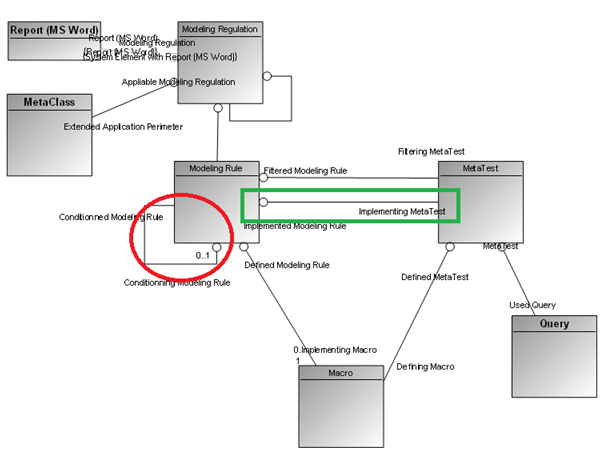
When the ModelingRule includes Conditionned Modeling Rules, the ModelingRuleApplication can hold other ModelingRuleApplications.


|
VB Script
|
Const cstrObjectToValidate = "~GhsmIDTJ)qU1[Repair body]"
Const cstrModelingRegulation = "~ga1YNZOP1H80[Process Modeling Regulation]"
Dim mgobjObjectToValidate
Set mgobjObjectToValidate = GetObjectFromId(cstrObjectToValidate)
Dim mgobjModelingRegulation
Set mgobjModelingRegulation = GetObjectFromId(cstrModelingRegulation)
Dim mgobjResult
Set mgobjResult = mgobjObjectToValidate.RegulationApply(mgobjModelingRegulation)
mgobjResult.Explore
|
|
|
|

11.21 Using MEGA identifiers in the code (Java, VBScript, others)
Here are some useful reminders regarding the use of MEGA identifiers via APIs.
11.21.1 "Physical" type of MEGA identifiers via APIs
You never:
• need to know the data « physical » type of a MEGA identifier.
e.g.: int, long, float, this physical type that can change from a MEGA release to another.
• have to interpret directly a MEGA identifier that you got from a function of APIs.
In Java:
• all the functions that return an identifier return the Object type
e.g.: mgobjMegaObject.getID();
• any function parameter used to receive a MEGA identifier is of Object type
e.g.: mgobjMegaObject.getRoot().currentEnvironment().toolkit().fieldID(Object ID);
In VB Script :
• all the functions that return an identifier return the Variant type
e.g.: MegaObject.getId()
• any function parameter used to receive a MEGA identifier is of Variant type
e.g.: MegaToolKit.fieldID(Vairiant ID)
Naming convention of a variable that includes a MEGA identifier:
mgid<etc>
e.g.: mgidAttribute, mgidMetaClass, mgidApplication
11.21.2 Handling identifiers in their « physical » form
Any operation on a MEGA identifier in its “physical” form must be performed through APIs.
Examples:
• Comparing two identifiers:
MegaToolKit.sameID(...)
• Comparing a MegaObject identifier:
MegaObject.sameID(...)
• Identifier transformations:
- MegaToolKit.getString64FromID(...)
- MegaToolKit.getStringFromID(...)
- MegaToolKit.getIDFromString(...)
11.21.3 MegaFields
Megafields are character strings that enable object identification while including identified object name.
|
Do not parse megafield (unless absolute need)
A megafield might not include the identified object name
|
e.g.: a megafield obtained via MegaObject.megaUnnamedField()
It is recommended to declare the constants that correspond to identifiers in megafield form.
This enables to carry out impact analysis of objects used in VB Script and Java macros (via the reference link for example).
As a megafield is a string, the variable that includes a megafield starts with "str".
e.g.: "strObjectMegaField".
11.21.4 MEGA identifier formats
You can handle MEGA identifiers with different format in your code:
Object / Variant (physical form)
This is what you obtained when you enter:
> MegaObject.getID()
> MegaObject.getProp("Att","INTERNAL")
Where Att is a "Mega Identifier" type attribute, for example Att = "~310000000D00[Absolute Identifier]"
string in numerical format in base 64
This is what you obtained when you enter:
> MegaObject.getProp("Att")
Where Att is a "Mega Identifier" type attribute, for example Att = "~310000000D00[Absolute Identifier]"
Identifiers in MGL files, MGR files, etc.
string in numerical format in base 16 (hexadecimal)
This is what you obtained when you enter:
> MegaObject.getProp("~H20000000550[_HexaIdAbs]")
> MegaToolKit.getStringFromID(...)
Identifiers in XMG files
string MegaField
This is what you obtained when you enter:
> MegaToolKit.fieldID(Object ID)
> MegaObject.megaField()
> MegaObject.megaUnnamedField()
Some function parameters can receive a value in any type amoung the following ones:
Examples:
- MegaRoot.getObjectFromID(Object)
- MegaObject.getProp(Object)
- MegaObject.sameID(Object)
- ...
11.21.5 Bad practice examples
Do not manage on your own:
• identifier comparisons
• conversions of types of variables including identifiers.
• name retrieval in megafields
In only a few particular cases you need to parse megafields.
Do not write:
/**
* Tells if two megaField having the same Id Abs.
* @param megaField1
* @return
*/
@SuppressWarnings("javadoc")
public static boolean sameIdAbs(final String megaField1, final String megaField2) {
if ((megaField1 == null) || (megaField2 == null)) {
return false;
}
String id1 = Pouet.getIdAbsFromMegaField(megaField1);
String id2 = Pouet.getIdAbsFromMegaField(megaField2);
return id1.equals(id2);
}
/**
* Get ID Abs from Mega Field
* @param megaField megaField
* @return Id Abs
*/
public static String getIdAbsFromMegaField(final String megaField) {
if ((megaField != null) && (megaField.length() > 13)) {
return megaField.substring(1, 13);
}
return "";
}
/**
* Get Name contained into megafield Example: for
* "~a20000000I20[MetaAttributeValue]" results on "MetaAttributeValue"
* @param megaField megafield input
* @return Name extracted
*/
public static String getNameFromMegaField(final String megaField) {
int index1 = megaField.indexOf("[");
int index2 = megaField.lastIndexOf("]");
String result = "";
result = megaField.substring(index1 + 1, index2);
return result;
11.22 Getting the parameter value of a query using an API
To get the parameter value of a parameter included in a query, use:
CurrentEnvironment.QueryParameters.ParameterValueGet("<parameter name>")
<parameter name> is the name of the parameter in the query
11.23 Using macros to add calculated attributes
You can:
• define new attributes or parameters for a MEGA object.
• determine value read and save modes for this parameter using MEGA macros.
To calculate an attribute by creating a macro:
1. Open the Explorer on the new attribute or new parameter.
2. Right-click the attribute (or parameter) and select New > Macro.
The macro creation wizard appears.
3. Select Create Macro (VB)Script.
4. Click Next.
5. (Optional) Modify the default Name ("AttributeName".Macro) of your macro.
A macro is an object containing a VB Script code sequence interpreted at execution.
6. Click Finish.
Edit the "AttributeName".Macro macro and note that the VB Script contains in particular the following functions:
If they are not present, standard implementation is selected.
• GetAttributeValue(ByVal Object, ByVal AttributeID, ByRef Value)
Defines attribute access mode. The parameters are:
o Object: corresponds to the object of which the attribute value is requested.
o AttributeID: absolute identifier of the attribute (or taggedValue).
o Value: the attribute value returned by the function, concerning this object.
• SetAttributeValue(ByVal Object, ByVal AttributeID, ByVal Value)
Defines attribute save mode. The parameters are:
o Object: corresponds to the object of which the attribute value must be updated.
o AttributeID: absolute identifier of the attribute (or taggedValue).
o Value: the function saves the attribute value for this object.
The attribute nature (_AtNature) should be Virtual.
For both of these functions, attribute change mode is a character string. Conversion must be carried out to change text format to the internal format of the attribute.
Example:
|
VB Script
|
Sub GetAttributeValue (ByVal object, ByVal AttID, Value)
' internal value reading in integer format. numValue = CInt(objet.GetProp(AttID, "Physical"))
if numValue < 20 then
Value = "Young"
elseif numValue < 35 then
Value = "Youthful"
elseif numValue < 55 then
Value = "Mature"
else
Value = "Elderly"
end if
End Sub
|
|
Java
|
public void getAttributeValue(final MegaObject mgobjObject, final Object AttID, final StringBuffer value) {
// internal value reading in integer format.
String strResult = "";
int iNumValue = (Integer) mgobjObject.getProp(AttID, "Physical");
if (iNumValue < 20) {
strResult = "Young";
} else if (iNumValue < 35) {
strResult = "Youthful";
} else if (iNumValue < 55) {
strResult = "Mature";
} else {
strResult = "Elderly";
}
value.append(strResult);
}
|
You can directly implement read-only and read/write access in the attribute format (without passing via standard conversion).
In this case, you must implement the following two functions, of which prototypes are similar to those above:
|
VB Script
|
GetExtendedAttributeValue(ByVal Format as LONG, ByVal Object, ByVal
AttributeID, ByRef Value)
|
|
Java
|
public void getExtendedAttributeValue(final int[] intFormat, final MegaObject mgobjObject, final Double dAttributeID, final StringBuffer strValue) {}
|
|
VB Script
|
SetExtendedAttributeValue(ByVal Format as LONG, ByVal Object, ByVal
AttributeID, ByVal Value))
|
|
Java
|
public void setExtendedAttributeValue(final int[] intFormat, final MegaObject mgobjObject, final Double dAttributeID, final StringBuffer strValue) {}
|
The difference is in the additional parameter: Format. The possible values are:
• 0 internal: value in internal format (binary, integer,...)
• 1 external: value in external format, but before display processing (certain objects have external form that is textual with the addition of index identifiers, as for class attributes or association roles).
• 3 Display: value in external format used in Web sites or Word documents (expurgated when identifiers in external format occur).
If one of the two extended functions is implemented, call by GetProp with "Physical" format on the same attribute is prohibited since it would lead to an infinite recursion.
11.24 Using macros to add rows/columns in a matrix
To add a row or a column to a matrix you need to implement a macro based on the following functions:
• Function OnRowAdd(MatrixContext) As Boolean (to add a row)
• Function OnColumnAdd(MatrixContext) As Boolean (to add a column)
If the function is not implemented ou returns the “True” value, the default process is called.
To manage (create/delete) the cells of the matrix, you can use the following functions:
Function OnCreateCell(Context,Row As MegaObject,Col As MegaObject) As Boolean
End function
Function OnDeleteCell(Context,Row As MegaObject,Col As MegaObject) As Boolean
End function
To call this macro:
1. Access the properties of the Matrix Template.
2. In its Text > _Parameterization enter:
[InsertManager]
Macro = <MacroID(field of the macro)>
11.25 Adding or launching a tool in HOPEX using APIs
You can use APIs to add or launch a ParameterizedTool using the following commands:
• CreateParameterizedTool to add a ParameterizedTool
• CreateSuspendedParameterizedTool to launch a ParameterizedTool
In both cases, the same functions are available to customize a ParameterizedTool, see Functions available to customize a ParameterizedTool.
11.25.1 Creating a ParameterizedTool
You can create a ParameterizedTool, using either a MegaField or an IdAbs:
• with a MegaField:
Set MyTool = oRoot.CreateParameterizedTool("~Sj(3hVHpEXUN[Docked MetaPropertyPage Tool]")
• with an IdAbs
Set MyTool2 = oRoot.CreateParameterizedTool("MglQ)(cpEHE1")
Note: APIs using CreateParameterizedTool replace former APIs using AddParameterizedTool.
Functions are available to customize the ParameterizedTool, see Functions available to customize a ParameterizedTool.
Example of code using functions available to customize the tool:
Sub mainRoot(oRoot)
Set MyTool = oRoot.CreateParameterizedTool("~Sj(3hVHpEXUN[Docked MetaPropertyPage Tool]")
MyTool.AddParameter "~CuyCQgJTGv2H[Hide status bar]” ,"1 "
MyTool.AddParameter "~i0qiYKRUFncB[Property Page]"," ~Va1s1gjx51A0[Documentation Report]"
MyTool.AddExtraParameter "~flKFMsJeFDv2[Display Mode]", "2"
MyTool.AddAffinity NULL
MyTool.AddAffinity "~7p33r0noIHSM[Search Affinity]"
MyTool.SetMaximizeMode TRUE
MyTool.SetOpenMode "NewTab", "~gV)MTqsnWreM[NewTab Desktop]"
MyTool.SetToolModeForced "A"
MyTool.SetToolModeBehavior "F"
oRoot.Print MyTool.GetJson
end Sub
This code enables to retrieve the following Json:

11.25.2 Creating a Suspended ParameterizedTool
In the same way as creating a ParameterizedTool, you can create a ParameterizedTool in suspension mode.
You can create a Suspended ParameterizedTool as follow:
Set MyTool = oRoot.CreateSuspendedParameterizedTool("~Sj(3hVHpEXUN[DockedMetaPropertyPage Tool]")
Note: APIs using CreateSuspendedParameterizedTool replace former APIs using LaunchedParameterizedTool.
The same functions as with the ParameterizedTool are available to customize the Suspended ParameterizedTool, see Functions available to customize a ParameterizedTool.
Example of code using functions available to customize the tool:
Sub mainRoot(oRoot)
Set MyTool = oRoot.CreateSuspendedParameterizedTool("~Sj(3hVHpEXUN[DockedMetaPropertyPage Tool]")
MyTool.AddParameter "~VHRbsTkZFLvH[Default Object]", “~CIXzoP)iVruU[1 MetaPropertyPage-25]"
MyTool.AddParameter "~i0qiYKRUFncB[Property Page]"," ~ANRndAzcKfhB[AF - Person group.Persons]"
MyTool.AddExtraParameter "~flKFMsJeFDv2[Display Mode]", "2"
MyTool.AddAffinity NULL
MyTool.AddAffinity "~9zdrlpDlGnSK[GRC - Diagrams Affinity]"
MyTool.SetMaximizeMode TRUE
MyTool.SetOpenMode "NewTab","~gV)MTqsnWreM[NewTab Desktop]"
MyTool.SetToolModeForced "A"
MyTool.SetToolModeBehavior "R"
oRoot.Print MyTool.GetJson
end Sub
This code enables to retrieve the following Json:

With the CreateSuspendedParameterizedTool API you get a Suspension array, whose type is indicated (Type: Tool).
11.25.3 Functions available to customize a ParameterizedTool
You can use the following functions to customize a ParameterizedTool:
• AddParameter/AddExtraParameter function
The AddParameter/AddExtraParameter function enables to add a parameter / an ExtraParameter to the ParameterizedTool.
They include the MegaField of the parameter and a value for this parameter.
Examples:
MyTool.AddParameter "~VHRbsTkZFLvH[Default Object]","0"
MyTool.AddExtraParameter "~MZUVmy73FT1K[Behavior Capabilities]", "2"
• AddAffinity function
The AddAffinity function enables to add an affinity to the ParameterizedTool.
It includes a MegaField, but it can also be a NULL affinity.
Example:
MyTool.AddAffinity "~ec3qf4mdU5oL[Addon - Diagram Afffinity]"
MyTool.AddAffinity NULL
• SetOpenMode function
The SetOpenMode function enables to specify an OpenMode.
It includes a character string.
Example:
MyTool.SetOpenMode "M"
The open mode values can be:
o “M” for Modale
o “F” for Full Screen
o “P” for Pop-up
o “NewTab” for New tab
In that specific case, add the MegaField of the Desktop to be used.
MyTool.SetOpenMode "NewTab","~gV)MTqsnWreM[NewTab Desktop]"
• SetClickManager function
The SetClickManager function enables to specify the ClickManager using an IdAbs.
MyTool.SetClickManager "~BuIdYLQ3KfdN[clickManagerForProperties]"
• SetToolModeForced function
The SetToolModeForced function enables to specify a ToolMode using a character string.
Examples:
MyTool.SetToolModeForced "A"
MyTool.SetToolModeForced "R"
The tool mode values can be:
o “A” for Add
o “R” for Replace
• SetToolModeBehavior function
The SetToolModeBehavior function enables to specify a ToolMode using a character string.
Example:
MyTool.SetToolModeBehavior "A"
MyTool.SetToolModeBehavior "R"
The tool mode values can be:
o “A” for Add
o “R” for Replace
o the IdAbs of a desktop.
• GetJson function
The GetJson function enables to return the Json of the ParameterizedTool as a character string format.
Example:
Dim sJson = MyTool.GetJson()
11.25.4 Using several ParameterizedTools
In some cases, you might need to launch several ParameterizedTools at the same time, in chronological order. In that case, you can create the ParameterizedTool list using the CreateParameterizedTools command.
Set MyToolsList = oRoot.CreateParameterizedTools
This command enables to initialize a ParameterizedTool list. This class uses two functions:
• AddParameterizedTool
• GetJson
Their use is very similar to the ParameterizedTool class.
Example:
1. Create 3 ParameterizedTools:
Set MyTool1 = oRoot.CreateParameterizedTool("~Sj(3hVHpEXUN[Docked MetaPropertyPage Tool]")
MyTool1.AddParameter "~VHRbsTkZFLvH[Default Object]", “~CIXzoP)iVruU[1 MetaPropertyPage-25]"
MyTool1.AddParameter "~04VkIJmUFjpU[Listen Current Change]", "1"
MyTool1.AddExtraParameter "~flKFMsJeFDv2[Display Mode]", "2"
MyTool1.AddAffinity NULL
MyTool1.AddAffinity « ~I4bVrX9OGTqF[GRC - Property Page Affinity]"
MyTool1.SetMaximizeMode TRUE
MyTool1.SetOpenMode "NewTab", "~gV)MTqsnWreM[NewTab Desktop]"
MyTool1.SetClickManager "~BuIdYLQ3KfdN[clickManagerForProperties]"
Set MyTool2 = oRoot.CreateParameterizedTool("~)l(3iWHpEXaN[HTML Display Tool]")
MyTool2.AddParameter "~TvSWbAOTGHgV[Container title strategy]", "0"
MyTool2.AddParameter "~i0qiYKRUFncB[Property Page]"," ~OnfWIEf2L5ML[AF - Objects and person groups of reading access area] "
MyTool2.AddExtraParameter "~flKFMsJeFDv2[Display Mode]", "2"
MyTool2.AddAffinity NULL
MyTool2.AddAffinity "~3drCv5qtWbGD[Center Tool Affinity]"
MyTool2.SetMaximizeMode FALSE
MyTool2.SetOpenMode "NewTab", "~gV)MTqsnWreM[NewTab Desktop]"
MyTool2.SetClickManager "~BuIdYLQ3KfdN[clickManagerForProperties]"
Set MyTool3 = oRoot.CreateParameterizedTool("~6k(3dXHpEHfN[Docked MetaWizard Tool]")
MyTool3.AddParameter "~ZzDR68tjGPoS[enableNavigation]", "1"
MyTool3.AddParameter "~qKt3U3nxLHXQ[Property Macro]", " ~xAaCx9LZQnpL[DiveProperties.Implementation]"
MyTool3.AddExtraParameter "~flKFMsJeFDv2[Display Mode]", "2"
MyTool3.AddAffinity NULL
MyTool3.AddAffinity "~46)M(t5sMHv6[Universal Desktop Browse Affinity]"
MyTool3.SetMaximizeMode TRUE
MyTool3.SetClickManager"~BuIdYLQ3KfdN[clickManagerForProperties]"
MyTool3.SetOpenMode "NewTab", "~gV)MTqsnWreM[NewTab Desktop]"
2. Use:
o AddParameterizedTool to add a ParameterizedTool to the list, and
o Getjson to concatenate all of the 3 jsons of the ParameterizedTool in a single one.
Set MyToolsList = oRoot.CreateParameterizedTools
MyToolsList.AddParameterizedTool MyTool
MyToolsList.AddParameterizedTool MyTool2
MyToolsList.AddParameterizedTool MyTool3
oRoot.Print MyToolsList.GetJson
You get the following Json:

You can also manage suspensions using CreateSuspendedParameterizedTools:
Set MyToolsList = oRoot.CreateSuspendedParameterizedTools
MyToolsList.AddParameterizedTool MyTool
MyToolsList.AddParameterizedTool MyTool2
MyToolsList.AddParameterizedTool MyTool3
oRoot.Print MyToolsList.GetJson
You get the following Json:

11.25.5 Creating a ParameterizedTool from a ParameterizedTool
You can generate a ParameterizedTool from an existing ParameterizedTool using its IdAbs. The syntax remains the same:
Set MyTool = oRoot.CreateParameterizedTool(~CIKppfTBH13W[ITPM - Docked MetaPropertyPage - My Application to Update Finance])
In that case the (only) available function is GetJson. If you try to add parameters, you will get an error. This is handy to get a Json when the ParameterizedTool already exists:
Set MyTool = oRoot.CreateParameterizedTool(~CIKppfTBH13W[ITPM - Docked MetaPropertyPage - My Application to Update Finance])
oRoot.Print MyTool.GetJson
You get the following Json:
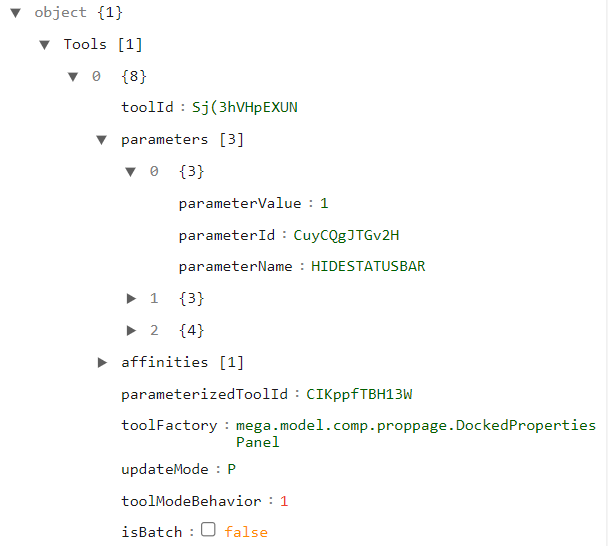
You can also create a SuspendedParameterizedTool
Set MyTool = oRoot.CreateSuspendedParameterizedTool(~CIKppfTBH13W[ITPM - Docked MetaPropertyPage - My Application to Update Finance])
oRoot.Print MyTool.GetJson
You get the following Json:
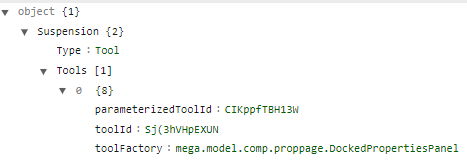
11.26 Report DataSets and APIs
11.26.1 Getting a Report DataSet content using an API
To get a Report DataSet content use GetCollection("~Yvazr2mvKf21[DataSet Create]") on the Report DataSet object.
Example: Opening the selected Report DataSets in HOPEX explorer
|
VB Script
|
Dim mgcolDataSubSet
Set mgcolDataSubSet = GetRoot.RequestQuery("~)ilXTIGrKPiB[Report DataSet]")
If Not mgcolDataSubSet Is Nothing Then
Dim mgobjDataSubSet
For Each mgobjDataSubSet In mgcolDataSubSet
Dim mgcolDataSubSetValues
Set mgcolDataSubSetValues = mgobjDataSubSet.GetCollection("~Yvazr2mvKf21[DataSet Create]")
mgcolDataSubSetValues.explore
Next
End If
|
|
Java
|
String datasetId=””;
MegaObject mgobjDataSubSet = megaRoot.getCollection("~)ilXTIGrKPiB[Report DataSet]").get(datasetId);
MegaCollection mgcolDataSubSetValues = mgobjDataSubSet.getCollection("~Yvazr2mvKf21[DataSet Create]");
|
11.26.2 Regenerating a Report DataSet content using an API
Once a Report DataSet has been generated in a HOPEX session, each successive consultation of this Report DataSet in the same session returns the same previous Report DataSet (the Report DataSet is not calculated at each consultation, it is stored in the cache).
To refresh the Report DataSet content, you need to invoke the CollectionCacheReset operator to delete this cache. In this way, the next consultation of the Report DataSet triggers a new Report DataSet calculation.
To do so, call the CollectionCacheReset operator on the MEGA root, with the Report DataSet identifier and the Report DataSet Collector identifier as argument.
The Report DataSet MetaModel is as follows:
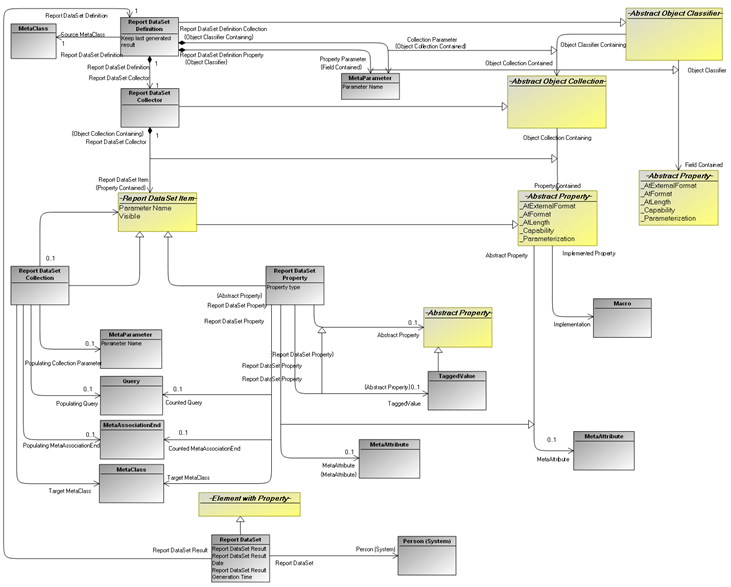
Example: Deleting the cache of all selected report Dataset
|
VB Script
|
Dim mgcolDataSet
Set mgcolDataSet = GetRoot.RequestQuery("~)ilXTIGrKPiB[Report DataSet]")
If Not mgcolDataSet Is Nothing Then
Dim mgobjDataSet
For Each mgobjDataSet In mgcolDataSet
GetRoot.CollectionCacheReset mgobjDataSet.GetId, mgobjDataSet.GetCollection("~rLU9sCZtKLx6[Report DataSet Definition]").Item(1).GetCollection("~NMU9ZfYtKHh6[Report DataSet Collector]").Item(1).GetId()
Next
End If
|
|
Java
|
megaRoot.callMethod("CollectionCacheReset", mgobjDataSubSet.getID(),mgobjDataSubSet.getCollection("~rLU9sCZtKLx6[Report DataSet Definition]").get(1).getCollection("~NMU9ZfYtKHh6[Report DataSet Collector]").get(1).getID());
|
11.27 GraphSet and APIs
11.27.1 Getting the current GraphSet IdAbs
You can get the current GraphSet IdAbs in a macro implementing the GraphSet Arc Definition.
With a GraphSet Arc Definition implemented by a calculated query, to get the current GraphSet in the query use the “CurrentGraphSet” parameter:
mgobjObject.GetRoot.CurrentEnvironment.QueryParameters.ParameterValueGet("CurrentGraphSet")
Example of a macro getting the current GraphSet
Sub FillSelectionCollection(mgobjObject as MegaObject, vntSelectorID as Variant, mgcolCollection as MegaCollection)
Dim graphSetIdabs
graphSetIdabs = mgobjObject.GetRoot.CurrentEnvironment.QueryParameters.ParameterValueGet("CurrentGraphSet")
Dim mgobjGraphSet : Set mgobjGraphSet = mgobjObject.GetRoot.GetObjectFromId(graphSetIdabs)
If mgobjGraphSet.Exists Then
mgcolCollection.Add mgobjGraphSet
End If
End Sub
11.28 Diagrams and APIs
Diagrams API can be useful to programmatically extract information from diagrams, modifying existing diagrams or creating new diagrams from scratch.
11.28.1 Opening an existing diagram
The first step to handle a diagram is to obtain a MegaDrawing API object. This is achieved by first obtaining a reference on the diagram repository object using the repository API.
The following code sample retrieves a diagram in the repository using its unique identifier:
Set oRepositoryDiagram = GetObjectFromId("hk5HbIaO8b70")
The diagram can then be “opened”, either for read-only or read/write access. The following function returns a MegaDrawing which will allow further manipulation:
Set oDrawing = oRepositoryDiagram.Drawing("RO") 'Read-Only
Set oDrawing = oRepositoryDiagram.Drawing("RW") 'Read-Write
|
Note that invoking the Drawing function is like opening the diagram in the desktop: it is a costly call, and for improved performance scripts should avoid opening multiple times the same diagram.
|
Also note that if the diagram is already opened in the desktop, this function will open a separate instance of the diagram in the state of its last save. Most API modifications on this diagram will not therefore be reflected live in the graphical user interface: it will be necessary to close it without saving, then reopen it. To handle diagrams live see Setting up interactive plug-ins in a diagram section.
11.28.2 Creating a new diagram
Like any repository object, a diagram must first be created in the repository. However, there are two additional requirements to successfully create a diagram:
• A diagram must have a “nature”, which indicates the type of diagram (a flowchart, an organizational chart …). Available natures are listed as Meta MetaAttributeValue of the MetaAttribute “Nature”.
• A diagram must describe a repository object (a Business Process, an Application …) and be linked to this object via the adequate MetaAssociationEnd. To find out which MetaAssociationEnd is used as well as the list of allowed natures for a given described object, it is necessary to browse the DiagramTypeZoom linked to the MetaClass of the described object.
' Retrieving a Business Process
Set oBusinessProcess = GetObjectFromId("0ynRE)tLxy81")
Set colDescription = oBusinessProcess.GetCollection("Description")
Set oNewDiagram = colDescription.Add("My new diagram")
oNewDiagram.GetProp("Nature") = "BPDD" ' Business Process Component Diagram
Set oDrawing = oNewDiagram.Drawing("RW")
Note that initialization macros are not called when a diagram is created programmatically.
11.28.3 Saving the diagram
Unlike repository modification, diagram manipulations are not committed automatically. It is necessary to explicitly save the diagram:
oDrawing.Flush
11.28.4 Storing/Retrieving an information on/from a diagram
You can store an information on a diagram using:
myDrawing.prop("UserData") = "myData"
You can retrieve the information from the diagram using:
Drawing.prop("UserData")
Example:
dim oDiag
set oDiag = GetObjectFromId("~j6H4z71sYLlJ[MEGA - Business Process Diagram]")
dim Drawing
set Drawing = oDiag.Drawing("RW")
Drawing.Prop("UserData") = "toto"
print Drawing.Prop("userData")
Drawing.flush
11.29 Accessing graphical objects in a diagram
The all-around way to access graphical objects in a diagram is via the DrawingItems collection available on the MegaDrawing. Some items can also have child items. The structure of the diagram is therefore a tree of DrawingItems. Items are sorted by depth, from the background to the foreground.
An important property of all DrawingItems is the DrawClassName which indicates its object type. The most important types will be detailed in the sections below.
Sample code illustrating how to print the object tree of a diagram
Sub PrintDrawingItems( colDrawingItems, identLevel )
sPrefix = "-"
For i = 1 to identLevel
sPrefix = " " & sPrefix
Next
For Each oItem in colDrawingItems
Print sPrefix & oItem.DrawClassName
PrintDrawingItems oItem.SubDrawingItems, identLevel+1
Next
End Sub
PrintDrawingItems oDrawing.DrawingItems, 0
11.29.1 Accessing repository objects
Repository objects present in the diagram can be accessed in two ways:
• Via the generic DrawingItems tree. Their class name is “ModeOcc”. Objects returned by this collection support the DrawingItem interface.
• Via the legacy DrawingObjects collection which returns only repository objects in a flat list. Objects returned by this collection support the DrawingObject interface and are NOT sorted by depth.
The newer DrawingItem interface has more features than the legacy DrawingObject interface. It is possible to switch between interfaces, as shown in the example below.
For Each oDrawingObject in oDrawing.DrawingObjects
Print oDrawingObject.Name
Set oDrawingItem = oDrawingObject.DrawingItem
Print oDrawingItem.ItemProperty("ModeOcc_Name")
Set oDrawingObjectBis = oDrawingItem.ItemProperty("ModeOcc_DrawingObject")
Print oDrawingObjectBis.Name
Next
To add a repository object in a diagram, the MegaObjectInsert function must be used. It is possible to add several graphical representations of the same repository object. If the object was not already present in the diagram, the repository link between the repository object and the diagram will be created automatically. Note that even if the modifications of the diagram are not saved, this link will still be present in the repository.
Set oRepositoryObjectToAdd = GetObjectFromId("C(RtlVUV9n42")
Set oNewDrawingItem = oDrawing.MegaObjectInsert(oRepositoryObjectToAdd)
oNewDrawingItem.SetPos 200, 200, 4200, 2200
Set oNewDrawingItem2 = oDrawing.MegaObjectInsert(oRepositoryObjectToAdd)
oNewDrawingItem2.SetPos 5200, 200, 9200, 2200
Removing a repository object from the diagram is done using the Erase function, as for any DrawingItem. If the DrawingItem removed is the last representation of a repository object, the repository link between the object and the diagram will be automatically deleted.
11.29.2 Accessing repository links
Repository links present in the diagram can be accessed in two ways:
• Via the generic DrawingItems tree. Their class name is “ModeLink”. Objects returned by this collection support the DrawingItem interface.
• Via the legacy DrawingLinks collection which returns only repository links in a flat list. Objects returned by this collection support the DrawingLink interface and are NOT sorted by depth.
The newer DrawingItem interface has more features than the legacy DrawingLink interface. It is possible to switch between interfaces, as shown in the example below.
For Each oDrawingLink in oDrawing.DrawingLinks
Print oDrawingLink.DirectLegName
Set oDrawingItem = oDrawingLink.DrawingItem
Set oDrawingLinkAgain = oDrawingItem.ItemProperty("ModeLink_DrawingLink")
Print oDrawingLinkAgain.DirectLegName
Next
Repository links are automatically added or removed in a diagram when a link is added or removed in the repository and connected objects are present in the diagram.
' Creation of a link in repository
Set oOperation1 = GetObjectFromId("lktopHlNBL51")
Set oOperation2 = GetObjectFromId("JltopHlNBb71")
Set oNextLeg = GetObjectFromId("KsUirDB5iCu2")
oOperation1.GetCollection(oNextLeg.GetId()).Add(oOperation2)
‘ Retrieving the graphical representation of the new link
Function FindDrawingLink( oDrawing, idRpMaster, idRpSlave, idLeg )
ReDim arDrawingLink(0)
For Each oDrawingLink In oDrawing.DrawingLinks
If ( ( idLeg = oDrawingLink.OppositeLegId _
And idRpSlave = oDrawingLink.OppositeDrawingObject.Id _
And idRpMaster = oDrawingLink.DirectDrawingObject.Id ) _
Or ( idLeg = oDrawingLink.DirectLegId _
And idRpSlave = oDrawingLink.DirectDrawingObject.Id _
And idRpMaster = oDrawingLink.OppositeDrawingObject.Id ) ) Then
ReDim Preserve arDrawingLink(UBound(arDrawingLink)+1)
Set arDrawingLink(UBound(arDrawingLink)-1) = oDrawingLink
End If
Next
FindDrawingLink = arDrawingLink
End Function
arDrawingLink = FindDrawingLink( oDrawing, oOperation1.GetId(), _
oOperation2.GetId(), oNextLeg.GetId() )
Set oDrawingLink = arDrawingLink(0)
It is then possible to modify graphical aspects of the link. Many visual properties of texts and lines are available in structures which must be manipulated by value, and not by reference: API functions usually return copies of these structures and not direct handles to the original structures. This allows preparing a structure and then being able to assign it to different objects. The following example illustrates this distinction when changing the color of a line.
Set oDrawingItem = oDrawingLink.DrawingItem
Print Hex(oDrawingItem.Pen.Color) ‘ For example, returns FF0000FF - blue
‘ The Pen property returns a copy of the MegaDrawingPen structure so
‘ the following statement will NOT change the color of the link
oDrawingItem.Pen.Color = &hFFFF0000 ‘ red
Print Hex(oDrawingItem.Pen.Color) ‘ still blue
Set oLinePen = oDrawingItem.Pen
oLinePen.Color = &hFFFF0000
‘ Only the structure copy in oLinePen has been modified
Print Hex(oDrawingItem.Pen.Color) ‘ still blue,
‘ This statement will commit the change in the original structure
oDrawingItem.Pen = oLinePen
Print Hex(oDrawingItem.Pen.Color) ‘ red at last
‘ Short Version
Set oLinePen = oDrawingItem.Pen
oLinePen.Color = &hFF00FF00
oDrawingItem.Pen = oLinePen
oDrawing.Flush ‘ Do not forget to save the diagram
Modifying the points of a line is done via a special interface. To be successful, the new points collection must keep the original extremities coordinates (the first and the last points). If the line is orthogonal, extra care must be taken to ensure that the new point collection is orthogonal; otherwise the line points will be reset.
' Setting orthogonal style
Set oLineStyle = oDrawingItem.LineStyle
oLineStyle.Style = 7 ' orthogonal
oDrawingItem.LineStyle = oLineStyle
‘ Utility function for debug which prints the points of a collection
Sub DumpPoints( colPoints )
Print colPoints.Count & " points"
For i = 0 to colPoints.Count - 1
Print "[ " & colPoints.Abscissa(i) & ", " & colPoints.Ordinate(i) & " ]"
Next
End Sub
Set colPoints = oDrawingItem.ItemProperty("DrwLine_Points")
' Removing old points, keeping both extremities
For i = 1 to colPoints.Count - 2
colPoints.RemovePoint(1)
Next
' Creating a "stair"
nbSteps = 7
dw = (colPoints.Abscissa(1)-colPoints.Abscissa(0)) / nbSteps
dh = (colPoints.Ordinate(1)-colPoints.Ordinate(0)) / nbSteps
For i = 1 to nbSteps
colPoints.InsertPointBefore colPoints.Count-1, _
colPoints.Abscissa(colPoints.Count-2), _
colPoints.Ordinate(colPoints.Count-2)+dh
colPoints.InsertPointBefore colPoints.Count-1, _
colPoints.Abscissa(colPoints.Count-2)+dw, _
colPoints.Ordinate(colPoints.Count-2)
Next
colPoints.Abscissa(colPoints.Count-2) = _
colPoints.Abscissa(colPoints.Count-1)
oDrawingItem.ItemProperty("DrwLine_Points") = colPoints
11.29.3 Paths
A path is a special kind of graphical object: it is displayed as a link, but actually hides a sequence of repository links and objects. Paths are declared as DiagramTypePath in the diagram parameterization. It is declared as a sequence of:
1. A link or a path
2. An object
3. A link or a path
An example of path is an association in a UML class diagram. It is a multi-level path which chains 3 repository objects.
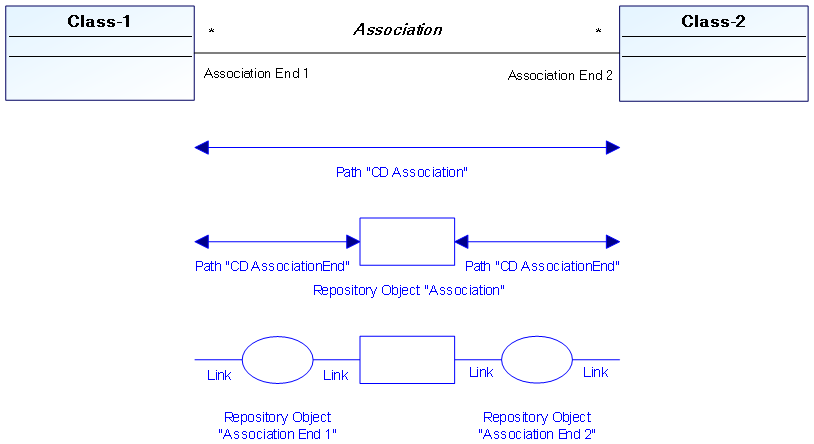
There is no specific API for paths. They must be accessed via the DrawingItem collection, their DrawClassName is “ModeDrwPath”. The DrawingObjects and DrawingLinks hidden by the path can still be accessed via the legacy collections, as they are actually children of the path.

However, as these graphical objects are not displayed, there is no real interest in manipulating them. To modify the aspect of the path (like the color or the points, it is necessary to modify the root ModeDrwPath DrawingItem. However, access to the underlying DrawingObjects and DrawingLinks is necessary to identify the path.
Function FindPathItem( oDrawing, idRpObjectCenter )
ReDim arDrawingItem(0)
For Each oDrawingObject in oDrawing.DrawingObjects
If oDrawingObject.Id = idRpObjectCenter Then
Set oParent = _
oDrawingObject.DrawingItem.ItemProperty("ParentDrawingItem")
If oParent.DrawClassName = "ModeDrwPath" Then
ReDim Preserve arDrawingItem(UBound(arDrawingItem)+1)
Set arDrawingItem(UBound(arDrawingItem)-1) = oParent
End If
End If
Next
FindPathItem = arDrawingItem
End Function
Set oAssociation = GetObjectFromId("PhnuDD(NB1W0")
arPathDrawingItem = FindPathItem( oDrawing, oAssociation.GetId() )
Set oPathDrawingItem = arPathDrawingItem(0)
To add a path to diagram, all necessary objects and links must first be created in the repository and the extremity objects must appear in the diagram. The center object of the top level path must then be added. The remaining objects and links will be added automatically and a path will be generated. It can then be accessed as previously.
oDrawing.MegaObjectInsert oAssociation
arPathDrawingItem = FindPathItem( oDrawing, oAssociation.GetId() )
Set oPathDrawingItem = arPathDrawingItem(0)
Set oPathPen = oPathDrawingItem.Pen
oPathPen.Color = &hFF0000FF
oPathDrawingItem.Pen = oPathPen
11.29.4 Getting the Text Field of a ModeOcc of a path
The coordinates of a ModeOcc of a path correspond with the virtual location of this ModeOcc on this path. Thus, the central ModeOcc of a path (invisible in the drawing) is a virtual rectangle located in the middle of the path.
To get the coordinates of the &Name& field of the central ModeOcc, you must go through the twin of the ModeOcc attribute corresponding to the &Name& field.
11.30 Setting up interactive plug-ins in a diagram
You can set macros as diagram plug-ins for a given DiagramType. These macros are called when:
• diagrams are opened or saved,
• graphical representations of repository objects are moved or resized
• represented objects are modified.
In response to a user input, they can then further modify the diagram or the repository, for example to perform an automatic layout or to create complex repository relationships which cannot be achieved with standard parameterization.
In addition, diagram plug-ins help declare and implement macro commands; each macro command is associated with a button in a specific “macro” toolbar.
11.30.1 Writing a diagram plug-in
A diagram plug-in must be implemented in a Mega “Macro” repository object. It defines a number of functions which are called in response to events occurring in the diagram.
Write the following code in the macro editor and save it as a macro.
' ********************************************************************
' Event handlers - each handler implementation is optional
Sub OnLoadDrawing( oDrawing As MegaDrawing )
End Sub
Sub OnMoveDrawingObject( oDrawing As MegaDrawing, _
oDrawingObject As MegaDrawingObject )
End Sub
Sub OnResizeDrawingObject( oDrawing As MegaDrawing, _
oDrawingObject As MegaDrawingObject )
End Sub
Sub OnSaveDrawing( oDrawing As MegaDrawing )
End Sub
Sub OnObjectChanged( oDrawing As MegaDrawing, _
oDrawingObject As MegaDrawingObject )
End Sub
' New events in Mega 2009 SP2
Sub OnInsertDrawingObject( oDrawing As MegaDrawing, _
oDrawingObject As MegaDrawingObject)
End Sub
Sub OnEraseDrawingObject( oDrawing As MegaDrawing, _
oDrawingObject As MegaDrawingObject)
End Sub
Sub OnUndo( oDrawing As MegaDrawing)
' WARNING: no modification should be made, this is only for updating
' internal structures
end Sub
' ********************************************************************
' Plug-in custom toolbar button declaration
' To add macro commands, the three following methods must implemented.
' Otherwise none is required to be implemented.
' Returns the number of macro commands implemented by the plug-in.
Sub GetCommandCount( oDrawing, nCmd )
nCmd = 1
End Sub
' For each command from 1 to count (returned by GetCommandCount),
' this method should return the text description of the command in sCmdName
' and optionally the ID of an existing MetaPicture which will be used for the
' button in the toolbar instead of the default picture.
Sub GetCommandDescription( oDrawing, nCmd, idPict, sCmdName)
If nCmd = 1 Then
sCmdName = "ZOrderCompare test"
idPict = oDrawing.GetRoot.CurrentEnvironment.Toolkit _
.GetIDFromString("~uxuU1odd5z00[Book]")
End If
End Sub
' This method will be called when the user clicks the corresponding button
Sub CommandCall( nCmd, oDrawing )
If nCmd = 1 Then
Set mySelCol = drawing.SelDrawingItems
Set myItem = mySelCol.Item(1)
Set myObjCol = drawing.DrawingObjects
For Each obj In myObjCol
If myItem.ZOrderCompare(obj.DrawingItem) = 1 then
MsgbBx "Selected object is BEHIND " & obj.Name
Else
MsgBox "Selected object is IN FRONT of " & obj.Name
End If
Next
End If
End Sub
11.30.2 Writing a drag'n drop plugin
Just like the diagram plug-in, you can handle your own behavior for the drag'n drop in the diagram. The drag'n drop plug-in must be implemented in a MEGA “Macro” repository object. It defines a number of functions which are called in response to events occurring in the drag'n drop.
Even if technically a diagram plug-in macro can be used to implement the custom drag'n drop behavior it is strongly recommended to use distinct macro for diagram plug-in and drag'n drop plug-in.
Function OnDragEnter(oDragnDropContext as Object)
End Function
The On DragEnter function is called each time a drag'n drop enters the diagram area.
The return value must be one of the following options:
• 0: This is the default behavior. The Drag'n drop plug-in does not implement a specific behavior for this drag'n drop
• 1: The behavior of the drag'n drop is handled by the plug-in. The data of the drag'n drop can be dropped in the current diagram.
• 2: The behavior of the drag'n drop is handled by the plug-in. The data is not accepted for the drop action in the current diagram.
The oDragnDropContext is a context object available for each methods of this plug-in. It is created when a given drag'n drop action enters the given diagram area for the first time. This object is available until the drag'n drop is dropped in the given diagram or when another drag'n drop enters the diagram's area.
This object supports the following methods:
• GetRoot: Returns the MEGARoot
• GetDrawing: Returns the drawing of the current diagram.
• GetSourceObjClassId: Returns the MetaClass Id of the data attached to the current drag n drop.
• GetSourceObjCollection: Returns the collection of the data attached to the drag n drop.
• GetDragPosX: Returns the position in the diagram of the cursor.
• GetDragPosY: Returns the position in the diagram of the cursor.
• GetBag: Returns a bag attached to the context object.
Function OnDragOver(oDragnDropContext as Object)
End Function
The OnDragOver is called each time the drag'n drop moves over the diagram's area. Only very light computation should be implemented in this function.
To lighten the computation of this function you can for example do your computation in the OnDragEnter function and store the result on the context object thanks to its bag.
Sub OnDragLeave(oDragnDropContext as Object)
End Sub
This procedure is called each time the drag'n drop leaves the diagram's area. It does not have any return value.
Function OnDragDrop(oDragnDropContext as Object)
End Function
This function is called when the drag'n drop data is dropped on the diagram's area. If you allowed the drag'n drop action with function OnDragEnter or OnDragOver, you must handle the drag'n drop here.
The available return values are:
• 0: The drag'n drop was not handled by the plug-in.
• 1: The drag'n drop was handled by the plug-in.
11.30.3 Registering the macro on a DiagramType:
In the properties box of the DiagramTypeParam of the DiagramType of a diagram, in the _settings text, in the [Macros] section, just add an entry like <n>=<macroIdAbs> where n is any integer not already used and macroIdAbs is the macro idAbs which can be easily obtained via the “Field insert” button of the Text page toolbar.
Note:
When the macro is modified, the diagram needs to be reloaded to take changes into account.
The drawing given to each method of the plugin is a Read/Write MegaDrawing.
Several plugins can be set up on one MetaDiagramType. Each plugin can provide macro commands, however the overall maximum number of macro commands is 16.
11.31 Writing a dynamic query
A query retrieves a set of objects.
A dynamic query is a query that cannot be written with an ERQL syntax; Algorithm is necessary to retrieve the collection content.
A dynamic query is based on the Query concept.
To write a dynamic query:
1. Open the query Properties window.
2. Set its Query Implementation attribute to “Macro”.
3. Set its collection Implementation attribute to the macro that will compute the collection:

4. It is recommended to implement the query code in VB Script except if you have very complex code. In that case, you can use Java
Two prototypes can be defined when computing the collection:
|
VB Script
|
Function getSelectionCollection (oSourceObject as MegaObject, SelectorID as Variant)
End Function
Sub FillSelectionCollection(oSourceObject as MegaObject, SelectorID as Variant, mgcoll as MegaCollection)
End Sub
|
|
Java
|
public void InvokeOnCollection(final MegaCollection lst )
{
}
Or if you want your method to return a value, use
//return an integer
public int InvokeOnCollection(final MegaCollection lst )
{
}
|
The getSelectionCollection creates and sends back the collection to be retrieved. This function can be used particularly when the collection contains different kind of objects.
The FillSelectionCollection has the collection already initialized. The function role is just to fill it in.
The arguments are:
• the source object from which the query may be requested or the MegaRoot
• the query identifier.
11.32 Accessing rules and regulations using APIs
11.32.1 Accessing regulations using APIs
Implementing a regulation
myObject.ApplyRegulation(myRegulation as MegaObject) as Boolean
Applies the regulation to the object.
Returns True or False according to the regulation compliancy.
Defining the default active regulation
myRegulation.RegulationActivate = True
myRegulation becomes the active regulation.
To get the result of implementing this regulation to a specific object, read the calculated text “object control report”.
Example:
|
VB Script
|
set myRule = GetObjectFromID("~W6Or(qjB2zB0[Architecture Modeling Regulation]")
myRule.RegulationActivate = True
print Application.item(1).getprop("object control report","Display")
myRule.RegulationActivate = False
|
|
Java
|
MegaObject mgobjMyRule = mgobjMegaObject.getRoot().getObjectFromID("~W6Or(qjB2zB0[Architecture Modeling Regulation]");
mgobjMyRule.invokePropertyPut("RegulationActivate", true);
mgRoot.callFunction("~U7afnoxbAPw0[MessageBox]", mgobjMegaObject.getRoot().getCollection("Application").get(1).getProp("object control report ", "Display"));
mgobjMyRule.invokePropertyPut("RegulationActivate", false);
|
By default «object control report» text is in HTML format. « Display » keyword enables to display it in text mode.
myRegulation.RegulationActivate = False restores the active regulation defined in the user options
11.32.2 Accessing rules using APIs
To apply “myRule” rule to “myObject” objet, you can use the following symmetrical methods:
myRule.RuleApply(myObject as MegaObject) as Boolean
myObject.ApplyRule(myRule as MegaObject) as Boolean
Both functions send False when the rule is not complied with.
Reminder: the rule description is included in the text "Description of the rule". When the rule is not complied with, the message to be displayed is "When the rule is not complied with"
Example:
|
VB Script
|
set myRule = GetObjectFromID("~o6OrCgnB2fp2[An application cannot be its own component]")
print myRule.RuleApply(Application.item(1))
print Application.item(1).ApplyRule(myRule)
print myRule.GetProp("Description of the rule")
print myRule.GetProp("When the rule is not complied with")
|
||
|
Java
|
MegaObject mgobjMyRule = mgobjMegaObject.getRoot().getObjectFromID("~o6OrCgnB2fp2[An application cannot be its own component]");
mgRoot.callFunction("~U7afnoxbAPw0[MessageBox]", mgobjMyRule.invokeFunction("RuleApply", mgobjMegaObject.getRoot().getCollection("Application").get(1)));
mgRoot.callFunction("~U7afnoxbAPw0[MessageBox]", mgobjMegaObject.getRoot().getCollection("Application").get(1).invokeFunction("ApplyRule", mgobjMyRule));
mgRoot.callFunction("~U7afnoxbAPw0[MessageBox]", mgobjMyRule.getProp("Description of the rule"));
mgRoot.callFunction("~U7afnoxbAPw0[MessageBox]", mgobjMyRule.getProp("When the rule is not complied with"));
|
||
11.33 Business Documents and APIs
The following APIs are available in the frame of the Document Management module regarding static documents:
11.33.1 StaticDocumentFilePathGet
Retrieving the address of a physical file from a static document (static document version, system static document or system static document version) that can be used to send a document as an attachment to a mail for example.
Function prototype:
Function StaticDocumentFilePathGet() As String
Use example:
mgoDoc a static document (static document version, system static document or system static document version) retrieves the path to the file containing the static document.
strFilePath = mgoDoc.CallFunction("~FFopcJjTGnIC[StaticDocumentFilePathGet]")
or
strFilePath = mgoDoc.StaticDocumentFilePathGet()
or
strFilePath = mgoDoc.StaticDocumentFilePathGet()
Result examples:
C:\PROGRAM FILES (X86)\MEGA\ENVS\DEMONSTRATION\SYSDB\USER\User\mg_webtmp\68412896\129955724059390000\Exemple de DOCX v1.docx
Warning: the file life cycle is the responsibility of the StaticDocumentFilePathGet function caller. It should be deleted after use.
However the file will be deleted when the workspace is closed.
11.33.2 DesktopUrlBuild with DocumentLauncher tool
Generation of a link enabling static document opening from the HOPEX Web Front-end.
Use the API DesktopUrlBuild (see Calling a URL construction function using APIs in HOPEX).
The Mega Tool used here is "Document Launcher": ~LA)RAINPGnHP[Document Launcher]
The Mega Tool parameter is "documentId": ~LB)R72OPGDLP[documentID]
Use as parameter the identifier of the document we want to open and the identifier of the MetaClass of the document we want to open (for example MetaClass Document (static)).
Use example:
Let us take a static document with the following absolute identifier: WEsYsj8PGnU4print
|
VB Script
|
Print mgobjMegaObject.getRoot.DesktopURLBuild ("Tool=LA)RAINPGnHP,Param=LB)R72OPGDLP,ParamValue=WEsYsj8PGnU4,ParamValueMetaclass=UkPT)TNyFDK5")
|
|
Java
|
mgRoot.callFunction("~U7afnoxbAPw0[MessageBox]", mgobjMegaObject.getRoot().invokePropertyGet("DesktopURLBuild", "Tool=LA)RAINPGnHP, Param=LB)R72OPGDLP, ParamValue=WEsYsj8PGnU4, ParamValueMetaclass=UkPT)TNyFDK5"));
|
Result example:
http://localhost/HOPEX/default.aspx?userdata=Tool-LA%29RAINPGnHP|LB%29R72OPGDLP-WEsYsj8PGnU4-UkPT%29TNyFDK5
Note:
This MegaTool also functions for static document versions, system static documents, system static document versions and also for external references and system external references. To do this, just modify the ParamValueMetaClass.
11.33.3 SaveAsStatic
Saving a dynamic document (Word document, book, report) as a static document.
Function prototype:
Function SaveAsStatic(mgoDocPattern As MegaObject, bBatch As Boolean, strFormat As String) As String
• mgoDocPattern static document template (can be Nothing)
• bBatch a boolean indicating if we want to create the static document in batch or not (display of static document wizard or not)
• strFormat, the generation format. Can be empty "".
For books, available formats are: "PDF" or "RTF" (RTF by default)
For reports, available formats are: "PDF", "RTF", "XLS" (RTF by default)
For documents, format is not taken into account. It depends on the option defined in HOPEX (DOC or RTF) and on the generation context (HOPEX Windows Front-End or HOPEX Web Front-End)
• It returns the identifier of the object (static document) created.
Use example:
Let us take mgoDynamicDoc a book, a report or a document (Word dynamic)
sDocId = mgoDynamicDoc.CallFunction("~9Zy9faIVGbdG[SaveAsStatic]", mgoDocPattern, bBatch, strFormat)
ou
sDocId = mgoDynamicDoc.SaveAsStatic(mgoDocPattern, bBatch, strFormat)
ou
sDocId = mgoDynamicDoc.SaveAsStatic(mgoDocPattern, bBatch, strFormat)
11.33.4 Macro Script global properties (MegaPropertyBag)
Script macro global data
At creation of a MEGA macro, a global component is made accessible to macro Script code. This component is named MegaMacroData. It enables indication of the script instancing context, and also handling of macro global variables.
• Macro context data: this data comprises read-only variables.
o MegaMacroData.GetID: absolute identifier of the MEGA macro instancing the current script.
o MegaMacroData.ServiceID: absolute identifier of the service implemented by the macro. For example, when a macro implements a MetaCommand, this variable contains the absolute identifier of the MetaCommand. This function offers the possibility of implementing a reusable macro, since it can access a configuration available on the implemented service.
o MegaMacroData.InitString: macro initialization string. In certain use cases, a macro is initialized with a configuration string; this enables macro reuse without creating a specific service. This variable enables access to this initialization string.
• PropertyBag associated with a macro: this function enables definition of macro global properties, which is independent of script instances executing macro methods.
The Microsoft script interpreter used to execute macro code is strictly monothread: it can be accessed (or destroyed) only in the thread in which it was created. A macro can be globally instanced and called in a multithread context: in particular this is the case for implementations of MetaAttribute and _Operator. To operate in these contexts, the macro execution engine instances as many scripts as there are calling threads. Each script instance is strictly independent of the others: In particular this is true for globals declared in a script – including the global code, which is then executed for each new script instance. If, for optimization reasons, it is desirable to maintain globals valid for all macro script instances, we must have available a mechanism independent of the script. To do this, a global PropertyBag is made available to the macro.
MegaMacroData.GetBag enables access to the global PropertyBag of the macro. This PropertyBag is a component implementing the MegaPropertyBag interface described in the paragraph below.
MegaPropertyBag component
Such a component enables management of a list of named properties, in a similar way as for a javascript class. This data can be managed and maintained independently of the instances of scripts that handle them.
You can access a MegaPropertyBag, either:
• by using MegaMacroData.GetBag property, available on each macro script, or
• by instantiating specifically a MegaPropertyBag as follows:
|
VB Script
|
MegaToolkit.CreateMegaObject(« MegaPropBag »)
|
|
Java
|
MegaPropertyBag mgpbBag = new MegaPropertyBag(mgRoot.currentEnvironment().toolkit());
|
Default mode of MegaPropertyBag operation does not require prior declaration of stored variables. Its operation is therefore very similar to that of a javascript class, as the following example shows:
Set Bag = CurrentEnvironment.Site.Toolkit.CreateMegaObject("MegaPropBag")
Bag.Prop1 = "Value 1"
Bag.Prop2 = 17
print Bag.Prop1
print Bag.Prop2
Unlike VBScript assignment, object reference assignment is automatic, and keyword Set should not be included in assigning an object to a property:
Bag.Prop3 = GetCollection("Package").Item(1)
print Bag.Prop3.GetProp("Name")
Keyword Item enables generic access to a property:
print Bag.Item("Prop1")
You can configure a propertyBag to impose declaration of properties by means of the Explicit method; this system limits risk of error when you want to share content of a propertyBag, or simply to avoid programming bugs (assured by the Explicit Option in VBScript).
Bag.Explicit
Used as a function, Explicit indicates the PropertyBag operating mode.
In Explicit mode, you need to declare a property – using Dim method – before using it, either for reading or update.
If Bag.Explicit Then
Bag.Dim "Prop1"
Bag.Dim "Prop2"
End If
Bag.Prop1 = "Value 1"
Bag.Prop2 = 17
in VBScript, the propertyBag is also an iterator enabling listing of properties used (either in update or consultation).For Each propName In Bag
print "Prop " & propName & " = " & Bag.Item(propName)
Next
In languages in which the iterator cannot be used (such as java or javascript), we can access properties using an index and the Count function. In this case, we cannot access the property name (future function ItemName).
|
VB Script
|
For propIndex = 1 To Bag.Count
print "Prop #" & propIndex & " = " & Bag.Item(propIndex)
Next
|
|
Java
|
MegaPropertyBag mgpbBag = new MegaPropertyBag(mgRoot.currentEnvironment().toolkit());
mgpbBag.explicit(true);
mgpbBag.dim("Prop1");
mgpbBag.dim("Prop2");
mgpbBag.basedObj.invokePropertyPut("Prop1", "Value1");
mgpbBag.basedObj.invokePropertyPut("Prop2", 17);
for (int j = 1; j <= mgpbBag.count(); j++) {
mgRoot.callFunction("~U7afnoxbAPw0[MessageBox]", "Prop #" + j + " = " + mgpbBag.item(j));
}
|
You can test the nature of a propertyBag variable, so as to determine if it is an object or a data item, by means of the IsObject function.
If the list of properties indicated in the above example includes objects, these should be treated differently:
For Each propName In Bag
If Bag.IsObject(propName) Then
Set propItem = Bag.Item(propName)
Set propItem = Bag.Item(propName)
print "Prop " & propName & " is an Object"
Else
propItem = Bag.Item(propName)
propItem = Bag.Item(propName)
print "Prop " & propName & " = " & propItem
End If
Next
propertyBag expression evaluator.
The propertyBag has an expression interpretation function; Evaluated expressions are based on a VBScript syntax and allow only elementary actions:
- numerical or alphanumerical expression calculation
- assignment of properties with these expressions.
In particular, this evaluator is used by indicators in HOPEX; it enables call on dynamic code without calling ExecuteGlobal. This function offered by Microsoft scripting has the significant drawback of enabling implementation of a trojan horse, since the Script code called has MEGA macro execution rights, and more specifically of the connected user - this therefore representing a potential security risk. However the expressions interpreted by a propertyBag do not have all VBScript functions (the CreateObject function cannot be called) thus limiting security fault risks.
In these expressions, variables used correspond to propertyBag properties. It is nevertheless possible to cite external variables managed by a component given as a parameter to the evaluator; these variables are presented in the expression in the form of fields. The evaluator calls the function whose name is passed as parameter when a field is found in the expression.
A field can comprise a series of fields separated by dots and possibly terminated by an option:
Field1.Field2.option
The function implemented allows as parameter the propertyBag itself, which can supply context information required for evaluation of the field using the following contextual functions:
• Number of consecutive fields:
|
VB Script
|
Bag.FieldCount
|
|
Java
|
mgpbBag.fieldCount()
|
• Identifier corresponding to nuField field:
|
VB Script
|
Bag.FieldValue(nuField)
|
|
Java
|
mgpbBag.fieldValue(nuField)
|
• Option value:
|
VB Script
|
Bag.FieldOption
|
|
Java
|
mgpbBag.fieldOption()
|
The evaluator exists in two forms:
• an expression evaluator, which returns a value.
|
VB Script
|
MegaPropertyBag.Evaluate(
EvaluableString As String,
FieldResolver As Object,
ResolvingFunction As String) As Variant
|
|
Java
|
public Object evaluate(final String formula, final Object fieldProcessor, final String callbackName)
|
• a code evaluator, which enables assignment of propertyBag properties with expressions. This evaluator can include several VBScript instructions separated by ':' or on different lines.
|
VB Script
|
MegaPropertyBag.Execute(
EvaluableString As String,
FieldResolver As Object,
ResolvingFunction As String)
|
|
Java
|
public String execute(final String script, final Object fieldProcessor, final String callbackName)
|
Example:
|
VB Script
|
Class FieldResolver
Function Field(Bag) ' nothing to evaluate
End Function
End Class Set Bag = CurrentEnvironment.Site.Toolkit.CreateMegaObject("MegaPropBag") Bag.Prop1 = "Value 1"
Bag.Prop2 = 17
Bag.Sel = GetCollection("Package")
print Bag.Evaluate("Prop1 & Prop2 & Sel.Count", New FieldResolver, "Field")
Bag.Execute("Prop1 = Prop2 & Sel.Count", New FieldResolver, "Field")
print Bag.Prop1
|
|
Java
|
class FieldResolver {
public FieldResolver() {}
public String Field(final MegaPropertyBag mgpbBag) {
//nothing to evaluate
return "";
}
}
MegaPropertyBag mgpbBag = new MegaPropertyBag(mgRoot.currentEnvironment().toolkit());
mgpbBag.basedObj.invokePropertyPut("Prop1", "Value1");
mgpbBag.basedObj.invokePropertyPut("Prop2", 17);
mgpbBag.basedObj.invokePropertyPut("Sel", mgRoot.getCollection("Package"));
mgRoot.callFunction("~U7afnoxbAPw0[MessageBox]", mgpbBag.evaluate("Prop1 & Prop2 & Sel.Count", new FieldResolver(), "Field"));
mgpbBag.execute("Prop1 = Prop2 & Sel.Count", new FieldResolver(), "Field");
mgRoot.callFunction("~U7afnoxbAPw0[MessageBox]", (String) mgpbBag.item(3));
|