BPMN export overview
The Business Process Modeling and Notation (BPMN) is a graphical representation for specifying processes. This design can be serialized into an xml file that supports the BPMN objects and diagrams. Each process is serialized into a bpmn file.
The HOPEX BPMN export project aims at exporting workflow definitions as BPMN files so that workflows modeled in HOPEX can be used by other BPMN modeling tools or workflow engines.
Prerequisites
The BPMN export feature is available with with HOPEX Buisiness Process Analysis and supports BPMN version 2.0.
Activate/Deactivate BPMN export
The BPMN export feature can be activated or deactivated for a user, a profile, an environment, or a site. This can be done using the corresponding option:
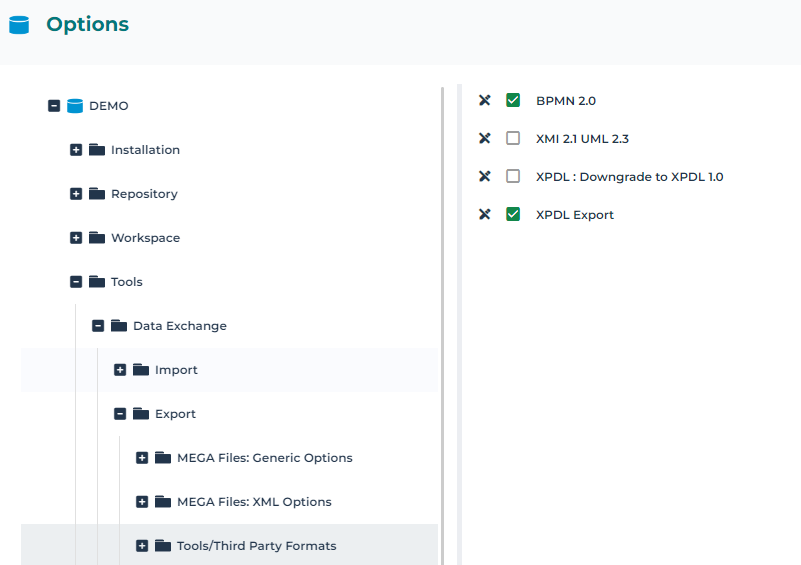
Scope of BPMN export
The purpose of BPMN export is to export an HOPEX Process into a BPMN file.
The tool handles translation of the following processes:
• System Processes
• Processes
• Process Categories
• Value Streams
The list of supported mappings is detailed below. See Object correspondences.
Exporting BPMN Files
To export a BPMN file from HOPEX:
1. In HOPEX, select Main Menu > Export > BPMN 2.0 (*.zip).
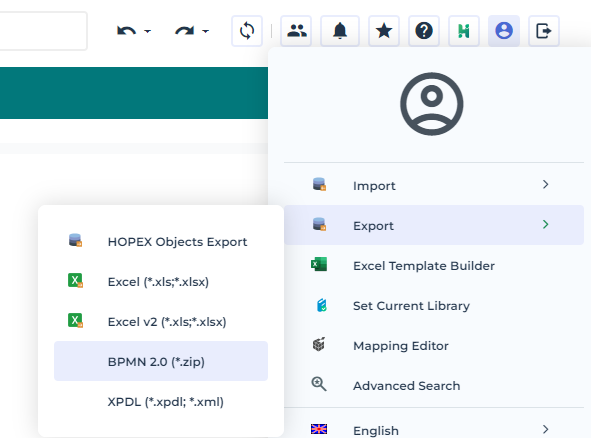
The export dialog box appears.
2. Select the type of object you want to export, for example Process, and click Next.
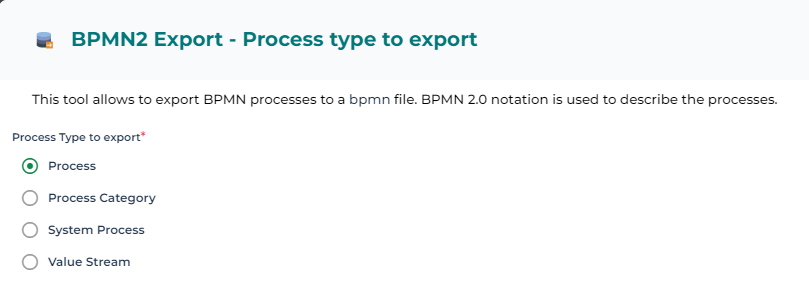
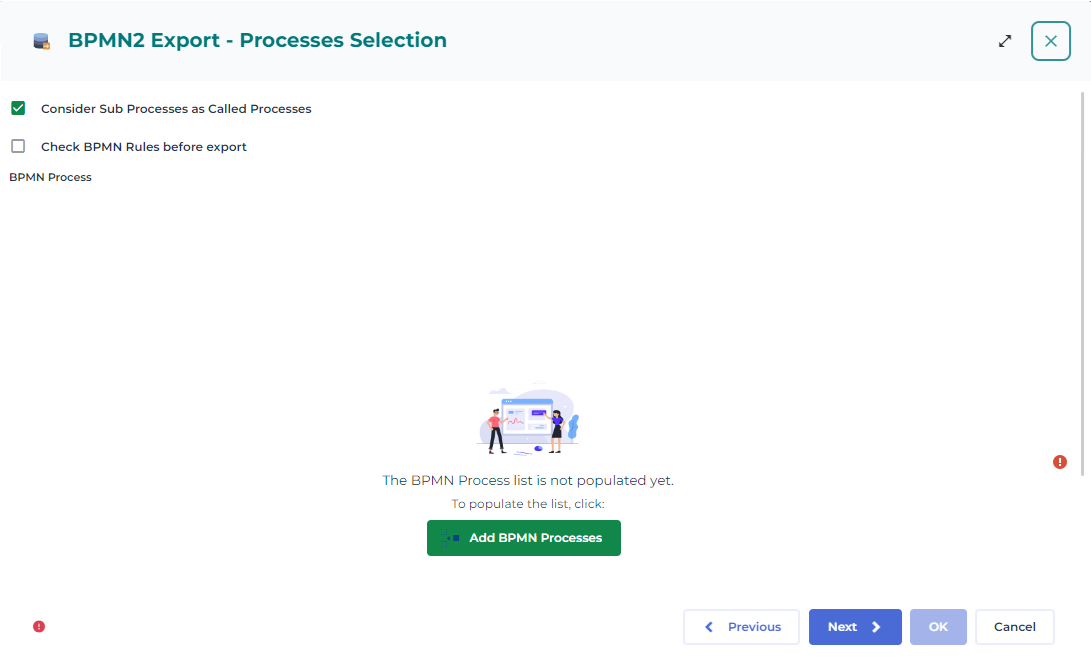
3. Specify the processes to be exported.
Two options are available:
• Consider Sub Processes as Called Processes: In BPMN a sub process is embedded into the parent process, so when exporting the parent process the sub processes will be exported in the same file as embedded processes. This option allows to consider these sub processes as called process tasks.
• Check BPMN Rules before export: this option checks whether processes you want to export conform to BPMN modeling rules. If not, a message asks if you want to continue with the export. Click Yes to continue or No to stop the export.
Click Add BPMN Processes to specify the list of processes you want to export.
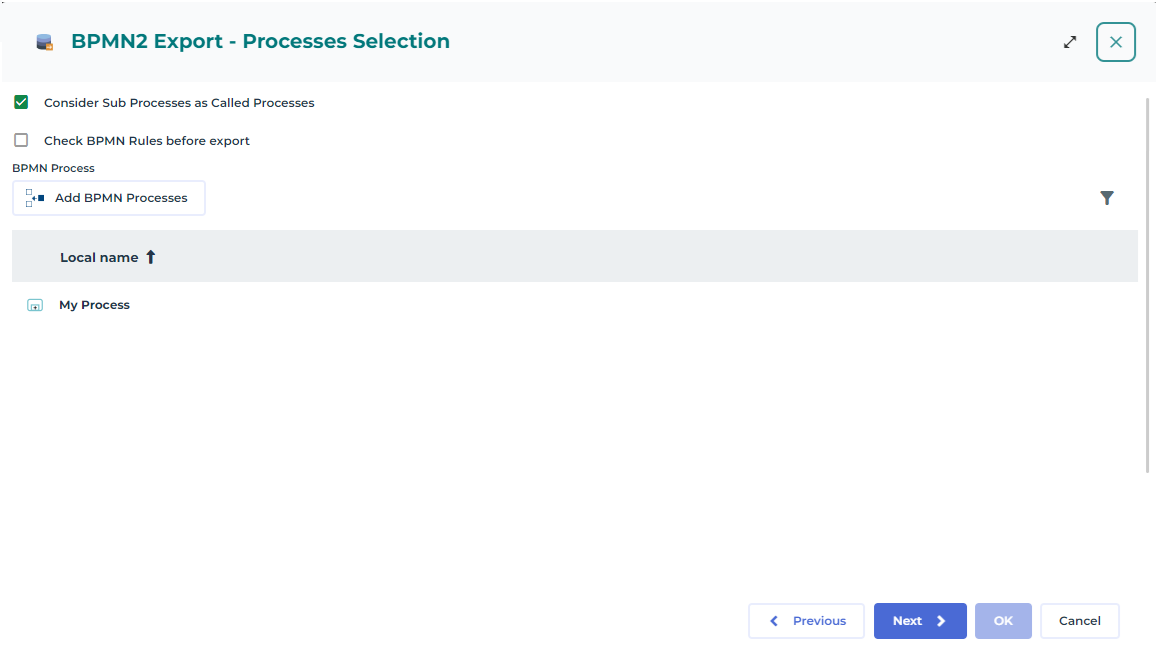
4. Select one or several processes to be exported.
5. Click Next.
A progression window opens. Another window prompts you to open or to save the xml result file. A report of the export is displayed.
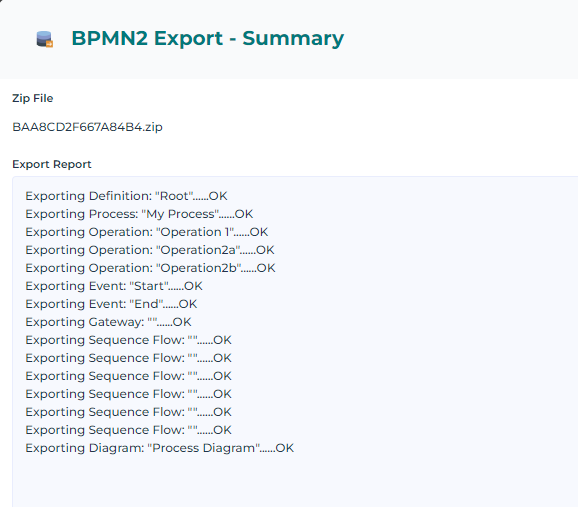
6. Click Ok to finish.