Importing a Command File into HOPEX
You can update a repository by importing a command file produced by the repository backup tool, an export file of an object, or any other means of command file production.
Data import authorization depends on the HOPEX data import (XMG, MGR, MGL) option.
By default, you can update:
• authorized to all profiles:
• the Data (most frequent case)
• restricted to HOPEX Administrator profile:
• the Metamodel (repository structure)
To export a command file from the Administration desktop:
1. Connect to the Administration desktop.
2. From the main menu, select Import > HOPEX Files.
The Parameterization window opens.
3. In the Command File field, click Browse to browse the folders and select the backup file.
 The command file must not exceed 30 MB.
4. (If needed) Select the types of Processing to be executed:
• Data
• Metamodel
• Technical Data
If the file includes commands that do not match the type you have selected, these commands are ignored.5. (If needed) Modify Save frequency of the modifications.
Note that there is no optimal save frequency:• Standard frequency saves at each "Validate" command in the command file and at the end of the file. This type of frequency is useful when the command file has been written by a user.
• At end is generally sufficient if the file is not very large.
• At end if no reject encountered saves the changes only if no rejects were encountered.
• Never is used to carry out tests before the effective update, for example for syntax checking.
6. In the Checks pane, the checks to be carried out are selected automatically, based on the file extension:
• Check Absolute Identifiers is not selected in the case of a command file that does not come from a HOPEX repository.
• Control writing access areas is selected when the HOPEX Power Supervisor technical module is available on the site, ensuring that the user who executed the update has the corresponding writing access in the repository.
For command files with the MGR extension (repository backup), absolute identifiers are included in the imported objects and writing access levels are kept.For command files with the MGL extension (log extraction), the absolute identifiers are included in the imported objects. Writing access levels are kept if the updates are consistent with the writing access diagram for the environment.These controls are not carried out if the user level is "Administrator", this enables the data restorations.7. In the Filters pane, select the import behavior to be applied:
• Standard Reprocessing changes creation of an already existing object into a modification, or into creation of an object of the same name preceded by a number if their absolute identifiers are different.
• Reassign User ignores the writing accesses contained in the imported file. All elements in the imported file are given the same writing access level as the user executing the import. This is useful when you have the HOPEX Power Supervisor technical module. The creator and modifier names are replaced with the name of the user executing the import.
It is recommended that you enable this option when the import file comes from an environment where the writing access diagram is not the same as the one for the environment where this file is being imported.The options you select are controlled by the software, based on the file extension and the standard processing to be applied. If your choices are not consistent with the file extension, a message box informs you of this fact and its possible consequences.
For more details on the main causes of rejects, see Dispatch Conflicts and Rejects When Dispatching.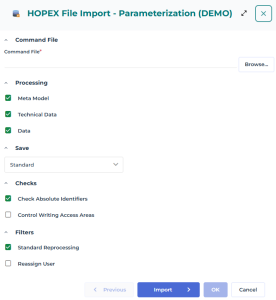
8. Click Import.
When the import contains errors, a reject report file is generated.
9. (If needed) To display the rejects (or errors) saved during the command file import, in the Report section, click the Report File field arrow and select Open.
The contents of the report file depend on import options. For more details on importing a command file, see Options.Case of a text file import (MGR, MGL): The report file appears and details all the rejects.

Example of rejects file at MGR file import