Managing Triggers
Accessing Triggers
In the Scheduling Management window, the Scheduling page displays the Triggers:
• Custom Triggers
Triggers defined by the HOPEX administrator. These Triggers can be defined on a data repository or on the System repository.
• WebSite Generation Triggers
Triggers for WebSite generation.
• Predefined Triggers
Triggers provided with HOPEX and available in all the installations. These Triggers are defined on the System repository.
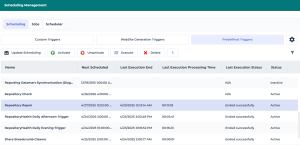
For each scheduled Trigger, it indicates:
• its name
• its next execution date and time
• its last execution information:
• start and end date and time
• processing time (duration)
• status
• its repeat number
• its status (enabled or disabled)
• if the trace of the trigger is kept after its deletion or not
• its retention period (in days)
• its deletion date
 By default, some of the columns are hidden, you can display them.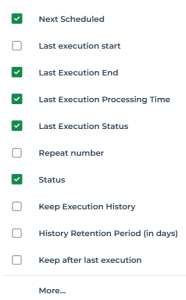
To access the Triggers:
1. Connect to HOPEX with one of the required profiles.
E.g.: HOPEX Administrator, <Solution name> Functional Administrator, HOPEX Customizer.
2. Depending on the desktop:
• Administration Web desktop: click the Scheduling navigation menu.
• other desktops: select the navigation menu Administration > Tools: Scheduling Management.
Creating a Trigger
A Trigger is based on a Trigger Definition. This definition consists of a job which includes the macro that the Trigger will execute.
The Trigger is triggered on the objects defined in the associated job macro.
Prerequisite: the definition (Trigger Definition) on which is based the trigger is created.
To create a Trigger:
1. Access the Scheduling management pages.
See Accessing Triggers.2. In the Scheduling > Custom Triggers page, click New  .
.
.3. Select the Trigger Definition.
4. Click Next.
The Trigger definition window opens.
5. (If needed) Enter the Trigger name.
If not entered, by default the Trigger name is the definition name selected.
6. In the Job Context pane define the job execution context, i.e. the objects on which the job applies.
 Do not add any break line in the character string.
7. Click OK.
The Trigger is created.
By default the Trigger is active. You can execute the Trigger to test it before configuring its scheduling.
To test the Trigger, see Managing a Trigger.Managing a Trigger
You can:
• update the Trigger scheduling
To modify the job execution dates, times, and frequencies, see Defining a Trigger Scheduling.
• activate/deactivate a Trigger
By default a Trigger is active.
To temporarily suspend the job execution, you can temporarily deactivate its Trigger.
• execute a Trigger
To immediately execute the job associated with the Trigger (outside its scheduling).
For example, to test a job.
• delete a Trigger
If you want to reuse the Trigger later, instead of deleting the Trigger you can deactivate it.
To manage a Trigger:
1. Access the Scheduling management pages.
See Accessing Triggers.2. Select the Trigger concerned.
3. In the list menu bar, click:
• Update Scheduling
• Activate  / Deactivate
/ Deactivate • Execute 
The Trigger must be active to be executed.• Delete 