Viewing Updates Dispatched in the Repository
 If you have created your own administration profile, to have access to the Repository navigation menu content, you must be an advanced user. In Options > Workspace > Desktop, the Display advanced UI option must be selected.
You can view the activity on:
• the current data repository
• the SystemDb repository
For each repository, you can display its dispatches as:
• a list, which you can filter by user and/or date
You can display the actions and access its code details.
• a tree, which sorts the dispatches by day, week, month
You can directly display the actions in the tree.
To export the log, see Managing locks.
Viewing a dispatch (list)
To view the updates dispatched in the repository:
1. Connect to the Administration desktop.
2. Click the Repository navigation menu and select Repository Activity.
All the dispatches (private and public workspaces) performed on the data repository are displayed by date (the latest at the top).
3. (To display the SystemDb repository activity) Click SystemDb Repository.
All the dispatches (private and public workspaces) performed on the SystemDb repository are displayed by date (the latest at the top).
4. In the list, click the dispatch.
 You can use the list filtering tool to help you find the dispatch.
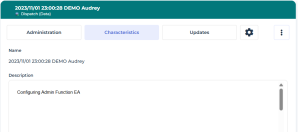
 The Characteristics property page of the dispatch displays, with the dispatch WI Description if any.
5. Display the Updates page.
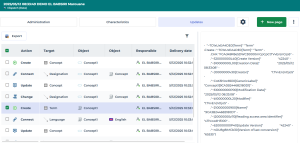
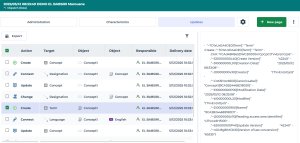
The actions contained in the dispatch are detailed.
6. (If needed) Select a row to display the action details on the right.
Viewing a dispatch (tree by date)
To view a dispatch from a tree:
1. Connect to the Administration desktop.
2. Click the Repository navigation menu and select Repository Activity  .
.
.All the dispatches (private and public workspaces) performed on the current and system repositories are sorted in folders by day, week, and month.
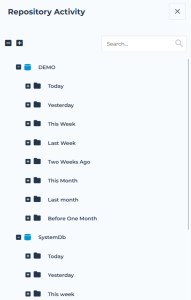
3. In the repository folder concerned (Data or SystemDb) expand the folders (date and dispatch) to access the content of interest.
You can use the tree search tool to help you find the dispatch.The actions contained in the dispatch display.
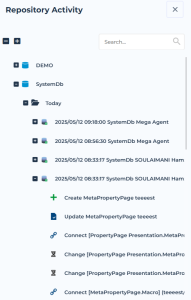
4. If needed, hover the cursor over the dispatch and select Properties  or Open in new tab
  to display the dispatch content as a list in the edit area.
or Open in new tab to display the dispatch content as a list in the edit area.5. Display the Updates page.
The Updates page details the content of the dispatch as a list of actions displayed in chronological order.
6. (If needed) Select a row to display the action details on the right.