Managing Data Breaches
HOPEX Privacy Management enables the data controller to keep a record of data breaches, as required by the law.
HOPEX Privacy Management also enables to:
• assess the data breach gravity from the data subject point of view
• decides who needs to be notified based on this assessment:
• if there is a risk associated to the breach, the supervisory authority needs to be informed
• If the risk associated is high, the data subject needs to be informed
• identify remediation actions in the form of action plans
 Those actions may be followed in other HOPEX solutions.
Declaring a Data Breach
Anyone can enter a data breach through HOPEX Privacy Management.
Example of data breach: An employee accesses data he is not allowed to access.
To enter a data breach:
1. From the navigation bar, select Registers > Data Breaches and click New.
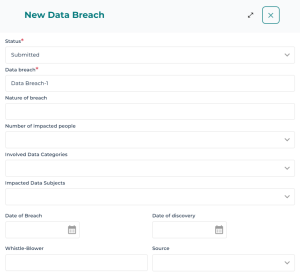
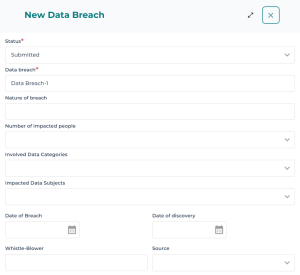
2. Describe the data breach as follows:
• Number of impacted people
• Impacted data subjects
For more information, see Data Subject Categories.• Involved data categories
For more information, see Defining Data Categories.• Date of breach
• Date of discovery
The date of discovery is important as you only have 72 hours to collect, assess and report the data breach. See Viewing Elapsed Time since Breach Discovery.• Whistle-blower: stakeholder who reports the incident
• Source: external claim, internal control, internal alert, other
Once the data breach has been created, you can provide information related to:
• breach scope
• breach assessment: see Assessing a Data Breach
• breach notification: see Notifying a Data Breach
Specifying Data Breach Scope
You can describe the scope of the data breach, i.e. which legal entities, departments and processing activities are impacted by the breach.
The scope of the data breach also determines who can view the breach information.
Assessing a Data Breach
To assess a data breach:
1. In the navigation bar, click Registers > Data Breaches.
2. Select a data breach and in its property page, select the Breach Assessment page.
Here you can:
• write about the consequences of the data breach
• create remediation actions
• assign the person responsible for the management and follow-up of the data breach
For more information, see Planning Remediation actions.Planning Remediation actions
You need to take adequate measures to avoid data breach.
To create remediation actions:
1. In the navigation bar, click Registers > Data Breaches.
2. Select a data breach and in its property page, select the Breach Assessment page.
3. Under Remediation actions, click New.
4. Enter a comment describing how to remediate the data breach.
5. Specify the status of the remediation action:
• Foreseen
• Implemented
• Ongoing
You can modify the status later on.6. Click OK.
Notifying a Data Breach
It may be necessary to inform supervisory authorities or data subjects when a data breach occurs. If so, please detail how the notification is handled.
To give information about data breach notification:
1. In the navigation bar, click Registers > Data Breaches.
2. Select a data breach and in its property page, select the Breach Notification page.
You can indicate whether the data breach requires:
• data subject notification
Enter a Data subject notification date.• supervisory authority notification
Specify the:• Notified supervisory authorities
• Privacy authorities notification date
Viewing Elapsed Time since Breach Discovery
Under data privacy laws, you have a specific number of hours to take action on detection of the breach and notify authorities or data subjects.
HOPEX Privacy Management automatically computes this piece of information for you.
To view the number of hours which have passed since breach discovery:
1. In the navigation bar, click Registers > Data Breaches.
2. From the list of data breaches, select the breach of interest to you and view the content of the column Hours from breach discovery.
Duplicating Data Breaches
You may want to duplicate data breaches.
To do so:
1. In the navigation bar, click Registers > Data Breaches.
2. From the list of data breaches, select the breach of interest to you and click Duplicate.
3. In the wizard that appears, select the sections you want to duplicate and click OK.