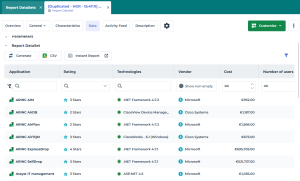
Accessing Report DataSets
In HOPEX Report Studio, Report DataSets are accessible from the Report Definitions navigation menu.
Report DataSets are displayed in two lists:
• your Report DataSets only (by default)
• all the public Report DataSets
To access the Report DataSets in HOPEX Report Studio:
1. Connect to HOPEX Report Studio desktop.
2. From the navigation menus, click Report Definitions > Data Sources: Report DataSets.
The list of My Report DataSets displays.
3. To display all the public Report DataSets, click My Report DataSets and select Public Report DataSets.
 The Public Report DataSets list is now the default one.
Creating a Report DataSet
To create a Report DataSet:
1. Access the Report DataSet list.
In a Solution desktop, click the Environment > Common: Report DataSets navigation menu (or Report Definitions > Data Sources: Report DataSets).2. In My Report DataSets page, click New  .
.
.3. In the Report DataSet Definition drop-down list, select a Report DataSet Definition.
E.g.: Application Technologies.
4. (Optional) Modify the Name of your Report DataSet.
By default its name is: <name of its Report DataSet Definition>-x.
E.g.: Application Technologies-1.
5. (If needed) Expand the Parameters section and enter the requested parameters.
E.g.: connect the applications to be extracted.
6. Click OK.
Your Report DataSet is created.
7. Access your Report DataSet properties.
8. Display its Data page.
9. In the Report DataSet section, your Report DataSet is fed with data.
In the Parameters section you can define or modify the parameters, then in the Report DataSet section, click Generate  to update your Report DataSet.