Adding Fields to Intermediate Nodes
As a node, an intermediate node can also carry fields, which are either:
• based on values from the corresponding HOPEX object:
• MetaAttributes
• TaggedValues
• Legattributes, or
• computed with a macro
These fields are displayed on the intermediate nodes, but can be hidden.
Adding value-based fields to an intermediate node
To add a value-based field on an intermediate node:
1. Access the GraphSet Definition properties.
2. Display its Path page.
3. In the GraphSubSet drop-down list, select the GraphSubSet concerned.
 Else directly access the GraphSubSet properties, see Displaying the GraphSubSet properties.
4. In the Path list, select the row of the path that includes the intermediate node.
5. In the Ordered Intermediate Nodes list, select the intermediate node for which you want to define a field.
6. In the Fields pane, click New  .
.
.The Creation of GraphSet Field Definition windows is displayed.
7. In the Local name field, modify the default name.
8. In the Field Definition Type drop-down list, select "Value".
9. Define the value type:
By default the value is based on a MetaAttribute.
If your value is TaggedValue-based, select taggedValue.
10. Depending on the value type:
• in the MetaAttribute drop-down list, select the MetaAttribute you want to be displayed in the field.
• in the TaggedValue field, click the right-oriented arrow and connect the TaggedValue you want to be displayed in the field.
11. Click OK.
Adding macro-based fields to an intermediate node
Prerequisite:
For each macro-based field you have to create its implementing macro. This macro is based on the GetAttributeValue function:
GetAttributeValue(Object as MegaOject,AttributeID as Variant,Value As String)
Where:
Object is the object of which the attribute value is requested.
AttributeID is the absolute identifier of the attribute.
Value is the attribute value returned by the function, concerning this object.
Example: the "Calculated - Flow Content.Implementation" macro computes the "Content" field for application flows.

See examples:
To add a macro-based field on a node:
1. Display its Path page.
2. In the GraphSubSet drop-down list, select the GraphSubSet concerned.
Else directly access the GraphSubSet properties, see Displaying the GraphSubSet properties.3. In the Path list, select the row of the path that includes the intermediate node.
4. In the Ordered Intermediate Nodes list, select the intermediate node for which you want to define a field.
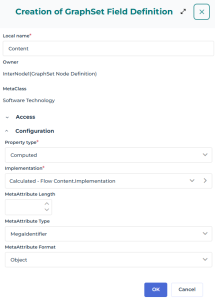
5. In the Fields listContent, click New .
.The Creation of GraphSet Field Definition windows is displayed.
• In the Local name field, modify the default name.
• In the Field Definition Type drop-down list, select "Computed".
• In the Implementation field, click the right-oriented arrow and connect the macro that computes the field value.
The implementing macro is based on the GetAttributeValue function.
Example: the "SCalculated - Flow Content.Implementation" macro computes the "Content" field for application flows.
6. Define the MetaAttribute characteristics:
• (optional) MetaAttribute Length
• MetaAttribute Type (default value "String)
Example: "MegaIdentifier"
• MetaAttribute Format (default value "Standard)
Example: "Object"
7. Click OK.
Example 1: graph based on the "Flows Between Agents" GraphSet Definition
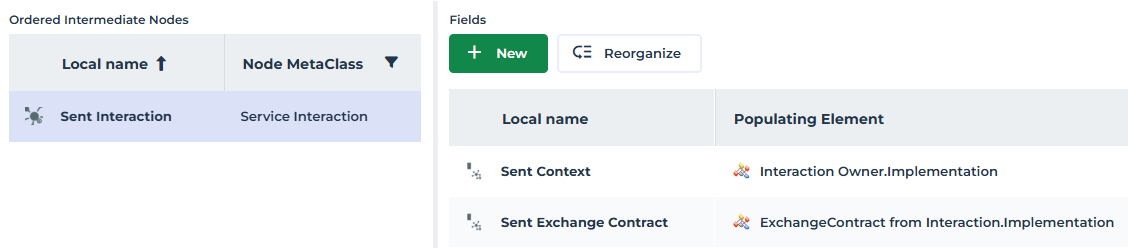
In the "Flow Between Agents" graph, two fields are added to the Flow intermediate node:
• "Content"
• "Flow Communication System"
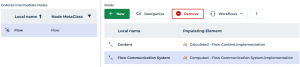
The macros used to implement the "Content" and "Communuication System" fields are:
• the "Calculated - Flow Content.Implementation" macro

• the "Computed - Flow Communication System.Implementation" macro

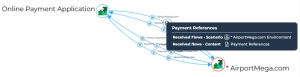
In the corresponding graph, the "Content" and "Scenario" fields can be displayed on each Flow intermediate node.
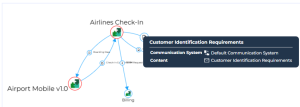
Example 2: graph based on the "Flows arround Agent" GraphSet Definition
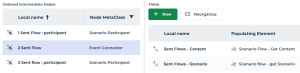
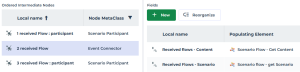
In the "Flows around Agent" graph, two fields ("scenario" and "content") are added to intermediate nodes of both "received flows" and "sent flows" paths between agents:
• The "Scenario Flow - Get Content" macro computes the values for the "Content" fields from the "Conveyed Work Product" collection.

With "~ycuIb8buOn)E[Conveyed Work Product]".
• The "Scenario Flow - Get Scenario" macro computes the values for the "scenario" fields from the "Flow owner" collection.
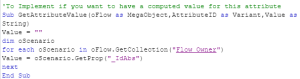
With "~ZxFFA75BPHV5[Flow Owner]".
The graph displays both "Content" and "Scenario" fields for each received/sent flow: