Creating Classification Folder Branches
The Utilities navigation window contains a Queries branch.
 Expand this branch.
Two folders corresponding to query stereotype values appear:
• Internal Query
• End-user Query
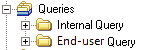
Queries can also be classified in specific folders.
Creating a classification folder
Classification criteria are specified from the value of an attribute or a MetaAssociationEnd.
For example, to classify your projects as a function of their type, you can use the "Project Type" MetaAssociationEnd.
Names assigned to the different folders correspond with the different values taken by the attribute or MetaAssociationEnd.
To classify objects of a folder:
1. Create a MetaTreeBranch from the MetaTreeNode corresponding to the parent folder, enter its name and click OK.
 The convention adopted for naming a MetaTreeBranch intended for classification is:
 (<MetaTree Name >) <Folder Name > - <Classification Criterion Name > Classify.
Example: (Object) Root - Project Type Classify.
2. Create a MetaTreeNode from the new branch and click OK.
The convention adopted for naming a MetaTreeNode enabling classification of objects is: (<MetaTree Name >) <Folder Name > - <Classification Criterion Name > Classify.
Example: (Object) Root - Project Type Classify.
3. Open the Properties window of the branch created for the classification and specify the classification criteria.
4. In the Classifying MetaAssociationEnd box, enter for example "Project Type".

Defining content of classification folder branches
This step consists of defining branches associated with each of the classification folders as a function of values taken by the MetaAttribute or MetaAssociationEnd.
New branches are created from the "xxx Classify" node using the same principle as described in section Creating Navigation Tree Branches.
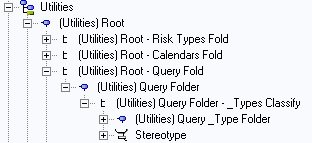
Storing classification folders in a main folder
In the Utilities navigation window, queries are classified by the value of their "Stereotype" attribute value only.
If you want to add another classification folder, for example as a function of query implementation mode, the Queries folder becomes "main folder" of the two classification folders:
• query by stereotype.
• query by implementation mode.
To store classification folders in a main folder:
1. Create a MetaTreeBranch from the MetaTreeNode corresponding to the parent folder, enter its name and click OK.
The convention adopted for naming a MetaTreeBranch intended for grouping classification folders is: (<MetaTree Name >) <Folder Name > - <Classification Criterion Name > Classify.
Examples:
(Utilities) Query Folder - Stereotype Classification.
(Utilities) Query Folder - Implementation Mode Classification.
2. Create a MetaTreeNode from the new branch and click OK.
The convention adopted for naming a MetaTreeNode enabling classification of objects is: (<MetaTree Name >) <Folder Name > - <Classification Criterion Name > Classify.
Examples:
(Utilities) Query Folder - Stereotype Classification.
(Utilities) Query Folder - Implementation Mode Classification.
3. Build classification sub-folders from this node.