Generating a Web Site
Objective
A static Web site makes it easy to share content from the HOPEX repository via an intranet with people who do not have access to HOPEX. Hence, they can view the objects of a project as read-only HTML pages.
Generating a Web site on a regular basis ensures continuous synchronization with the most up-to-date data from the repository.
With this feature, you can:
• Generate a Web site immediately
• Schedule a one-time generation
• Schedule a recurring generation
Prerequisites
Profile
To generate or schedule the generation of a Web site, you must have one of the following profiles:
• HOPEX Administrator - SaaS
• HOPEX Administrator
Web Site
A valid Web site, ready for generation, is required.
• For SaaS solutions: it is mandatory to use a Web site configured through the Enterprise Portal by Mega Cloud Services (MCS).
• For on-premises solutions: it is recommended to use a Web site configured through the Enterprise Portal.
Generating or Scheduling the Generation of a Web Site
To generate or schedule the generation of a Web site:
1. Open HOPEX Administration.
2. In the navigation bar, select Scheduling > Website Generation Triggers.
3. Click New.
The WebSite Generation wizard opens.
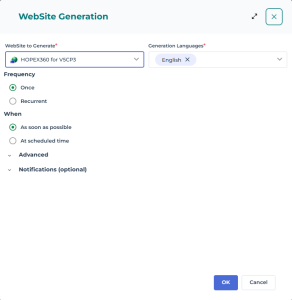
4. Enter the following information:
• WebSite to Generate
• Generation Languages: select the languages that match those used in your website configuration.
• Publish generated website: this option is displayed and checked by default if you have the Enterprise Portal module. For SaaS solutions: keep the default selection.
• Frequency: select the frequency and start time for the generation.
 For more details, see Configuring a recurrence.
• (Optional) In the Advanced panel, select another time zone if needed.
• (Optional) In the Notifications panel, enter the names of HOPEX users or other recipients to be notified once the generation is complete.
5. Click OK.
A new WebSite Generation Trigger appears in the edit area.
Configuring a recurrence
To configure a recurrence from the WebSite Generation wizard:
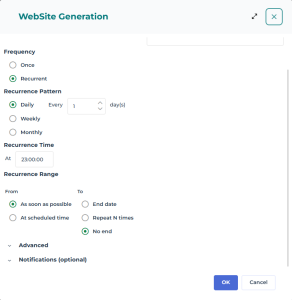
1. In the Frequency section, select Recurrent.
2. In the Recurrence Pattern section, specify the interval between each generation.
For example, one generation per day.
3. In the Recurrence Time section, specify the time of the generation.
For example, a generation at 11:00 PM.
4. In the Recurrence Range, define the start and end dates of the recurrence.