Managing Activity on Objects (Macro Level)
 To view the detailed activity on an object, see Managing Activity on an Object (Micro Level)
You can view the activity at modeling block level:
• on all objects in the repository (All activities  menu)
menu)
menu)• your activity only
• activity of all users
• on all the repository objects that you follow (Followed Objects  menu)
menu)
menu)To manage activity on objects:
1. Access the activity on objects.
See Accessing the activity on objects or Accessing the activity on the objects that you are following.2. If needed, refine the result:
• Filter the result according to specific users and/or specific object types and/or specific tags.
• Modify the activity display period.
3. View an activity: click the name of the object updated.
The object properties are displayed in the Properties page of the edit area.
Accessing the activity on objects
To access the activity on objects:
1. In your HOPEX desktop toolbar, click the Collaboration  menu.
menu.
menu.2. Select Notifications and Activities > Activities .
.The My Activities page displays your activity on all objects.
3. To display all the activities on all the objects, click All Activities.
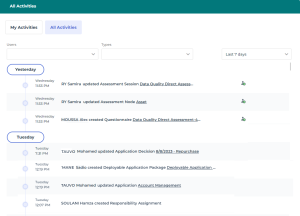
The modifications dispatched on all the objects to which you have access appear in chronological order with the most recent at the top.
Each modification indicates:
• the name of the person who performed the update
• the name and type of object concerned by the update
• if you follow the object concerned or not
To display only the objects that you are following, see Accessing the activity on the objects that you are following.4. If needed:
• Filter the display, see Filtering the activity.
• Modify the display period, see Modifying the display period for the activity.
Accessing the activity on the objects that you are following
To access the activity on the objects that you are following:
1. In your HOPEX desktop toolbar, click the Collaboration menu.
menu.2. Select Notifications and Activities > Activity of Followed Objects 
The activity on the repository objects you are following is displayed.
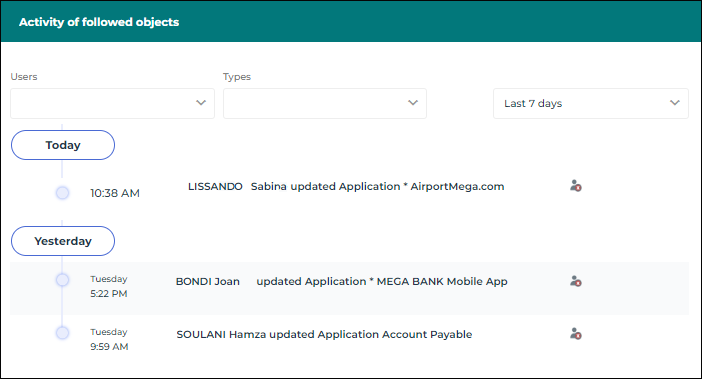
The modifications dispatched on the objects that you are following appear in chronological order with the most recent at the top.
Each modification details:
• the name of the person who performed the update
• the name and the type of object concerned by the update
To access the activity on all the objects, see Accessing the activity on objects.3. If needed:
• Filter the display, see Filtering the activity.
• Modify the display period, see Modifying the display period for the activity.
Filtering the activity
You can filter the activity display according to:
• Users, one or several users, to see the activity of one or several specific persons
• Types, to see the activity on one or several object types
You can use several filters at the same time.
To filter the activity display:
1. Access the activity on objects.
See Accessing the activity on objects or Accessing the activity on the objects that you are following.2. In one of the filtering fields, enter the first letter (or several) of your filter.
All of the users/object types whose name contains these letters are displayed.
3. Select one or several items in the list.
Example: to filter with “Carolina” user, in the Users field enter C, then select the user.
4. Click outside the field to take this filtering into account.
The activity display is automatically filtered according to this field.
5. Add as many filtering items as you want.
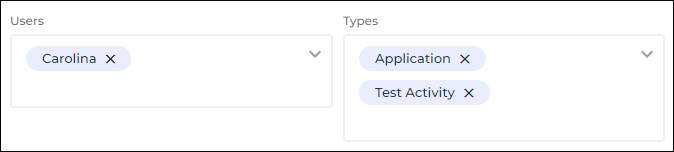
The activity display is automatically filtered at each filtering addition.
Modifying the display period for the activity
By default, the activity feed displays the modifications made to the objects over the last 7 days.
To modify the display period for the activity:
1. Access the activity on objects.
See Accessing the activity on objects or Accessing the activity on the objects that you are following.2. Use the period filtering drop-down menu to select another value.
E.g.: the last 24 hours, the last 30 days, the last year, or customized with the start and end date calendars.
The list of modifications is updated accordingly.