Variation Inheritance
By default, the variant object inherits elements of the varied object (original object).
Commands available on inherited elements allow you to :
• exclude elements from the Variation, see Excluding an element from the variant.
• replace these with others, see Replacing an element with another: substitution.
Let us consider application A including functionalities F1 and F2. By default, the variant Application A v2.0 inherits these functionalities.
Viewing inherited elements
To view inherited elements:
1. Open the Characteristics > Variation Elements properties page of the variant object.
2. In the Owned Elements section, click the Inherited tab.
To view elements excluded or replaced by a substitution:
1. Follow the previous steps.
2. Click the Excluded  tab.
tab.
tab.Replacing an element with another: substitution
A substitution indicates that a certain object is used instead of another in a given context. In the case of a variation, you can substitute one of the elements of the varied object with an object of your choice.
 Unlike a variation, a substitution does not involve inheritance but a functional conformity.
Substitution example
In the case of application versions, substitutions enable expression of the following: in considering an application evolution, a service 2 is replaced by a new service 3.
• The new service 3 must be linked to the variant application
• service 2 is linked to one of the parent applications (it is possible to have several application generations linked in cascade)
Differences between variation and substitution
Variations express a similarity relationship between two models; an application v2.0 is very similar to v1.0. The variation highlights their differences. These are expressed through another object. A variant is linked to only one varied object (to simplify inheritance issues).
A substitution however can be linked to several source elements and to several target elements. This allows indication that a certain set of services is replaced by another set of new services.
If a replacement object is similar to the replaced object (a new version of a service), this can be indicated by adding a variation between them.
The substitution context is also important: a service can in fact be shared between several applications, for example when we consider the service contribution link to application operation (application architecture service). In this case, to indicate only a replacement does not allow us to determine if this replacement is effective in all applications using this service. This must be specified by adding a contextualization link between application and service (see operating mode later).
The ability to inherit a relationship is a functionality declared at metamodel level, which can be adapted to suit requirements. The same applies to the ability to substitute a concept.Replacing an object
Certain elements of a variant can be replaced with others.
For example, in a new application you can replace an inherited application service with any other service.
Other elements such as functionalities cannot be substituted. In this case, the replacement command is grayed out.
To replace an object with another in a variant:
1. Open the Characteristics > Variation Elements properties page of the variant object to view inherited objects.
2. In the Owned Elements section, click the Inherited tab.
3. Select the element that you want to replace.
4. Open its pop-up menu and select Replace.
5. In the dialog box that opens, select the substitution element and click OK.
Excluding an element from the variant
To exclude functionality F2 from the variant object in the above example:
1. Open the Characteristics > Variation Elements properties page of the variant object to view inherited objects.
2. In the Owned Elements section, click the Inherited tab.
3. Select the element you want to exclude.
4. Open its pop-up menu and select Exclude.
The element is removed from the list.
You have the possibility to restore it. For more details, see Restoring elements.Restoring elements
To restore a substituted or excluded element:
1. Open the Characteristics > Variation Elements properties page of the variant object to view inherited objects.
2. In the Owned Elements section, click the Excluded tab.
tab.3. Open the pop-up menu of the element in question and select Restore.
Viewing variations and substitutions graphically
The elements shown in a diagram are elements belonging to the described object.
When you click the icon associated with an object, an explanatory message appears.Inherited objects are associated with an inheritance arrow  .
.
.Elements that have been replaced are indicated by a red cross  .
.
.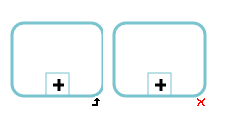 Diagram objects that are not linked to the described object, not inherited or not replaced are identified by a warning panel
  to indicate that their presence in the diagram assumes a link with the described object.
Inheritance limits
There is a restriction on the length of sequences of variations. Elements inherited from a varied object cannot be reflected infinitely on all objects derived from the original object. At the end of a certain sub-level of variations (66), inheritance is lost. The limit is indicated by a message.
In the case of a large number of variations, consolidation of the variants history is recommended. See Consolidating the variants history below.
Consolidating the variants history
Thanks to variations, it is possible to keep track of the different versions of an application. After a certain time however, it can be difficult, even pointless, to manage obsolete versions. You can delete from the repository those versions earlier than a certain version, by consolidating the history of variants.
The consolidation command enables transfer of inherited elements of an object to the new object and destruction of ancestors. The purpose is to reduce the volume of the repository and remove obsolete information.
To consolidate an application:
 Right-click the variant application and select Variation > Consolidate.