Property Page: Overview
Description
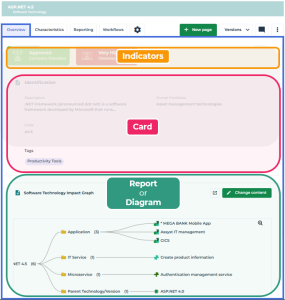
The Overview property page of an object:
• is displayed by default at an object property opening
• gives (in read-only) useful information about the object through:
• color indicators
• the detailed card of the object
• displays a report or a diagram related to the object
 Depending on the type of report or diagram, several pages may be shown. You can navigate through the pages.
For each object type, the Solution functional administrator can:
• modify the content to display: type of report or diagram
• go back to the default content
Every user can:
• open the report/diagram in a new tab and perform all standard actions
• (for reports containing cached data) refresh the report data
Changing content
The Solution functional administrator profile enables to change the content (report or diagram) of the Overview property page.
To change the content of the Overview property page:
1. Login as a Solution functional administrator.
2. Display the object property pages.
Example: the properties of an application.
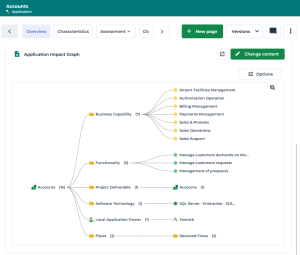
3. In the Overview page, click Change content.
At any time you can Cancel or go back to the previous step (Back).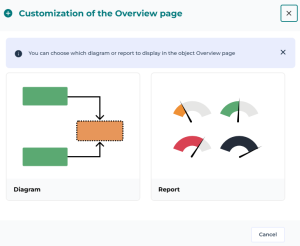
4. Hover the cursor over the Diagram or Report tile and click Search for the type of diagram or Search for the type of report.
5. In the search page, search for the diagram or report (you can use filters) and hover the cursor over the tile corresponding to the type of diagram/report and click Select.
The corresponding diagram/report has been added to the Overview page of each object of the selected type.
If several diagrams are available, or if the report includes several chapters, the number of the page out of the total page number is indicated in the toolbar. Arrows (Previous  , Next
  ) enable to navigate among pages.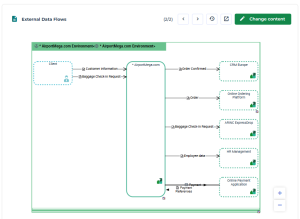
Going back to the default content
The Solution functional administrator can go back to the default content (report or diagram) of the Overview property page.
To go back to the default content of the Overview property page:
1. Login as a Solution functional administrator.
2. Display the object property pages.
Example: the properties of an application.
3. In the content title bar, click Reset  .
.
.Reset is available only if the content is not the default one.The report or diagram defined by default is displayed.
Opening the content in a new tab
For improved readability and/or access to the report or diagram in edit mode, you can display the content in a new tab.
To display the content in a new tab:
 In the content title bar, click Open in a new tab
  .
.The report or diagram is displayed in a new tab.
Standard actions offered on a report or diagram are available.