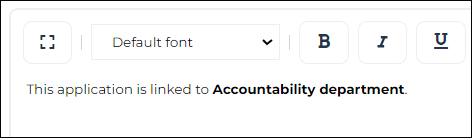
Object description
Entering Object Description
To enter or modify the description associated with an object:
1. Access the object properties.
2. Display its Characteristics page.
 Depending on the object (e.g. : report), display the Description page or Text > Description.
3. In the Identification section, the Description pane displays the description of the object.
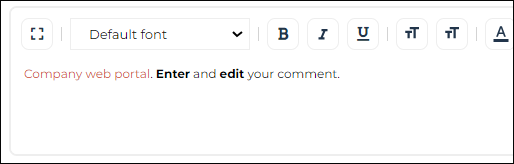
4. Enter/Modify the description.
A spell check is integrated.• To create a new paragraph while entering the description: press the <Enter> key.
• For text formatting, see Text formatting.
• To insert an object into the text, see Inserting Object Names in the Description.
• You can copy/paste text.
The text is pasted without formatting.The description entered is automatically taken into account in the generated documentation.
When several types of text are available for the same object, a drop-down list allows you to select the type of text entered.
Text formatting
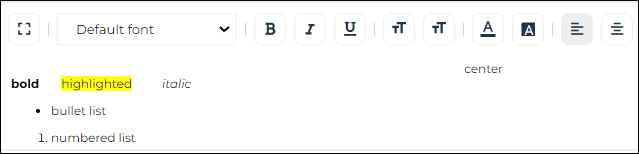
The Description toolbar includes standard text editing features.

Authorized formatting
Only the formatting available in the description window toolbar is allowed:
• Bulleted and numbered lists
You cannot customize the lists.
• Text: color, background color
By default, the text can be entered without applying a specific font to it.
If you apply modifications to the font or the font size, these are not taken into account in Reports (MS Word) that include this description: the font used is the template default one.
• Character formats: bold, italic, underlined
• Paragraph formats: left or right aligned, centered
Prohibited formatting
• Tables, pictures
Tables or pictures pasted in the description not taken into account.
• Paragraph formats (page break, header, footer, margin, portrait/landscape orientation)
• Links
In Web sites, links are not reproduced except if these are derived from MetaClasses, see Inserting Object Names in the Description.
An RTF comment is not designed to store all Word documents. For this, external references should be used.
The format applied is used in generated reports (MS Word) and Web sites.
Example:
Inserting Object Names in the Description
In HOPEX, you can insert object names as a field into the description. This enables:
• to automatically create links in generated websites
• to automatically update object names in descriptions
When you insert an object name, as a field, its name (when modified) is automatically updated in the description.To insert an object in a description:
1. Entering the object description.
2. In the description pane toolbar, select Insert object in text  .
.
.3. Use the search tool to select the object and click OK.
The name of the object is inserted in bold text (as a field).
 To access the inserted object properties, select the object and in the description pane toolbar select Field Properties
  .
.