Creating a Property Page
The page creation is performed in two steps:
• page settings:
• name
• position
• page content definition:
• attributes
• sections
These actions are similar to those of a page modification.
To create a property page:
1. Access the object property pages (of the object type you want to customize).
E.g.: an Application property pages.
2. In the menu bar of the property pages, click New page.

 Or click Customize > New page, if the page displayed is also customizable.
The page creation window opens on the Page settings step.
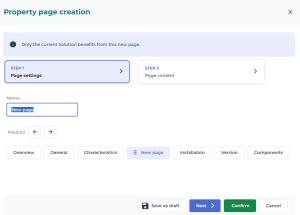
3. Customize your page, define:
• its name: in the Name field, enter the name of the page.
The name of the page must be entered in the user interface language. If your data is in a different language, a flag reminds you of the language used when entering the name.• its position: with the Position arrows (Previous  , Next
  ), move the page to the required position. By default the page is placed to the right of the Characteristics page.
, Next ), move the page to the required position. By default the page is placed to the right of the Characteristics page. Alternative: you can also move the page by drag and drop using its handle.
4. Click Next.
Alternative: to switch from a step to the other, click the step name. 5. Define the Page content.
6. Dispatch the page.
In case of page creation, only the current Solution benefits from this new page.
See Managing your Page.