Submitting an Idea
Ideas are opportunities whose concept has not yet been refined before they become project demands.
Creating an Idea
Everyone, including a business architect, a technician, an application owner, etc., can submit an idea.
To create an idea:
1. In the navigation bar, click Projects > Ideation > Ideas.
2. Click New.
The properties window for the new idea opens.
3. In the Characteristics page, enter the name of the idea.
4. Specify the Idea Submitter. By default, the name that appears is that of the person who created the idea in the solution, but you can attribute the idea to another person.
5. Select the Idea Submission Date.
6. Enter a Detailed Description of the idea.
Viewing the Ideas
To view the ideas:
1. In the navigation bar, click Projects > Ideation > Ideas.
2. In the edit area, use the drop-down list to display:
• all ideas
• the ideas for which you are creator or with which you have been associated as a stakeholder (directly or as member of a governance body associated with the idea).
In the Ideation pane, you can also access idea portfolios.
Accessing the properties of an idea
To define the properties of an idea:
 In the idea list, move the mouse over the idea concerned and click the Properties button that appears.
The properties of the idea appear in the edit area, with the following pages:
• Characteristics. See Idea Description.
• Assessment. See Examining an Idea.
• Assignment. See Assigning an Idea to Persons.
Commands are also associated with the idea, available when you click the icon associated with the idea:
• Workflow: at this first stage of creation, the idea is visible to the author only. See Submitting the Idea for Review (workflow).
• Other common actions (e.g.: Add to Favorites, Remove)
Idea Description
To describe an idea:
1. Open the idea properties.
 See Accessing the properties of an idea above.
2. In the properties window, click the drop-down list and select Characteristics.
You can use this to indicate:
• the object name
• the submission date
• The inventor
The status of the idea is defined automatically by the worklow:
• New
• Being reviewed
• Approved
• Archived
Idea category
By way of information you can define a category for the idea.
You can create a category or link an existing category, for example:
• Technological breakthrough
• Improvement
• Innovation
• Quick win
Objects concerned by the idea
You can associate idea subjects with an idea.
An idea subject is used to define the scope and the impact of the idea in terms of capabilities and/or architecture blocks.
To create an idea subject:
1. In the Objects Concerned by the Idea, click New.
2. In the idea subject window, you can specify:
• the subject name
• the idea type: improvement, innovation or rationalization
• the capability with which the object idea
• deals, for example an application.
3. Click OK.
Similar ideas
You can link the idea to similar ideas and specify where appropriate the duplicates.
To link a similar idea:
1. In the Similar Ideas section, click Connect.
2. In the search window, search and select the idea concerned.
3. Click Connect.
The idea appears in the properties window.
Projects inspired by the idea
In the same way as you can specify similar ideas, you can specify the projects inspired by the idea, by linking the projects concerned to the idea.
See also:
Assigning an Idea to Persons
The persons assigned to an idea are persons authorized to complete and assess this idea.
To assign a person or a person group to an idea:
1. Open the idea properties.
See Accessing the properties of an idea above.2. In the properties window, click Assignment.
3. Click New.
4. In the dialog box that appears, select a Person or a Person Group, as well as their Business Role.
5. Click OK.
Repeat this procedure to assign other persons to the campaign.
Submitting the Idea for Review (workflow)
To submit an idea for review:
Click the icon of the idea and select Idea Validation (New) > Sumit For Review.When a new idea is submitted for review, a notification is sent automatically to the people to whom the idea has been assigned.
The idea switches from the "New" state to the "Being reviewed" state.
View the ideas submitted for review
Any user whose profile includes the ideation tool can view the list of ideas created under Projects > Ideation > Ideas > All Ideas.
The creator and stakeholders of an idea can see the state of that idea under Projects > Ideation >Ideas > My Ideas.
To display the ideas according to their status (new, under review, etc.):
Click the arrow associated with the Idea Status column then Group by this Field.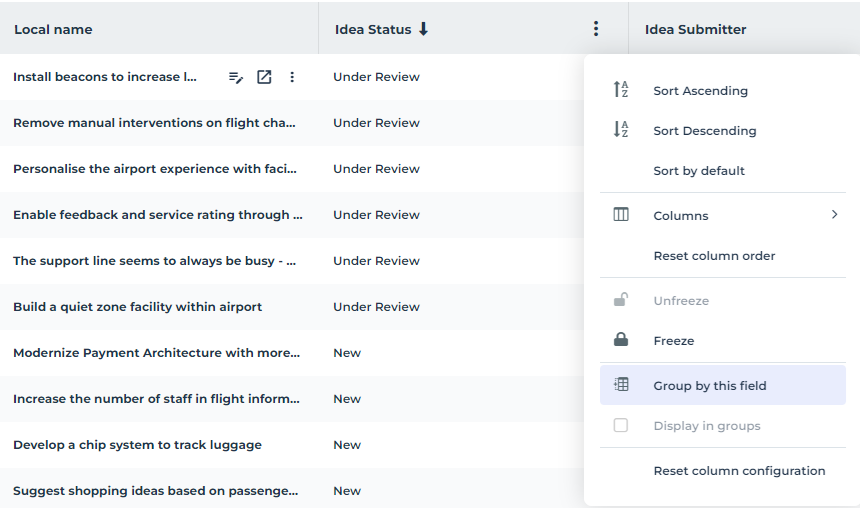
The ideas are grouped and displayed according to their status.
See also:
