Search with a Registered Query
You can perform a search based on registered queries linked to an object, and run the query. Registered Queries mode facilitates access to queries by target object type and update.
Queries are sorted by type:
• internal query (by default in the Studio desktop): query used for technical parameterization (e.g.: descriptors, Report DataSets, report templates (MS Word), matrices)
• end-user query (by default in Solutions): query intended for end-users
 To make a query entered in ERQL mode available in the list of registered queries, see Saving an ERQL query.
To perform an advanced search from a registered query:
1. Access advanced search.
The Advanced Search page displays in the edit area.
2. In the drop-down menu, select the object type on which you want to perform your search.
If needed, enter the first characters of the object type.To extend or restrict the list of object types searched, see Advanced Search Options.3. Click the Registered Queries tab.
The list of registered queries relating to the selected object appears.
4. Select End-user or Others.
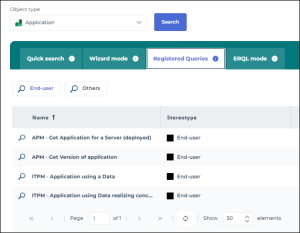
5. Select the query you are interested in.
The query code selected appears under the pages that list the queries.6. Click Search to run the query.
7. (If necessary) enter the required parameters.
The result list is displayed.
You can export the list in Excel formatYou can launch an instant report from the list, see Launching an instant report from a list.To return to your search, in the breadcrumb trail, click Advanced Search.To reset all search criteria, click Remove all query criteria  .
.