Tabular Mode Actions
Creating an Object
Depending on the type of object and the type of the diagram you want to create, the creation procedure is different.
To create an operation in a Process diagram, for example:
1. Click the tab Operations.
2. Click New.
The Add window appears.
3. Select the Operation type and click OK.
If you are in Synchronized mode, the diagram is automatically updated; otherwise, click on Refresh.
Create several objects of the same type
You can quickly create several objects of the same type possibly linked between them or to an object already in the diagram.
For example, to simultaneously create a number of operations in a Process diagram:
1. Click the tab Operations.
2. Click the Multiple Add button.
A creation window opens.
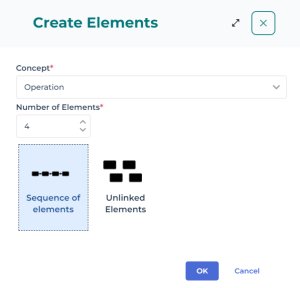
3. Select the Concept.
4. Enter the Number of Steps you wish to create.
5. Link these operations by selecting Sequenced or Independent.
6. Click OK.
Deleting an object
To delete an object in the diagram from the table:
 Click the Remove
  icon that represents the object you wish to remove.
 The deleted objects are removed from the repository and consequently from all diagrams using them.
 Create participants (BPMN diagrams only)
In the BPMN diagrams, the participants are special objects for the following reasons:
• If they are inside the described object, they are represented as pools that contain objects.
• If they are outside the described object, they are used to describe the flows exchanged between the described object and the outside.
The creation mode for participants in tabular entry mode is specific to each of the two cases.
Creating a participant inside a described object
To create an operation in process diagram using tabular entry mode, for example:
1. Click Processing Stream tab to have access to the list of objects in the diagram.
2. Select the line related to the object you want to insert and click the Who column.
A window opens prompting you to create or connect an org-unit to a participant.
 The selected org-units then appear in the header of the participant.
Creating a participant outside a described object
A participant external to a described process only has meaning if it is connected to a flow exchanged with an element included in the described process.
To create a participant outside of Process diagram, for example:
1. Click the Message flow tab to have access to the list of message flows in the diagram.
2. Click New to create a new message flow.
3. Select the line of the message flow that you have just created and click in the check box of the Target column, for example.
4. Click the right facing arrow and select the Create participant.
The external participant appears in the diagram.
No org-unit can be associated to an external participant.Creating sequences (BPMN diagrams only)
In tabular entry mode, sequences are created automatically when a new element is inserted: the sequences can be viewed or modified using the columns that characterize the Previous item or Next item.
For example, to connect a start event to a process in a Process diagram:
1. Click Processing Stream tab to have access to the list of objects in the diagram that can be connected to a sequence.
2. Select the process that you want to connect and click in the related cell under the Previous item column.
3. Select the event that interests you.
The organization of objects in the diagram is then updated.
Add org-units (Organizational Chart only)
The following actions are available in the table when creating / editing an Organizational Chart with Tabular entry mode:

• With Add  , you can add an org-unit that directly reports to the main org-unit.
, you can add an org-unit that directly reports to the main org-unit.• With Multiple add  , you can add several:
, you can add several:• Org-units from the same rank (i.e. several org-units that directly report to the main org-unit).
• Org-units from a descending hierarchy (i.e. several org-units that respectively report to one another).
• With Insert  , you can insert an org-unit between the main org-unit and org-units already created that directly report to the main org-unit.
, you can insert an org-unit between the main org-unit and org-units already created that directly report to the main org-unit.For more details, see Creating an Organizational Chart.