Creating an Organizational Chart
You can create an organizational chart using two different modes.
• Tabular mode: with this mode, you can easily add new objects. It is rather recommended to create the general structure of your diagram.
• Graphical mode: this mode is rather recommended if you need more precision in adding or modifying objects in the Organizational Chart.
 The user can choose the opening mode of a diagram if the option Choice of diagram opening mode is set to Ask the user though Main Menu > Settings > Options > Compatibility > Diagram.
Creating an Organizational Chart in tabular mode
To create a organizational chart in tabular mode:
1. From the org-unit list, click the Create a diagram  icon related to the selected org-unit.
icon related to the selected org-unit.It is recommended to used the highest rank org-unit to start the creation of the organizational chart. The diagram creation window opens.
2. Select organizational chart > Create a diagram in tabular mode.
The diagram creation window in tabular mode opens.
3. To complete the organizational chart, you can:
• Add several org-units with the Multiple add  icon:
icon:
icon:• Org-units from he same rank (i.e. Org-units that directly report to the main org-unit).
• Org-units from a descending hierarchy (i.e. several org-units that respectively report to one another).
• Add an org-unit that directly reports to the main org-unit with the Add  icon.
icon.
icon.• Insert an org-unit between the main org-unit and org-units already created that directly report to the main org-unit with the Insert  icon.
icon.
icon.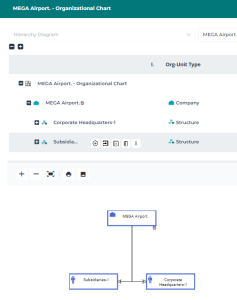
The main org-unit is displayed in the table (upper part) while the created org-units appear in the diagram (lower part).
For further details on tabular entry mode, see Diagrams in Tabular Entry Mode.Creating an Organizational Chart in graphical mode
To create a organizational chart in graphical mode:
1. From the org-unit list, click the Create a diagram icon related to the selected org-unit.
icon related to the selected org-unit.The diagram creation window opens.
2. Select organizational chart > Create a diagram in graphical mode.
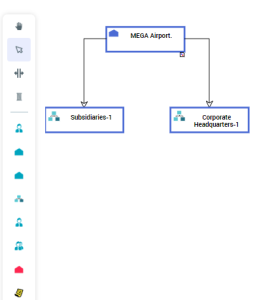
The organizational chart appears in graphical mode.
3. To add / connect objects, click the following icons from the object inserting bar:
• Org-Unit 
• Company 
• Institute
• Structure 
• Manager
• Function 
• Site 
 You can specify the geographical site of an org-unit. Examples: Boston subsidiary, Seattle plant, and more generally the headquarters, subsidiaries, plants, warehouses, etc.
  For further information related to adding objects in graphical mode, see Objects in a Diagram.