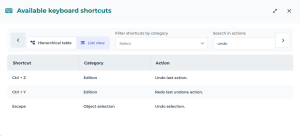
Keyboard Shortcuts
You can use keyboard shortcuts when editing a diagram.
Those shortcuts are grouped by type of performed action:
• Object selection
• Edition
• Object handling
• Display
You can display the shortcuts as a tree or a list.
To find a shortcut:
1. Open the diagram in edit mode.
2. In the diagram toolbar, click Show keyboard shortcuts  .
.
.A list appears showing the keyboard shortcuts.
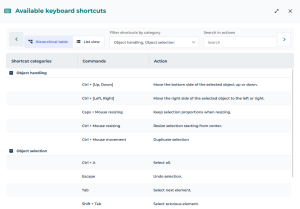
3. To display the list as a grouping of type of actions, click Hierarchical table.
4. To filter shortcuts by type of action, in the Filter shortcuts by category drop-down list, select the category.
 You may select multiple categories.
Example: select “Object selection” and “Object handling”.
The list of shortcuts is filtered.
5. To search for a shortcut by term in its description, in the Search in actions field, enter a term.
Example: “undo”