Accessing Diagram Edition
You can access a diagram in edit mode from:
• the list of diagrams describing or containing the object
• the diagram preview
 With some diagram types, you can open the diagram in tabular mode, see Diagrams in Tabular Entry Mode.
If needed, on the right of the diagram, you can display the Properties, Review Notes adding and Aspect windows.
Open a diagram in edit mode
To open a diagram in edit mode:
1. Access the object described by the diagram.
E.g.: an object in a list or in a tree.
2. Open the object diagrams list.
If no diagram describes the selected object, see Objects in a Diagram.3. Hover the cursor over the tile corresponding to the diagram of your choice.
4. Click Edit.
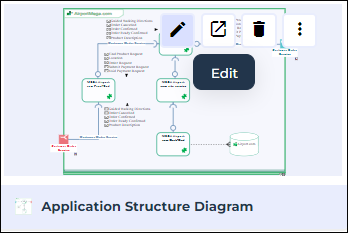 In a list of diagrams, click the Name of the diagram and click Edit
  .
.The diagram opens in edit mode:
• in full page if you launched it from a list or a tree in the Edit area
• to the right of the tree if you launched it from a tree in the Browse area
On the right of your diagram, you can display:
• the diagram properties via the Properties tab
• review notes via the Review Notes tab
• Formatting options via the Aspect tab
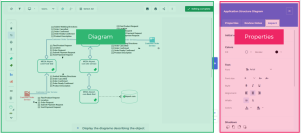
Switching from view mode to edit mode
From a diagram preview, you can switch to diagram edit mode.
To switch to diagram edit mode:
1. Display a diagram preview.
See Handling Diagrams.2. In the diagram toolbar, click Edit diagram .
.The diagram is displayed in edit mode.
Editing a diagram in a new tab
To isolate a diagram from other actions in HOPEX, you can open and edit it in a new tab. The diagram gets saved when you click Editing complete.
To edit a diagram in a new tab:
1. Access the diagrams of the object of interest.
2. Hover the cursor over the diagram tile that interests you, and click Open in a new tab  .
.
.The diagram preview displays in full page, in a new tab.
3. Click Edit diagram.
4. Edit your diagram in a new tab.
5. To get back to the diagram preview, click Editing complete when you are done with your modifications.
To work simultaneously on several diagrams, open each diagram in a new tab.