Following up Assessment Progress
 Questionnaire access may depend on the solution you actually use.
Validating Assessment Questionnaires
To access the list of assessment questionnaires completed by respondents:
1. In the navigation bar, click Assessment > My Activities> Questionnaires To Be Validated.
Questionnaire access may depend on the solution you actually use.Note that workflow status has passed to "To Be Validated".
2. Select the questionnaire that interests you and click Display Questionnaires.
The content of the questionnaire appears and you can view answers.
3. Close the questionnaire display window.
4. If you consider that the questionnaire has been correctly completed, click its icon and select Assessment Questionnaire (To Be Validated) > Validate.
The questionnaire is closed and results are automatically calculated.
Asking a respondent to modify answers
If answers to a questionnaire are not suitable, you can ask the respondent to modify these.
To make a modification request:
1. In the navigation bar, click Assessment > My Activities> Questionnaires To Be Validated.
Questionnaire access may depend on the solution you actually use.2. Click the icon of a questionnaire and select Assessment Questionnaire (To Be Validated) > Ask For Modification.
The respondent can modify his/her answers. See Following up Assessment Progress.Reassigning Questionnaires
If a respondent has made a transfer request, you must reassign the questionnaire.
To reassign a questionnaire:
1. In the navigation bar, click Assessment > My Activities> Questionnaires to be Reassigned.
2. Open the properties dialog box of the questionnaire concerned and select the Reassignment tab.
This tab only appears when the questionnaire has "To Reassign" status.3. Select all nodes to be assessed and click the Reassign button.
4. Using the search page that opens, select a questionnaire and click OK.
If person assignments have been specified (for example, the questionnaire should be sent to a person in the context of a business role in particular), you can reassign the questionnaire in the section provided for this purpose.The new respondent appears in the Correspondent column.
5. Select the icon of the questionnaire and select Assessment Questionnaire (To be Reassigned) > Reassign.
The new respondent receives an e-mail. He/she can complete the questionnaire, status of which is again "In Progress", then submit answers.
Following up Session Progress
To consult progress of an assessment session:
 Open the page properties of the assessment session and select the Reporting page.
You can access these two reports:
• Session Follow-up
• Session Statistics
Session follow-up
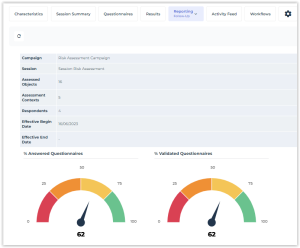
This report presents an overview of your assessment session.
It contains gauges that display:
• the % of completed questionnaires
• the % of validated questionnaires
• questionnaires by status
Session statistics
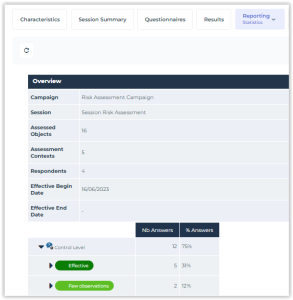
The session statistics report displays:
• the number of assessed objects, contexts and respondents
• for each session, the number of answers and the percentage
Viewing Session Results
To view the results of an assessment session:
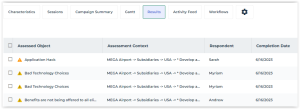
Open the properties of an assessment session and select the Results page.In this page, all the session assessment nodes are listed. The following information is given for each of them:
• Assessed object
• Assessment context
• Respondent
• Answer Date
 The functional administrator has the appropriate rights to delete theses elements.
To view the properties of an assessed object:
1. Open the properties of an assessment session and select Results.
2. Select an assessment node from the list and click the Properties button.
To view the answers related to a particular object:
1. Open the properties of an assessment session and select Results.
2. Select an assessment node from the list and click Display Questionnaires.
Closing the Assessment Session
You can close the session at any time.
To close an assessment session:
1. Open the properties page of the campaign and select the Session page.
2. In the Assessment Session section, right-click the session that interests you and select Close.
All questionnaires are automatically closed. This operation can take several minutes.
Results are valid only if the session is closed.Viewing Assessment Campaign Results
To view the results (answers) of an assessment campaign:
Open the properties of an assessment campaign and select the Results page.In this page, all the campaign assessment nodes are listed. The following information is given for each of them:
• Assessed object
• Assessment context
• Respondent
• Answer Date
The functional administrator has the appropriate rights to delete theses elements.To view an assessed object properties:
Select an assessment node from the list and click the Properties button that appears.To view answers to questions related to an assessed object:
Select an assessment node from the list and click Display questionnaires.