Operations
Definition of an Operation
An operation is a service that can be requested from an object to affect a defined behavior. An operation has a signature, which may be used to specify the parameters it requires.
Examples:
"Age Calculation" (operation of the client class).
"Print" (operation of the drawing class).
"Calculate due dates" (operation of the loan class).
 Operations are not taken into account by HOPEX Information Architecture tools (synchronization, generation etc.).
Specifying Class Operations
To specify class operations:
1. Select the class concerned and display its properties.
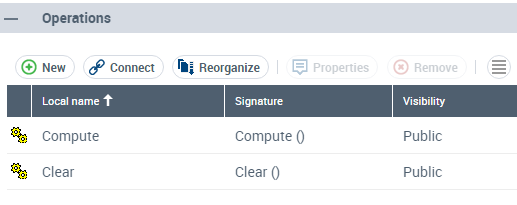
2. In the Components property page, expand the Operations section, click New to create an operation or Connect to connect an existing operation.
The operation appears in the properties of the class.
You can specify its signature.
Inherited operations
When a generalization exists between a general class and a more specialized class, the specialized class inherits the operations of the general class.
 Click the Inherited Operations button to view operations inherited from other classes.
Operation Properties
To open the Properties dialog box of an operation:
1. In the Components property page the holding class, expand the Operations section, select the operation in question.
2. Click Properties.
The  button displays the hidden commands.
You can indicate for each operation:
• Its Stereotype to specify its use:
• Constructor: creates an instance of the class.
• Destructor: destroys an instance of the class.
• Iterator: iterates through all instances of the class.
• Selector: selects certain instances of the class.
• Whether it is a Static operation: if the operation can take specific values for each instance of the class or take one value characterizing the entire class.
• The Concurrency, to specify how the operation behaves when it is called several times simultaneously.
• Concurrency: the operation responds simultaneously to the different calls.
• Protected: the operation answers the first call and rejects ensuing ones.
• Sequential: the operation responds successively to each call.
• If it is an Is Query operation, indicating that the object state is not modified.
• If the operation Is Polymorphic, to enable methods for this operation to be redefined in the subclasses.
The following indications are used to further describe the operation signature.
• The Expression type of the operation (see expression type).
 The expression type of an operation specifies the type of the variable returned by the operation on completion of its execution.
Operation or Signal Signatures
An operation or signal signature consists of the name of the operation (or signal), its return type, and its parameters with their types. Standard UML syntax is used for signatures, in the form: Ope0 (Param0: M-Bool): M-Bool.
The signature can be defined:
• Either in the properties dialog box of the operation or signal.
• Or in the Properties window of the class to which the Operationssection.
The saved signature includes a reference to the type. If the type is renamed, the signatures that use it will reflect this change.
Signature syntax
The standard syntax for signatures is:
operationname(parameter1:typeexpression1,parameter2:typeexpression2,...):returnexpressiontype
Names containing spaces or special characters must be enclosed in single quotes ('Client name'). When a name contains an apostrophe, the apostrophe must be typed twice: 'Buyer''s Name'
Examples of signatures:
Unstock (Product0: Integer(3), Quantity0: Integer): Boolean
'Create order' ('Client name' : Client): Byref Variable
In a signature specification, it is possible to specify the package to which a class belongs, followed by two colons.
Example: Enterprise::'Sales Management'::Client.
The listed class is linked to the parameter or return type. If it does not exist, it is created. Any packages listed in the path that do not exist are also created, and linked to the class.
If the package is not specified, a dialog box will enable you to select from similarly named classes.
Operation Parameters
A parameter is the specification of a variable, which can be modified, sent or returned. A parameter can specify a name, a type and a direction. Parameters are used for operations, messages and events.
An argument is a specific value corresponding to a parameter.
In the Properties dialog box of an operation, the Parameters section allows you to specify:
• The operation ExpressionType, eg. Integer(5).
• Its Defaultvalue, eg. 0.
• Its Direction: at input and/or output of the operation.
To create a parameter on an operation:
1. Open the operation properties.
2. Select the Characteristics page.
3. In the Parameters section, click New.
The dialog box for creating a parameter opens.
4. Enter the name of the parameter and click OK.
Operation Methods (opaque behavior)
A method - or opaque behavior - is a textual representation of implementation of an operation, class or component. It specifies the algorithm or procedure that produces results of an operation or behavior of an element.
To define the method that implements an operation:
1. Open the Characteristics property page of the operation.
2. In the Method section, click Add.
The dialog box for adding a method appears.
3. Enter the name of the method to be created or search for an existing operation.
4. Click OK.
To enter the body of the text and the method that implements the operation:
1. Open the Characteristics property page.
2. Define the method in the Body frame.
When a class has several subclasses, each subclass can perform the operation using a different method.
The Method section presents the method relating to the selected class.
Operation Conditions
You can define operation conditions in the form of constraints.
The condition types are:
• A PreCondition that must be met before the operation is executed.
• The condition on the Body that must be checked at operation execution.
• A PostCondition that must be met after executing the operation.
To define a condition on an operation:
1. Open the Conditions property page of the operation.
2. In the Conditions section, select the condition type:
• precondition
• condition on the body
• postcondition
3. Click New.
The dialog box for adding a restriction appears.
4. Enter the name of the restrictions to be created or search for an existing operation.
5. Click OK.
To enter the body for the condition:
1. In the properties window of the holding operation, select the condition.
2. Click the Properties button.
The button displays the hidden commands.3. Click the Characteristics page.
4. In the Expression Body section, enter the expression.
Operation Exceptions
If a condition is not respected, an exception is generated.
The Exceptions tab allows you to define error messages sent by the operation when an exception occurs and to specify their signature.
Displaying Class Attributes and Operations
To modify how the attributes and operations for a class are displayed:
1. Right-click the class or classes whose attributes you want to display.
2. Select Shapes and Details.
Use the Display dialog box to select what elements are to be displayed.
3. In the tree on the left, click Attribute.
4. Select the attributes you want to see displayed.
You can display All the attributes, Some of the attributes (select them from the list), or None of the attributes.
You can request display of the Visibility, Type, … of each of the attributes.
A datatype is used to group characteristics shared by several attributes. Datatypes are implemented in the form of classes.Proceed in the same manner to indicate how operations are to be displayed, but instead, select Operations in the tree.