Associations
An association is a relationship existing between two classes.
An association is binary when it links two classes, ternary when it links three classes, etc.
Associations can be compared to links between index cards.
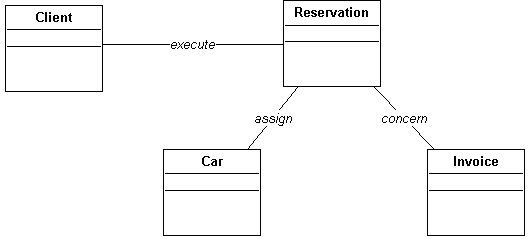
The following drawing provides a three-dimensional view of the situations a class diagram can store.
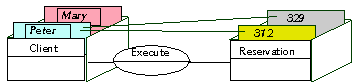
Peter and Mary are clients. Peter has made reservations numbers 312 and 329.
A class diagram should be able to store all situations in the context of the company.
Examples of associations:
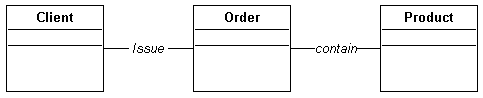
• A client issues an order.
• An order includes several products.
Creating an Association
To create an association:
1. In the class diagram, click Association  in the objects toolbar.
in the objects toolbar.2. Click one of the classes concerned and drag the mouse to the other class before releasing the button.
The Creation of Extension dialog box appears.
3. Enter the name of the association to be created.
 You can also select an existing association.
4. Click Add.
The association is indicated by a line in the diagram.
Roles (or Association Ends)
It is possible to describe the different roles played by the classes in associations and to specify their multiplicity and their navigability.
Each end of an association specifies the role played by the class in the association.
The role name is distinguished from the association name in the drawing by its position at the link end. In addition, the role name appears in a normal font, while the association name is italicized.
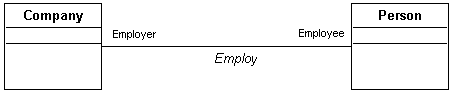
When two classes are linked by only one association, the name of the classes is often sufficient to describe the role. Role names are useful when several associations link the same two classes.
Examples of roles:
• A client is the order issuer.
• An order is issued by a client.
• An order is prepared from products.
• A product is ordered.
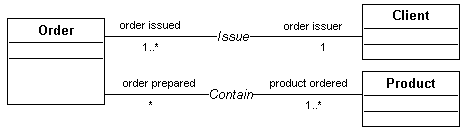
Multiplicity of a Role
 Multiplicity specifies the interval between minimum and maximum values of cardinalities for a set. This is primarily indicated for each role that classes play in an association. It can assume the values *, 0..1, 1, 1..*, 2..*, 4..10, etc. The default value is *.Cardinality is the number of elements contained in a set.
The multiplicity expresses the minimum and maximum number of instances of a class that can be linked by the association to each instance of the other class.
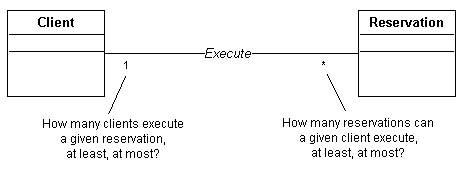
The usual multiplicities are "1", "0..1", "*" or "0..*", "1..*", and "M..N" where "M" and "N" are integers:
• The "1" multiplicity indicates that one and only one instance of the class is linked by this association to each instance of the other class.
• The "0..1" multiplicity indicates that at most one instance of the class can be linked by this association to each instance of the other class.
• The "*" or "0..*" multiplicity indicates that any number of instances of the class can be linked by the association to each instance of the other class.
• The "1..*" multiplicity indicates that at least one instance of the class is linked by the association to each instance of the other class.
• The "M..N" multiplicity indicates that at least M instances and at most N instances of the class are linked by the association to each instance of the other class.
1 | One and one only |
0 / 1 | Zero or one |
M..N | From M to N (natural integer) |
* | From zero to several |
0..* | From zero to several |
1..* | From one to several |
The following example illustrates the significance of the different multiplicities:
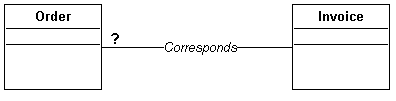
• 0..1: An order corresponds to zero or at most one invoice.
• *: No restriction is placed on the number of invoices corresponding to an order.
• 1: Each order has one and only one corresponding invoice.
• 1..* : Each order has one or more corresponding invoices.
Specifying role multiplicity
To specify association end multiplicity:
1. Right click on the part of the line of the association that is located closest to the class.
2. Select Multiplicity then the desired value.
If the menu you see does not propose multiplicity, check that you clicked on that part of the line indicating the role and not the association.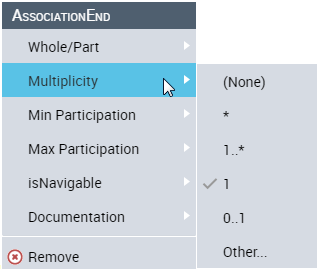
The multiplicity now appears on the role.
Association End Navigability
IsNavigable specifies in which direction(s) an association between two classes can be traversed. To avoid crowding the drawing, this is only indicated when only one direction is possible.
Example of navigability:
• It is important to be able to find out what products are contained in an order.
• However, it is rarely useful to be able to find all orders that concern a product.
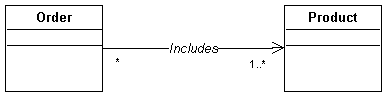
Specifying navigability for a role
To indicate that an association is navigable in one direction only:
1. Right-click the non-navigable role.
2. Select IsNavigable > No.
An arrow representing the navigability now appears for the other role.
Association End Aggregation
Aggregation is a special form of association, indicating that one of the classes contains the other.
Example: A car includes a chassis, an engine, and wheels.
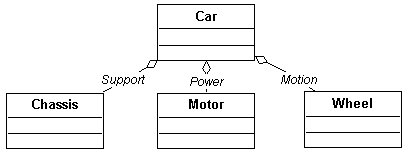
Specifying role aggregation
To specify role aggregation:
1. Right-click the role.
2. Select Whole/Part > Aggregate.
If the menu you see does not propose aggregation, check that you clicked on that part of the line indicating the role and not the association.A diamond now appears on the role, representing the aggregation.
Association End Composition
A composition is a strong aggregation where the lifetime of the components coincides with that of the composite. A composition is a fixed aggregation with a multiplicity of 1.
Example: An order consists of several order lines that will no longer exist if the order is deleted.
Composition is indicated by a black diamond.
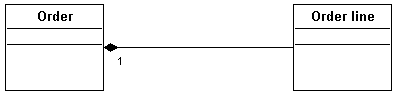
Role Changeability
Read Only specifies whether the role played by a class in an association may be modified after it has been created. By default, the role of a class in an association is considered changeable.
Example: An order includes an order line for each of the ordered products. These order lines can no longer be modified after the order has been saved.
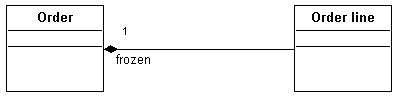
You can indicate whether a role is changeable using the role pop-up menu or the role properties dialog box.
The Read Only characteristic of the role can have the following values:
• Add only: it is still possible to link new objects with this association, but already linked objects cannot be unlinked.
• Read Only: linked instances can no longer be unlinked. Nor is it is possible to add a new link.
• No Restriction: new instances can be linked or unlinked at any time with no constraints.
Role Order
It is possible to specify whether or not a role Is Ordered. For example, for a client order, it can be useful to store the sequence in which its lines appear.
To specify that a role is ordered:
1. Open the Properties dialog box of the role.
2. In the Characteristics page, select the IsOrdered check box.
Role Static Property
As for an attribute, it is possible to specify if a role can take specific values for each class instance, or take a value characterizing the entire class:
1. Open the properties dialog box of the role.
2. Click the Characteristics page.
3. In the Static box, select:
• “Yes”: so that the role can take a value characterizing the entire class.
• “No”: so that the role can take a different value for each class instance.
Role Qualifier
A qualifier is an attribute whose values partition the set of objects related to an object across an association.
Example: An order includes several order lines. The order line number can be used as the qualifier that identifies each line.
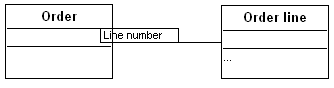
To define a qualifier:
1. Right-click the role and select Properties.
The Properties dialog box of the role opens.
2. Select the Qualifiers page.
3. To add a new qualifier to the role, click Add.
4. Enter the name of the qualifier.
5. Click Add.
Several qualifiers may be needed to uniquely identify each object in a class.
For example, each square on a chessboard is identified by its row number and column number on the chessboard.

Overloading a Role
A role can inherit a role defined at higher level. Overloading enables definition of additional properties on an inherited role.
To overload a role:
1. Open the properties dialog box of the role.
2. In the properties window, click the drop-down list and select Characteristics.
3. In the Roles section, select Overloaded Role.
4. Click Add.
The Query dialog box appears:
5. Search and select the role in question.
6. Click OK.
Association Classes
An association class is an association that also has class properties as attributes.
It is helpful to create an association class in order to specify the characteristics of an association.
For example, the quantity of the requested product needs to be specified on each order line.
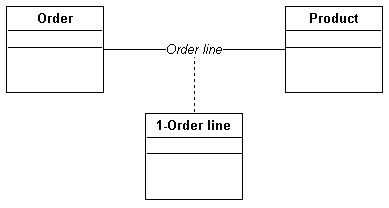
To create an association class:
1. Create a new class.
2. Using the Link button, create a link between the class and the association.
The association class is linked to the association by a dotted line.
As for standard classes, it is possible to hide the compartments and resize the association class using the Display command in its pop-up menu.Displaying an N-ary Association
Certain associations associate more than two classes. These associations are generally rare.
Example: When taking inventory, a certain quantity of product was counted in each warehouse.
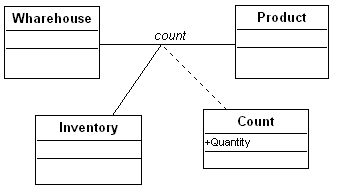
To create a ternary association:
1. First create the association between the two classes.
2. Click the Association Role button 
3. Draw a link between the association and the third class.
You can then proceed as described above to create an association class if needed.
Reflexive Associations
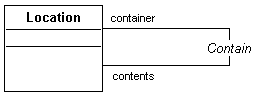
Certain associations use the same class several times.
A classroom, a building, and a school are all locations.
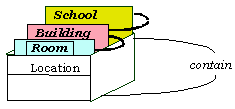
A classroom is contained in a building, which is contained in a school.
A reflexive association concerns the same class at each end.
Creating a reflexive association
To create a reflexive association:
1. Click the Association button in the toolbar:
in the toolbar:2. Click on the class concerned and drag the mouse outside the class, then return to it and release the mouse button.
The reflexive association appears in the form of a half-circle.
If there is an association of a class to itself, the roles need to be named in order to distinguish between the corresponding links in the drawing.