Editing an Operational Scenario
The OV-3 offers you editors to be able to define operational scenarios without using diagrams. It details resource flow exchanges and enables to identify which operational activity and locations exchange which resources.
 To use the editor, you need to have already created an operational scenario in the OV-2 view. For more information, see Creating OV-2 Operational Scenario Diagrams.
To edit an operational scenario:
1. In the navigation bar click Operational Viewpoint > OV-3 Operational Resource Flow Matrix > Operational Scenario Editor.
2. Select the operational scenario you wish to edit and select an editor depending on how you want to proceed:
It is possible to use both editors at the same time.Operational Scenario Flow Editor
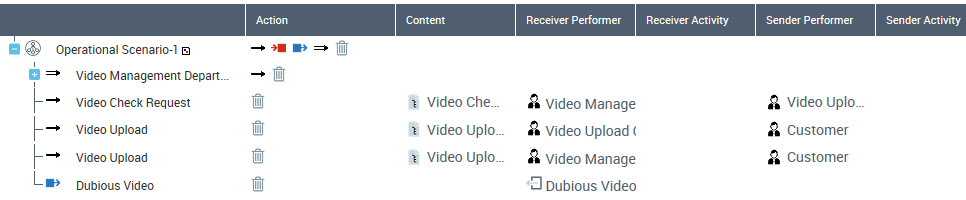
The flow editor displays a tree which lists the flows of the scenario. You can define the flow participants (sender and receiver) for each flow.
The scenario maps exchanged flows with the operational activities of the sender and receiver.
The columns corresponding to the different properties of internal operational flows. are displayed. For more details see Internal Operational Flows.
Creating an Internal Operational Flow
You can create Internal Operational Flows on needlines.
When you create an operational flow  , you need to specify:
, you need to specify:• the sender operational participant
• the receiver operational participant
• the content exchanged
Internal operational flows are hidden when grouped in a needline.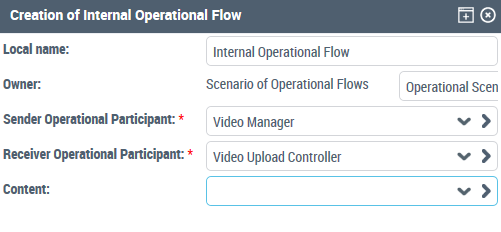
Creating an Input Flow
When creating an operational input flow  , a wizard asks you to select:
, a wizard asks you to select:• a sender operational input gate
• a receiver operational participant
• a content
Creating on Output Flow
When creating on operation output flow  , select:
, select:• a sender operational participant
• a receiver operational output gate
• a content
Creating an Operational Needline
For more information about  See Operational needlines.
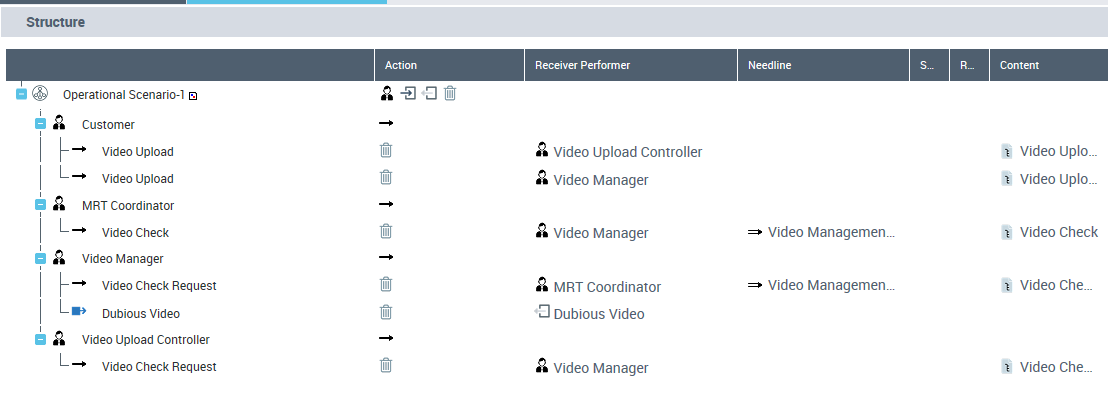
See Operational needlines.Participant (lifeline) Editor
The operational scenario lifeline editor displays a tree in which you can group flows by participant.
The following columns are displayed:
• An action toolbar which enables you to create objects:
• For example you can create lifelines  at the first level, then depending on where you stand in the hierarchy other buttons are available
at the first level, then depending on where you stand in the hierarchy other buttons are available• Receiver performer
• Needline
• Sender activity
• Receiver activity
• Content