Importing UCF Documents
UCF (Unified Compliance Framework) is the largest library of regulatory content available today. It contains:
• Authority Documents
• Citations
• UCF Controls
HOPEX Data Governance provides an integration that allows you to access the Unified Compliance Framework (UCF) library of compliance documents and controls.
HOPEX Data Architecture combined with the Unified Compliance Framework (UCF) automates IT compliance initiatives by providing a simple way to manage and monitor compliance with a wide range of IT regulations and standards. UCF helps implement the appropriate controls for each regulation, while identifying controls common to multiple regulatory documents. This allows companies to avoid duplication of effort and reduce the time and cost of compliance.
HOPEX builds an inventory of relevant regulations by importing available UCF policies, requirements, and controls and keeps them up to date. It also provides out-of-the-box reports and dashboards to monitor compliance level, remediation plans, and their impact on the IT landscape.
For more details on UCF, see About Unified Compliance Framework.
Using UCF Import
UCF Import Prerequisites
The Functional Administrator can download UCF content (authority documents, citations and controls) and update it.
To be able to import this content to HOPEX UCF, you must have:
• HOPEX Data Governance AND HOPEX UCF
• a UCF account and API key
• a Shared List with the Authority Documents you want to import.
 For more information, see Unified Compliance Framework.
• parameterized UCF options in HOPEX UCF
In the UCF Common Controls Framework, information is generally available in English. If you want to use HOPEX UCF with HOPEX user data language other than English, you must:
• set up your data language of interest (example: if you want to use HOPEX with French as data language, make sure to set up French as data).
• import UCF data
• repeat the operation (change data language + proceed to import) as many times as desired languages.
Parameterizing UCF Import
To parameterize UCF import:
1. In the Main menu, select Settings > Options.
2. In the Options window, expand Tools > Data Exchange > Import > UCF Common Controls Hub Integration.
3. Select the Activate UCF Import check box.
4. Enter the URL corresponding to UCF API.
https://api.unifiedcompliance.com/
5. Enter your UCF API Authentication Key.
To retrieve your API authentication key in your Unified Compliance Framework workspace:• go to Settings > API Manager > API Keys.
• Create Credentials and copy paste your API Key.
6. Click OK.
Importing Data from the Common Controls Hub
In HOPEX Data Governance, the functional administrator can import relevant data from the UCF Common Controls Hub (Authority Documents, Citations and Controls).
To import UCF data:
1. Click the Compliance > Frameworks navigation menu.
2. In the edit area, click Import UCF Content.
3. Click Next.
4. Select the Shared List from your Common Controls Hub.
5. Click Next.
6. Select the Authority Document(s) you wish to import into HOPEX.
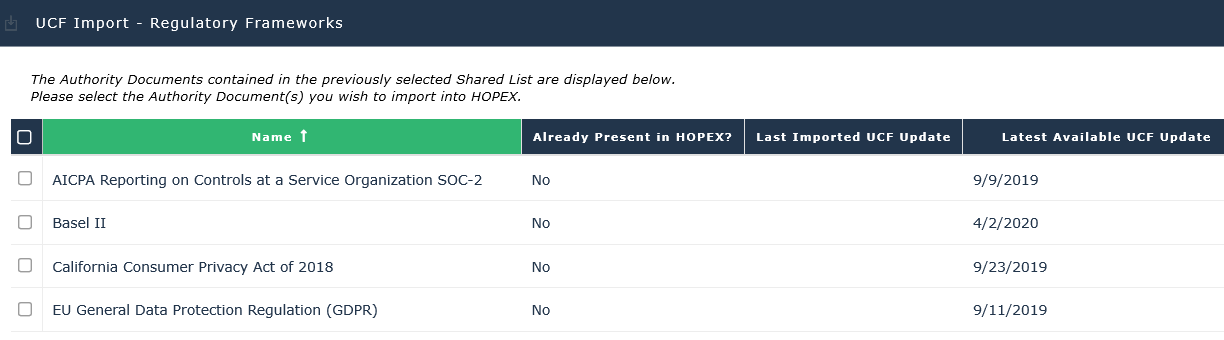 If you update an already imported Authority Document, it may be useful to compare the columns Latest available UCF updates and Last imported UCF update.
7. Click Next.
Defining the Applicable Regulatory Content
Regulatory content relevance
All the articles/sections of an imported regulatory framework are not applicable to your organization.
Compliance officers can inspect the imported regulatory frameworks and specify which ones are applicable.
Only the applicable content will appear in HOPEX libraries for your stakeholders.
The regulatory content you directly create in HOPEX is automatically considered as compliant (applicable).Reviewing regulatory frameworks after UCF import
Once the UCF data has been imported, the tree structure appears in Compliance> By Control Directives > UCF Import.
It displays regulatory frameworks (UCF Authority Documents) and features regulation articles (Citations) along their enforcing control directives (UCF Controls). It is based on the supported/supporting structure originally defined by UCF.
From this tree you can:
• review the newly imported regulatory frameworks and their content.
• Indicate which pieces of regulatory content are deemed relevant to your organization.
Selecting relevant content for your organization
To declare regulatory content as relevant:
 Expand the tree if necessary and select the check-box corresponding to the regulatory frameworks/articles/sections you must comply with.
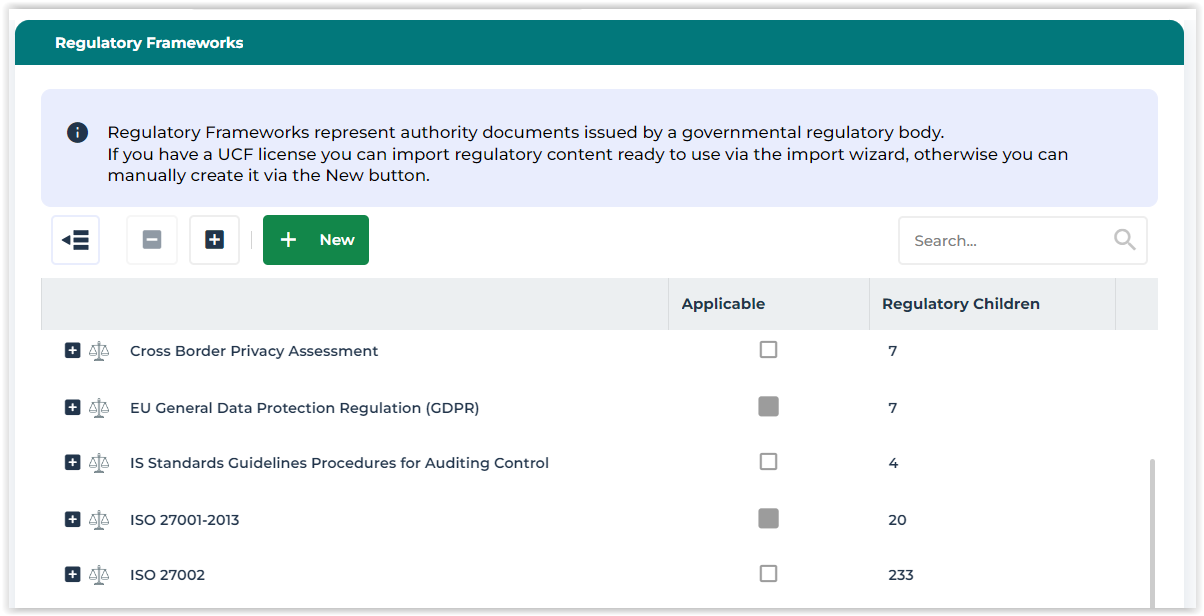 The grey square
  means that the regulatory content below has been partially selected only.
Data corresponding to the regulatory content you have selected become available to Internal Controllers in the Control Framework libraries.