Defining the Data Used by Applications
HOPEX Data Governance allows you to make an inventory of applications that use the data in your repository.
Thanks to the HOPEX integrated platform you can use this inventory in the HOPEX solutions specific to the description of the application architecture, such as HOPEX IT Architecture or HOPEX IT Portfolio Management.
Dedicated reports allow you to visualize in which applications certain data is used. See Data Usage Reports.
Creating Applications with HOPEX Data Governance
The inventory of application assets is carried out by the Data Functional Administrator.
To create an application in HOPEX Data Governance:
1. Click the Inventories > Applications navigation menu.
2. Click the Applications tab, then the New button.
3. Enter the name of the application and an owner if necessary.
4. Click OK.
In the same way, you can create application systems, application services, microservices and application flow scenarios.
For more details on objects of the application architecture, see Modeling Applications and System Architectures.
Connecting Data to an Application
The Data Asset Manager can define the data used by applications.
The data you associate with an application must be defined in a data domain that is linked to the application by a data store.
 The application can reference several data domains. Each data domain is associated with a specific data store for that application.
The data store provides a mechanism for storing and consulting data through the application.
The data domain determines the scope of the data used by the application.
HOPEX offers a simplified way of linking data to applications: when you connect data to an application, this data is automatically integrated into the application's default data domain. If no domain has been defined for the application, HOPEX automatically creates one. The underlying data store is also created automatically. Thereafter, all data associated with the application is integrated into the default domain.
If you want to define data in a new domain, you need to create a new data store on which to store the data. See Creating a Data Store on an Application.
To connect data to an application:
1. Open the properties pages of the application.
2. Click the Characteristics page.
3. Expand the Data section.
This page can be hidden by default. To display it, click the Manage sections button and select Data.4. Select the type of object that you want to create: business, logical or physical.
5. Click New.
6. In the wizard that appears, select the object type that comprises the data item (for example, Class, Concept, etc.) and the object in question.
7. Click Add.
Once the data has been defined, you can specify:
• the access to the data: in create mode (Create), read mode (Read), update mode (Update), or delete mode (Delete).
The content of the Data access column is calculated automatically according to the selected actions ("CRUD" is the default value).• if the application is “Golden Source” or “Golden Copy” of this data.
Creating a Data Store on an Application
The creation of a data store is automatically associated with the creation of a data domain of the same name.
To create a data store on an application:
1. Open the properties of the application in question.
2. Click the Components page.
3. Go to the Data Store section.
4. Move the mouse over the application name.
Commands appear to the right of the application.
5. Click the New > Physical Local Data Store button.
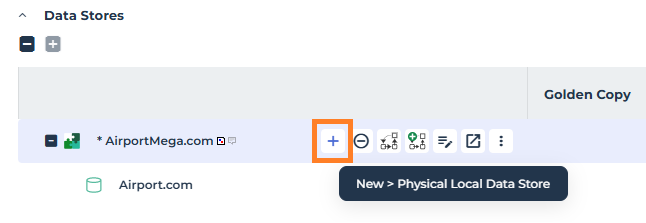
6. In the window that appears, indicate the data domain referenced by the data store and click OK.
The new data store appears in the application properties. A data domain of the same name is automatically associated with it.
Creating a data from a data store
To create a data from a data store:
1. In the Data Stores section, select the data domain referenced by the data store.
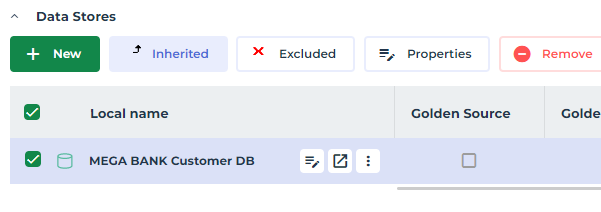
2. The Business data and Logical data sections appear.
3. In the section corresponding to the type of data to be created, click New.
 For a simplified creation mode, you can create data without having to define a data store, in the Application Characteristics > Business data and Logical data sections.
 Defining data access mode
To define the data access mode (create, read, delete, etc.):
1. In the application properties, select the data store.
Data of the corresponding data domain appear.
2. Select the data item and click the CRUD button.
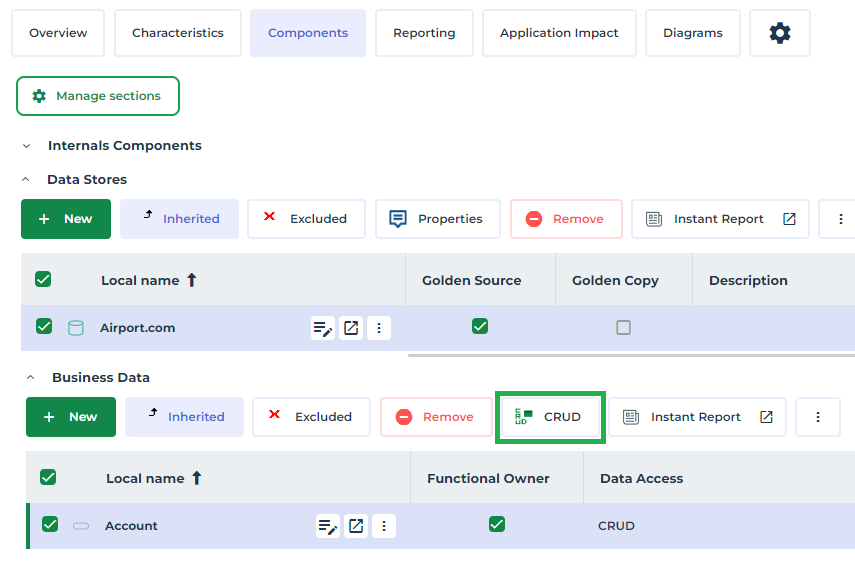
3. Select the check boxes that correspond to the relevant types of access (Creation, Read-only, etc.).
Defining an Application as the Golden Source
Data contained in a domain can be used by different processes or applications.
An application defined as "Golden Source" is an application within the information system that guarantees the validity of the data it holds.
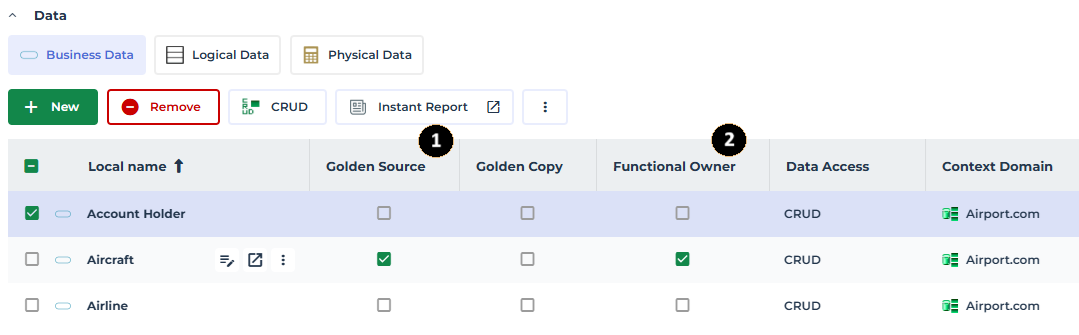
To define which application is considered the golden source for the data, you need to specify that:
• the data is under the functional responsibility of the domain using it (1)
• this domain is referenced by a data store tagged “Golden Source”(2)
In the example below, the application is “Golden Source” for the “Departure airport” data.
Defining an Application as Golden Copy
In the same way as for a “Golden Source” application, you can indicate that an application is a “Golden Copy”. A “Golden Copy” application is an exact copy of the source of truth.
Impact of the Data Used
The Data Impact property page lets you visualize the data used by an application and measure:
• the impact of the application on the data it uses (for example, the impact of deleting an application when it is a golden source of data)
• and conversely, the impact of the data on the application (for example, the impact of unreliable data).
To view the impact of data on an application:
1. Open the application properties.
2. Click the Data Impact page.
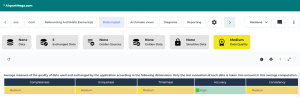
The page displays the following labels:
• Data: data used by the application
• Exchanged Data: data contained in the flows exchanged by the application
• Golden Sources: data for which the application is declared "Golden Source".
• Strategic Data: application data classified as "Strategic Data".
• Sensitive Data: application data classified as "Sensitive Data".
• Data Quality: quality level of the data used by the application. The report provides an average of the data quality of the latest evaluations performed on all data used by the application, at the level of the application's store or through flow exchanges with other applications.
3. Click a label to view the details.
See in which Applications a Data is Used
Reports allow you to see where data is used in your application assets.
See Data Usage Reports.