Associating a Calculation Rule with a Business Object
You can create calculation rules on concept and concept properties.
Calculation Rule on a Concept Property
The calculation rule takes concepts or concept properties as input and the calculated concept property as output.
The next step is to define the expression of the calculation rule.
Example
The “Book” concept is described by the following concept properties:
• “Book price”
• “Number of copies sold”
• "Sales amount”
• "Royalties amount”
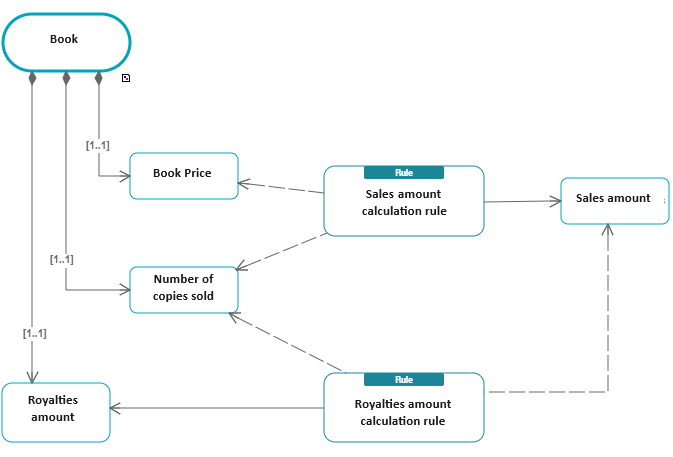
The “Sales amount” is a calculated according to:
• the “Book price”
• the “Number of copies sold”
The definition of the sales amount calculation rule is as follows:
Sales amount = Number of copies sold x Book price
The royalties amount is calculated according to the number of copies sold. The calculation rule is as follows:
• 8% of the sales amount if the number of copies sold is less than 10,000.
• 10% of the sales amount if the number of copies sold is less than 20,000 and greater than 10,000.
• 12% of the sales amount if the number of copies sold is less than 20,000.
Creating the calculation rule
To create a calculation rule in a concept diagram (for example, the "Sales amount calculation rule"):
1. Open the relevant concept domain diagram.
2. In the object insertion bar, click the Concept property rule button and click in the diagram.
The rule creation window appears.
3. Enter the name of the rule and click Create.
Defining rule input and output objects
Here you define the rule's source objects, from which the target object's value is calculated.
To define the rule's input concept property:
 In the object insertion bar, click the Link button and draw a link from the source concept property to the calculation rule.
In our example, draw a link from "Book price" to "Sales amount calculation rule" and a link from "Number of copies sold" to the calculation rule.
A dotted arrow appears between the rule and the source concept property.
To define the target concept property:
Click the Link button and draw a link from the rule to the calculated concept property.An arrow line appears between the two objects.
To access the definition of the calculation rule:
1. Move the cursor over the slide rule and click on the Properties button.
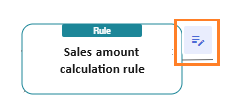
The ruler properties window appears on the right of the diagram.
2. In the Characteristics > Calculation rule page, enter the input and output parameters of the rule, as well as the description of the rule.
In our example: "Sales amount = Number of copies sold x Book price".
 In the Parameters section, you can see the objects you've linked in and out of the rule.
Calculation Rule on a Concept
In the same way as for a concept property, you can indicate that a concept is calculated, by associating it with a calculation rule that defines the input and output parameters, as well as the rule expression.
For a calculated concept, the rule's input objects can be concepts or concept properties. The output object is the calculated concept.