Concept
The concept is the basic element of a business dictionary.
A concept expresses the essential nature of a being, an object, or a word through its properties and characteristics or its specific qualities.
A concept is associated with one or more terms that designate the concept in a given language. See Consulting the Business Glossary.
Accessing the List of Concepts
To access concepts in HOPEX Data Governance:
 Click the Glossary > Concepts navigation menu.
The concept list appears.
The Browse button  displays cards of each concept with its description and contexts of use.
displays cards of each concept with its description and contexts of use.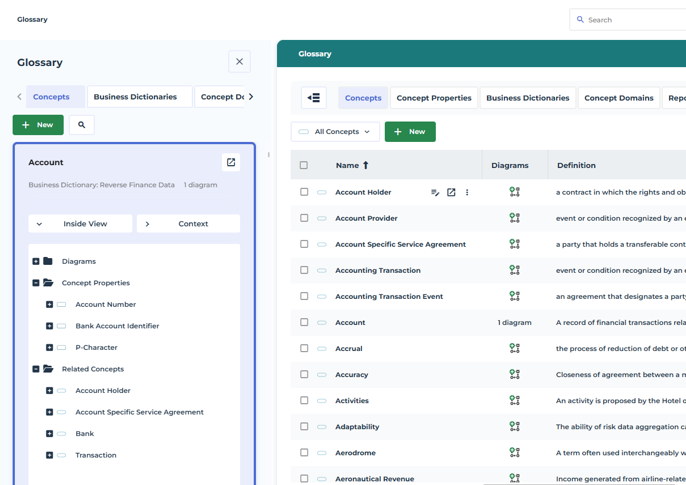
Creating Concepts
To create a concept:
1. Click the New button associated with the concept list.
2. Enter the Name of the concept and the Owner Business Dictionary.
The Existing Terms section lists terms with the same name as the new concept. You can choose to use an already existing term, or create a new term.
 A term is a word or word group, that is used for a specific meaning in a specific context.
 If a term has already been created with the same name as the new concept, this term is automatically connected and appears automatically in the Term section.
3. In the Description field, enter the text of the concept definition.
4. Click Next to associate an image with the concept or OK to finish.
The name of the new concept appears in the tree. It also appears in the tree structure of the holding business dictionary. A new term with the same name as the concept is also created.
Concepts and Terms
Connecting an existing term to a concept
The same term can be connected to several objects. You can connect a term when creating a concept or at a later date.
To connect a term to a concept:
1. Open the properties of the concept that interests you and select the Characteristics page.
2. Expand the Identification section.
3. Click Designated Term then Connect.
4. Select the desired term.
You can also connect a concept to a term in the term properties:
1. Open the properties of the term.
2. Select the Characteristics page.
The list of objects connected to the term appears in the Identified Dictionary Type field.
Objects for which the term is declared as a synonym do not appear in the properties dialog box. 3. Click the Connect button.
The query dialog box appears.
4. Select the “Concept” object type and click the Find button.
The list of the existing concepts appears.
5. Select the desired concept and click Connect.
Creating terms in multiple languages from a concept
You can associate terms with a concept for each of the data languages in your environment.
To create a term from a concept:
1. Open the properties of the concept that interests you and select the Characteristics page.
2. Expand the Identification section.
3. Click Designated Term then New.
A term creation dialog box opens.
4. Specify the Local Name of the term.
5. Select the Language and click OK.
The new term appears in the concept properties.
Creating synonyms in multiple languages
A synonym is a term interchangeable with another term in the context of a concept of this term that has the same or almost the same meaning.It is possible to add synonyms to a concept in several languages. This function serves to indicate to the user that a concept defined and used in a certain context corresponds to other synonyms in another language.
Renaming Concepts
The name of a concept is derived from the associated term. To rename a concept, you need to modify the associated term.
To modify the term associated with a concept:
1. Open the concept properties.
2. Click the Characteristics page.
3. At the end of the Name field, click the right arrow then Rename existing Term.
A window appears. It shows the objects affected by the name change.
4. Modify the term name.
5. Click OK.
Concept Properties
To access concept properties:
Select the concept concerned and click the Properties  button in the edit area.Some pages are hidden by default. To display them, click the Show/Hide button, then select the desired page.
Overview
The concept overview summarizes the concept's main information:
• The business dictionary to which it belongs
• The persons responsible
• Its workflow status
• the category of data (critical, private, public, etc.)
A dendrogram illustrates the concept's environment, with its structure, associated terms and the domain in which it is used.
Characteristics
The Characteristics page of the concept properties window provides access to the main characteristics of the concept.
Some features are in hidden sections by default. To display them, click Manage sections and select the desired section.A concept is described by:
• the Abstract Concept check box, which enables specification of the concrete or abstract character of a concept
• Its Definition
• its designation, which is represented by one or several terms
To modify the name of a concept in the corresponding language, you must access concept properties and modify the name of the term in the specific language. • Its synonyms, Hypernyms and Hyponyms
For example, in the Financial area, the term "Advance" is recognized as a synonym of "Down payment".
A synonym is a term interchangeable with another term in the context of a concept of this term that has the same or almost the same meaning.Components
The Components page presents:
• the list of concept components held. See Concept Components.
• The list of concept power components. See Describing Concept Power Components.
State concepts connected to a concept are not present in the properties dialog box, for more details see Concept or Individual States.The type of link between concepts is defined by the Concept Aggregation Type, which can take on the following values:
• "Referencing”: to indicate that the target concept is referenced by a link,
• "Embedded": to indicate that the target concept exists in its own right, but is included in the concept that is the source of the link,
• "Composite": to indicate that the target concept is a component of the concept that is the source of the link; if the target concept is destroyed, the composite is also destroyed.
Relationships
Super types
The Relationships > Super types page presents the concepts whose properties are inherited by the described concept.
For more details on inheritances, see Concept Inheritances. See also Concept Type.Realizations
The Relationships > Realizations allows to define the objects that the concept implements. It can be two types of realization:
• A regulatory requirement: a regulatory framework, a business policy, a quality dimension, etc.
• A realization of business information.
For more details on realizations, see Connecting the Business Concepts to the Logical and Physical architecture.Data Usage
The Data usage page displays the applications, processes and business capabilities that use the data in question.
The page is hidden by default. To display it, click the Show/Hide button, then select the desired page.Rules and Regulations
In the Regulations page you can define which internal or external regulations apply to the concept in question.
When a concept belongs to a data category covered by a regulation, the name of the regulation appears on this page.
To connect a regulation to the concept:
1. Click the Rules and Regulations page.
2. Click the Connect button.
A dialog box appears:
3. Indicate the type of regulation to be connected (regulatory framework, business policy, etc.).
4. In the list that appears, select the regulation in question.
For more details on regulations, see Rules and Regulations.Data Quality
On the Data Quality page, you can indicate whether a quality policy applies to the concept in question.
For more details, see Data Quality.Reports
Various report types are available on the concept:
• Data Dendrogram: illustrates the environment of the concept.
• Information Usage and Processing Graph Report
• Realization graph report: shows by which architecture elements the concept is implemented or the information elements the concept realizes.
• Use of information. This report displays:
• the domains that use this concept, with which access rights
• in which systems (applications, application systems or microservices) these areas are used and with which components of these systems, specifying the access mode (read-only or read/write).
For more information on data reports, see Data Reports and Analysis Tools.
Workflows
The Workflows page allows you to launch the data-specific design workflow on the concept.
See also Data Validation Workflow.