Defining Database Views
A physical view is a virtual table, of which structure and content are deduced from one or several other tables with an SQL query.
Database views are created in a tree format, which automatically generates part of the view definition. The user can then add to it as desired.
Creating Database Views
To create a physical view from a database:
1. On the desktop, click the Architecture > Databases navigation menu.
2. In the edit area click Hierarchy.
3. Unfold the relevant database folder.
4. Right-click the Physical View folder and select New > Physical View.
The view creation wizard opens.
5. In the Owner field, select the database concerned.
6. In the Physical View Component field, click New.
7. Select the tables concerned by the view
8. Click OK.
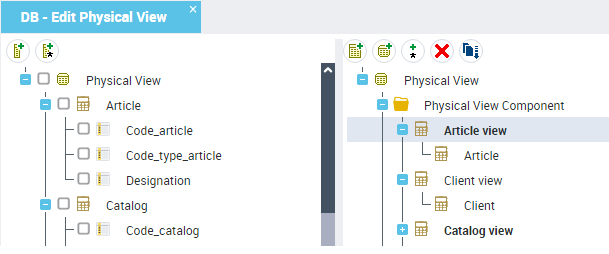
The physical view editor appears.
The left tree displays tables to which the physical view relates, with their columns. The right tree displays the tables and columns that constitutes the view. By default these ones have the same names as the source tables and columns. You can rename them.
Add a table or a column to a view
To add a table to a view:
1. In the right-hand part of the editor, right-click the Table folder and select Table view.
Select the desired table and click OK.
To add a column to a view:
1. In the right-hand part of the editor, right-click the Column folder and select Column view.
2. Select the desired column and click OK.
SQL Definition
The right side of the dialog box, labeled SQL Definition, shows the SQL code that would be generated to define the view. The code is initially calculated based on the definition indicated in the tree.
You can modify this code, in particular by using joints. You can also directly enter modifications in the SQL frame.
View joints
By default, the edition of logical views window proposes the foreign keys of the selected tables where these exist.
It is thus possible to complete specification of a view by associating with it foreign keys, potential sources of joints.
To associate a foreign key with the view:
 Select the foreign key in the tree on the left and drag it into the SQL definition field.
 User mode
You can modify the view code by typing directly in the SQL definition field:
Click the Save button so that the SQL Definition will be saved in the repository as is.After you have modified the definition, you can restore the definition as determined by the tree:
Click the Initialize the SQL definition  button.
 A message warns you that the previously saved definition will be reinitialized. %In other words, any user additions made to the definition will be lost.
Click OK to confirm.Fields
Field categories correspond to object types used in the declarative tree: table, view, column and foreign key column. Fields displayed in the SQL definition correspond to elements declared in the tree.
The foreign key type does not produce a field category: usable fields are derived from key columns and not from the keys themselves.
The Field properties  button displays properties of the object corresponding to the selected field.
button displays properties of the object corresponding to the selected field.If an object is added to the tree, a corresponding field becomes available for insertion.
If an object is renamed in the tree or in the repository, its references remain valid and the fields are displayed in the text with the new name.
If an object is deleted in the tree or in the repository, its references become invalid and are indicated as such in the fields.