Importing Business Data from an Excel File
An Excel file template lets you import existing business information into the HOPEX repository.
You can use the template to simply import a list of terms and their definitions, in order to generate a glossary, or for a more detailed description of business information, with the ability to define the relationships between concepts, their synonyms, etc.
You can also use this template to export business data from the repository.
Downloading the Excel File Template
To download the Excel template associated with the business data:
1. In the desktop, click Main menu > Export > Excel.
2. In the wizard that appears, check the option "From a template".
3. Click Next.
4. In the Predefined Template File field, select "Concept Template".
5. Click twice on Next and save the created file. It contains the structure provided by the model.
Content of the Excel Template
The template contains the following sheets that interact with each other:
• Concept
• Properties
Concepts sheet
The Concepts sheet is used to create concepts in HOPEX that define glossary terms.
In the sheet, the Concept name is mandatory. The other columns are optional, they can be used to organize Concepts in Business Dictionaries and to link Concepts to Concept Properties, user Domains and States.
To enter several objects in a cell, put one object per line (separate them with a carriage return).
Some columns are multiple: Properties, Data Categories, Tag, Concept Domains, Synonyms, Hypernyms, Linked Concepts, State Concepts.
Business Dictionary
In this column you can indicate the name of the business dictionary in which the imported Concepts will be created. This column is optional.
Definition
This property contains the definition of the term from which the concept is derived.
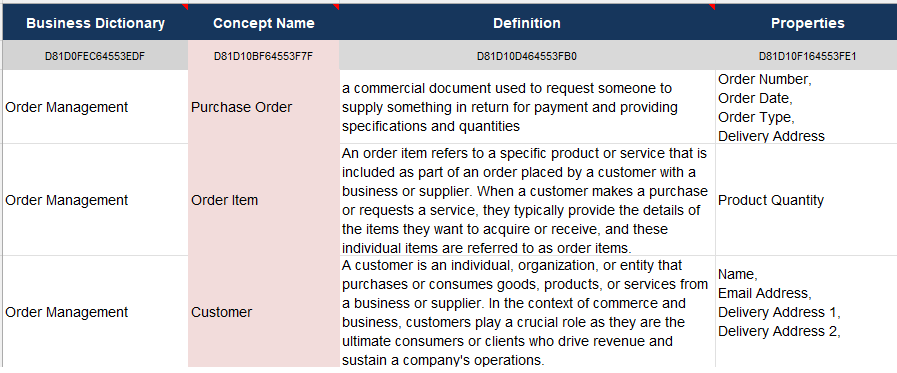
Example of concepts and definitions:
Properties
This column lists the properties of the created concept. Each property is created as a "Concept property" of the created concept.
Data Categories
This property indicates the data category (e.g. sensitive data). Multiple categories can be specified. If the category does not exist, it is created.
Tags
You can enter one or more tags for the concepts you create.
Concept Domains
For each concept, you can indicate the concept domain(s) that will use it.
Synonyms
Enter one or more business term names that will be specified as synonyms of the term corresponding to the created concept .
Hypernyms
Enter the name of a concept that will be specified as the hyperonym of the created concept.
Linked Concepts
Enter the list of one or more concepts to be connected to the created concept.
State Concepts
You can define one or more state concepts for the created concept.
Properties sheet
The Properties sheet contains the properties of the concepts associated with the terms.
Business Dictionary
In this column you must indicate the name of the business dictionary in which the imported properties will be created.
Concept Property Name
This name is mandatory. It is used to create the concept property. It corresponds to a business term in the glossary. The concept property created designates the term and carries its definition.
Definition
Definition of the concept property created and the corresponding term.
Sub Property
This column lists the properties of the concept property created. Each "sub-property" is created as a "Concept property" of the created concept property.
Data Categories
This property indicates the data category of the concept property.
Tags
You can enter one or more tags for the concept properties you create.
Concept Domains
For each concept property, you can specify the concept domain(s) that will use it.
Synonyms
Enter one or more business term names that will be specified as synonyms of the term corresponding to the concept property created.
Hypernyms
Enter the name of the concept property that will be specified as the hyperonym of the concept property created.
See also: Importing Logical Data from an Excel File.