Comparing Revisions
You can compare process revisions with:
• The Process revisions diagram comparison report, which provides an overview of the changes between two process revisions;
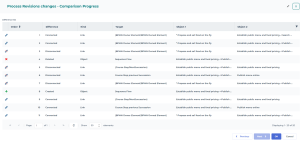
• The Links and attributes comparison, which offers a detailed view by examining the differences in links and attributes between two process revisions.
 See the Process Diagram comparison over time report to compare a process revision with a repository snapshot created before the HOPEX Aquila 6.1 version.
Comparing process revisions diagrams
To compare diagrams between two process revisions:
1. Open the Process Revisions property page of the process.
2. Click the Compare diagrams tab.
3. Select the Source Revision and the Target Revision.
4. In the Diagram field, select Process Diagram.
5. Click Refresh the report if needed.
By default the diagrams are overlaid.
6. To the right of the diagram, select the scrolling bar, hold your click down and drag the cursor to the left to display the target diagram (the more recent diagram) and see the differences:
• created objects and links are marked in green
• modified objects and links are marked in yellow
• deleted objects and links are marked in red

Comparing links and attributes
To compare links and attributes between two process revisions:
1. Open the Process Revisions property page of the process.
2. Click the Compare links and attributes tab.
3. Select a Source Revision.
A list appears showing the links and attributes comparison.
 You can filter the results using
  .
.