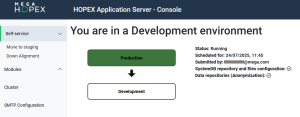
Move to Production & Down Alignment
Presentation
Purpose
Using a Move to Production approach ensures that the exact same module, already tested in Development and Staging environments, is deployed to Production. This guarantees consistency and reduces the risk of environment-specific bugs.
Using a Down Alignment approach ensures that lower environments reflect the state of Production.
• A manual Down Align (Production to Development) can be triggered on demand when developers need to mirror Production to debug, reproduce issues, or validate changes.
• An automatic Down Align (Production to Staging) is systematically performed before any Staging deployment. It ensures Staging is always a clean, up-to-date Production replica, enhancing confidence in pre-prod testing.
Prerequisites
These features are available only if all the following conditions are met:
• Self-Services are configured in the HOPEX Cloud Portal by Mega Cloud Services (MCS).
• Your organization uses the Enterprise SaaS offer (not available with the Essential offer).
• You are logged in as a Delegated Administrator.
Move to Production
Procedure Overview
|
Action
|
Environment
|
Remarks
|
|---|---|---|
|
Development
|
|
|
|
Staging
|
|
|
|
Move to Staging Process
|
(Automated)
|
May take several hours
Includes an automatic Down Align from Production to Staging
|
|
Test Staging
|
Staging
|
Recommended: Test your Staging environment before scheduling the Move to Production.
|
|
Staging
|
|
|
|
Production
|
|
|
|
Move to Production Process
|
(Automated)
|
May take several hours
|
Schedule a Move to Staging
From the Development environment, you can schedule a Move to Staging, which will be executed only after validation in the Staging environment.
To schedule a Move to Staging:
1. Access the HAS console of your Development environment.
2. In the navigation bar, select Self-service > Move to Staging.
3. Click Schedule Move to Staging.
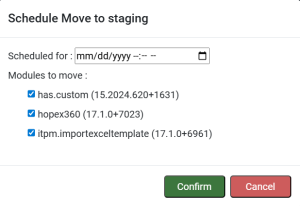
4. Select
• the adequate date and time
• the module(s) you want to deploy
5. Click Confirm.
The Move to Staging is scheduled and requires validation in the Staging environment.
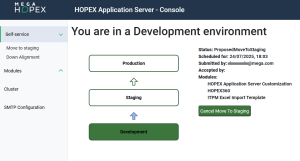
Validate a Move to Staging
From the Staging environment, you can validate the scheduled Move to Staging. If needed, you also have the option to modify or cancel the proposal.
To validate a Move to Staging:
1. Access the HAS console of your Staging environment.
2. In the navigation bar, select Self-service > Move to Production.
3. Click Validate Scheduled Proposal.
The Move to Staging process can take several hours to complete. As the first step, an automatic Down Align is performed to synchronize the Staging environment with the current state of Production.
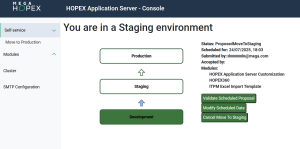
Schedule a Move to Production
From the Staging environment, you can schedule a Move to Production, which will be executed only after validation in the Production environment.
 After a Move to Staging, make sure to test the Staging environment before scheduling a Move to Production.
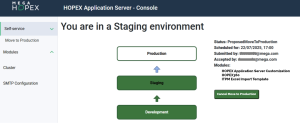
To schedule a Move to Production:
1. Access the HAS console of your Staging environment.
2. In the navigation bar, select Self-service > Move to Production.
3. Click Validate & Schedule Move to Production.
A Schedule Move to staging window appears.
4. Select the adequate date and time.
5. Click Validate & Schedule.
The Move to Production is scheduled and requires validation in the Production environment.
Validate a Move to Production
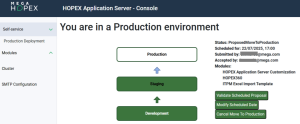
From the Production environment, you can validate the scheduled Move to Production. If needed, you also have the option to modify or cancel the proposal.
To validate a Move to Production:
1. Access the HAS console of your Production environment.
2. In the navigation bar, select Self-service > Production Deployment.
3. Click Validate Scheduled Proposal.
The Move to Production process can take several hours to complete.
Down Alignment
Schedule a Down Alignment
You can schedule a Down Alignment in order to synchronize the Development environment with the current state of Production.
To schedule a Down Alignment:
1. Access the HAS console of your Development environment.
2. In the navigation bar, select Self-service > Down Alignment.
3. Click Schedule Down Align.
A Down Align window appears.
4. Select the adequate date and time
5. Select what to synchronize from Production to Development:
• SystemDB repository and files configuration: this refers to the configurations of the modules.
• Data repositories (data from your repositories is anonymized)
6. Click Confirm.